Best Canva Templates for Bloggers: 7 Types to Use in 2026
The best Canva templates for bloggers aren’t necessarily the most elaborate ones. They’re the templates that help you create useful, good-looking graphics without spending an hour moving text boxes around.
If you run a blog on your own, you probably have more to do than design images. You need to research topics, write articles, check SEO, add internal links, and find ways to promote your content. A reusable Canva template can take some of the design work off your plate.
The trick is choosing templates that fit the job. A featured image for a WordPress article has different needs from a vertical Pinterest Pin or a checklist graphic. One template won’t work equally well for everything.
In this guide, we’ll look at seven types of Canva templates worth considering for a blog, what each one is useful for, what to search for in Canva, and how to customize templates so your website looks consistent without making graphic design your new full-time job.
Affiliate Disclosure: This article may contain affiliate links. If you purchase through these links, SoloBizStack may earn a commission at no extra cost to you. We aim to provide useful, honest information to help you make an informed decision.
Quick Guide: Which Canva Templates Do Bloggers Need?
| Template Type | Best Use | What to Search for in Canva |
|---|---|---|
| Blog graphics | Featured images and article visuals | Blog graphic, blog post graphic |
| Pinterest Pins | Promoting articles on Pinterest | Pinterest Pin, blog Pinterest Pin |
| Blog banners | Wide header images and announcements | Blog banner, website banner |
| Checklists and infographics | Explaining steps and summarizing information | Checklist infographic, process infographic |
| Lead magnets and workbooks | PDFs, downloadable guides, and worksheets | Ebook, workbook, lead magnet |
| Editorial calendars | Planning topics and publishing dates | Content calendar, editorial planner |
| Social media graphics | Sharing new articles and key tips | Blog announcement, social media post |
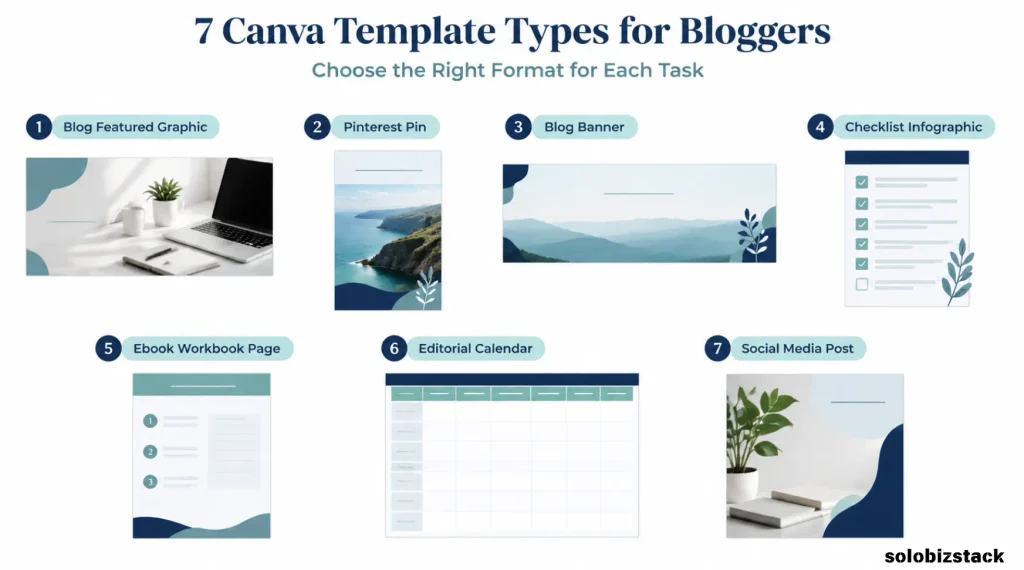
You don’t need all seven types on your first day. Start with the formats you use most often, then add others when they solve a real problem in your workflow.
1. Blog Graphic Templates — Best for Featured Images
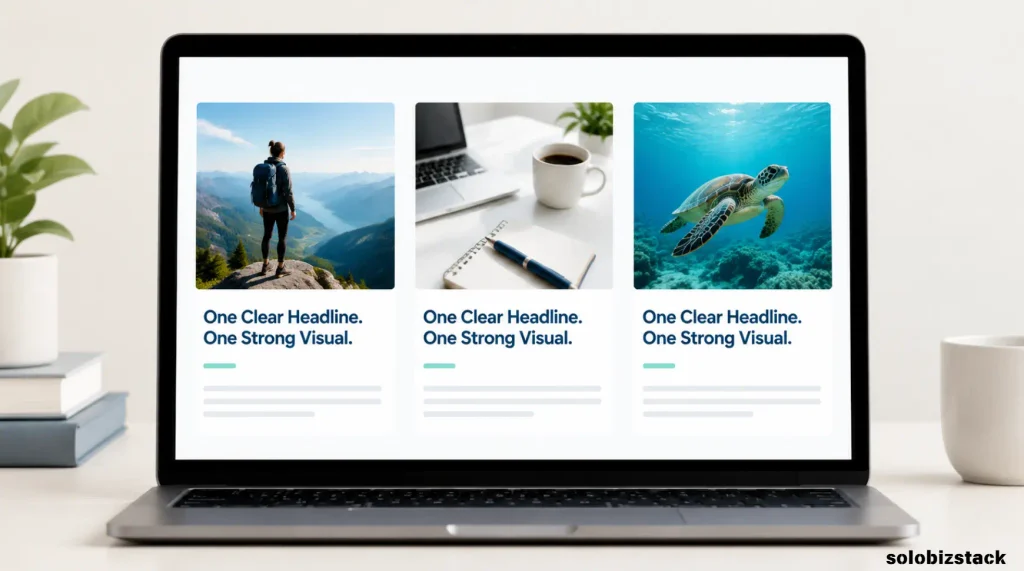
Every article needs a clear visual identity, but a featured image doesn’t need to be complicated. A simple headline paired with a relevant photograph, illustration, or clean graphic can be enough.
Canva’s blog graphic templates are a useful starting point. They include different styles and subjects, so you can browse for a layout that fits your article instead of building the entire design from scratch.
For example, if you’re writing about WordPress security, you might choose a clean layout with a laptop or website-related visual and a short headline. For a content planning article, a calendar or organized workspace might communicate the subject more clearly.
What makes a good blog graphic template?
Look for three things.
Room for a clear headline. Your headline should be readable without covering every part of the image. If a template leaves very little space for text, choose a simpler one.
A relevant visual. The image should help readers understand the subject. A generic stock photo may be attractive, but it won’t always explain what the article is about.
A layout that fits your website. The graphic should work with your WordPress theme and the way featured images appear in your blog archive and individual posts.
Before committing to a template, check whether it uses premium elements. You may be able to replace those elements with free images or assets that better suit your article.
Best for: Bloggers who publish regularly and want a repeatable style for their featured images.
2. Pinterest Pin Templates — Best for Promoting Blog Posts
Pinterest graphics have a different purpose from ordinary featured images. They’re designed to introduce your content in a visual feed, so the topic needs to be clear at a glance.
Canva’s Pinterest Pin templates include many styles, from minimalist text-led designs to photo-focused layouts and illustrated graphics.
For standard Pinterest image creative, a vertical 2:3 layout is a useful starting point. A common working canvas is 1000 × 1500 pixels, although you should check Pinterest’s current specifications before creating a batch of designs.
Which Pinterest templates should you look for?
For a blog, these three styles are a sensible place to start.
Text-led templates: These work well when the article answers a clear question, such as “How to Find Blog Topics People Are Searching For.”
Photo-led templates: These pair a relevant photo with a short headline. They can be suitable for tutorials, beginner guides, and business content.
Checklist or list templates: These are useful when the article contains steps or tips that can be summarized visually.
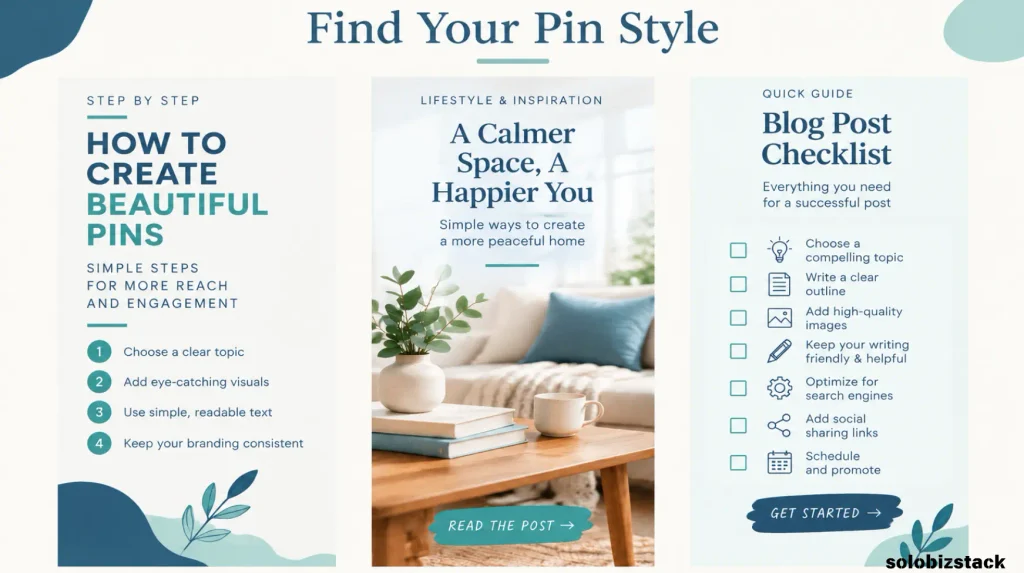
Don’t choose a template simply because it looks impressive. Check that the headline remains readable on a phone and that the visual matches the destination article.
You can also adapt one design into different creative variations. For example, a tutorial could have one Pin with a direct guide headline and another that presents a short checklist. Make the designs genuinely different rather than repeatedly publishing near-identical graphics.
For a complete walkthrough, read our guide to How to Create Pinterest Pins for Your Blog.
Best for: Bloggers who want to promote evergreen articles and create a consistent Pinterest workflow.
3. Blog Banner Templates — Best for Wide Headers and Announcements
Sometimes you need a wide graphic rather than a vertical Pin. You might want an image for a blog header, a newsletter announcement, or a featured section on a landing page.
Canva provides a dedicated collection of blog banner templates, including photographic and more text-focused designs.
A banner usually needs a slightly different approach from a social graphic. It may be displayed inside a website layout where the available width and height are fixed by your WordPress theme.
Before choosing a template, check the dimensions of the area where the image will appear. If the layout is wide and shallow, a square or vertical design may crop badly.
How to choose a useful banner template
Choose a design that leaves the important subject away from the edges. Website layouts can crop images differently on desktop and mobile, depending on the theme and image settings.
Keep the headline short, and avoid putting important words near corners where they might be clipped. If the banner is mostly decorative, it may not need text at all.
Also consider whether you need a separate graphic for every article. For many blogs, a standard featured image is enough; a special banner is more useful when it serves a clear design or promotional purpose.
Best for: Bloggers who need wide article headers, website graphics, or announcements for important content.
4. Checklist and Infographic Templates — Best for Explaining Information
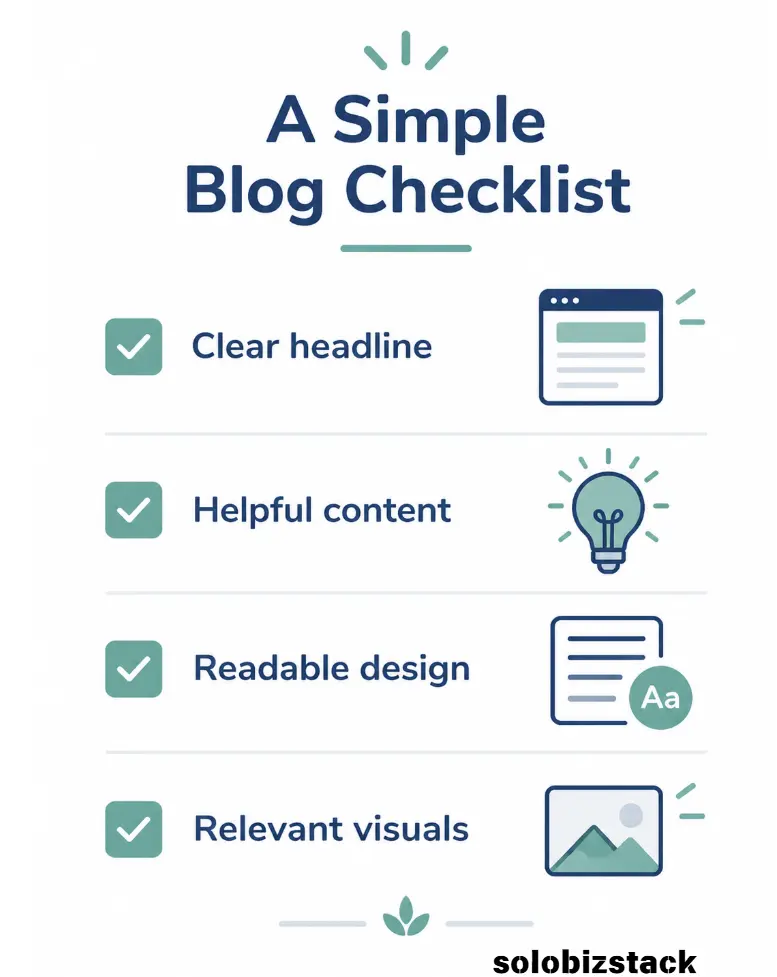
A checklist or infographic can make a long article easier to understand. It can also give readers a simple reference they can save or return to later.
For example, a blog post about website security might become a checklist with a few key steps. A tutorial about content planning could become a diagram that shows the process from topic research to publication.
Canva’s template library includes infographic, checklist, and related layouts. Browse the Canva template library and search for a format that fits the information you want to explain.
What to look for
A good checklist template should have enough space for short, readable points. An infographic should make the relationship between ideas clear instead of simply arranging icons in a decorative pattern.
Don’t try to squeeze an entire article into one graphic. Choose the most useful steps or ideas, then link readers to the full article for the detail.
For example, a security checklist might include:
- Keep WordPress and plugins updated.
- Use strong passwords and two-factor authentication.
- Maintain and test website backups.
- Review users and permissions.
The graphic gives readers a quick overview, while the article explains how to complete each step.
Best for: Tutorials, beginner guides, step-by-step articles, and content that readers may want to save.
5. Ebook, Workbook, and Lead Magnet Templates — Best for Downloadable Resources
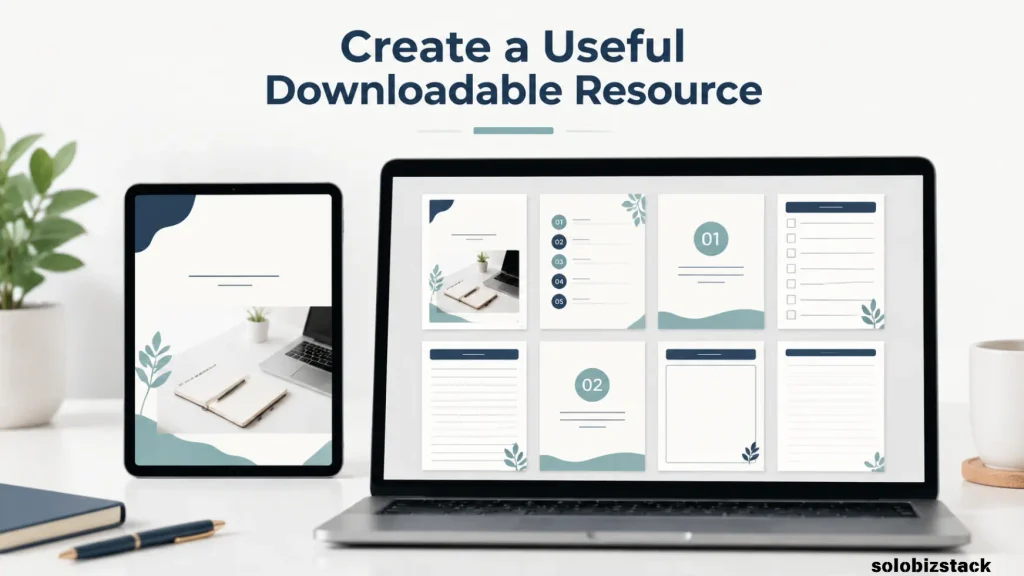
If your blog offers downloadable resources, Canva’s ebook and workbook templates can help you present the information in a more organized format.
A lead magnet might be a checklist, a short PDF guide, a worksheet, or a practical template related to one of your articles. It doesn’t need to be a 50-page ebook. A focused resource that helps readers complete one task can be easier to create and maintain.
For example, a content planning article could lead to a downloadable editorial calendar. A WordPress tutorial could include a website launch checklist. A guide about blog images could offer a short image preparation worksheet.
How to choose a template for a PDF
Look for layouts that are easy to read on a screen. Use clear headings, comfortable spacing, and a consistent style from page to page.
If the resource includes instructions, leave enough room for the explanation rather than filling every page with decorative elements. If readers need to write answers or complete tasks, choose a workbook layout with enough space for them to do so.
Before publishing, export the PDF and review it from beginning to end. Check page breaks, links, text size, and whether the file opens correctly.
Best for: Bloggers building an email list, offering downloadable resources, or turning a detailed guide into a practical worksheet.
6. Content Calendar Templates — Best for Planning Your Blog
Design isn’t limited to images for readers. You can also use Canva templates to make your content planning process more visual.
A content calendar template can help you map out article topics, publication dates, and promotion tasks. It’s particularly useful if you like seeing your plan laid out on one page rather than working inside a large spreadsheet.
For example, a monthly calendar might show the article title, its content pillar, the planned publishing date, and whether a Pinterest graphic has been prepared.
Keep in mind that a Canva calendar is primarily a visual planning document. If you need sortable records, automated reminders, status tracking, or a searchable content database, Google Sheets or a dedicated planning tool may be more practical.
Canva’s content calendar templates can provide a starting point for a printable or shareable overview. Search for “content calendar” or “editorial calendar.”
Best for: Bloggers who want a visual monthly planning sheet, a printable editorial calendar, or a simple way to map out content ideas.
7. Social Media Graphic Templates — Best for Sharing New Articles
After publishing a blog post, you may want to share it through additional channels. A social graphic can introduce the article, highlight one useful point, or announce a new resource.
Canva offers a broad range of social media and blog-related templates. You can browse its blog templates to find layouts for different content formats.
The important thing is to adapt the design to the platform. A square social post, a vertical Pinterest Pin, and a wide blog banner have different proportions and different viewing contexts.
You can reuse the same color palette and source image, but don’t assume one design will work everywhere without adjustment.
For a blog announcement, a simple headline and relevant image may be enough. For a tips post, a short list might make more sense. For a Pinterest graphic, use a vertical format and a headline that fits the content discovery experience.
Best for: Bloggers who promote new posts through several channels and want a consistent visual style.
How to Choose the Best Canva Templates for Your Blog
With so many options available, it’s easy to spend more time browsing templates than actually creating graphics. Use a few practical checks to narrow your choices.
Match the template to the job
Start by deciding what you need to produce: a featured image, Pinterest Pin, checklist, banner, or downloadable PDF.
Then search for that format specifically. A template that works well for a Pinterest Pin may be a poor fit for a featured image or a printable worksheet.
Choose readability over decoration
A template should make your content easier to understand. Look at the headline, contrast, spacing, and size of the main visual.
If the design looks crowded, choose a simpler layout rather than trying to keep every decorative element.
Check the free and premium elements
Canva has a free plan and paid plans, and access to templates, images, and other design features varies by plan. Some templates may include premium elements even when the basic design is visible in the template library.
Before spending time customizing a design, check whether the elements you want to use are available on your account. You can also replace premium images or graphics with free assets or your own images.
See Canva’s official plans and pricing for current details. Features and prices can change, so check the live page rather than relying on old pricing screenshots.
Make sure the template fits your brand
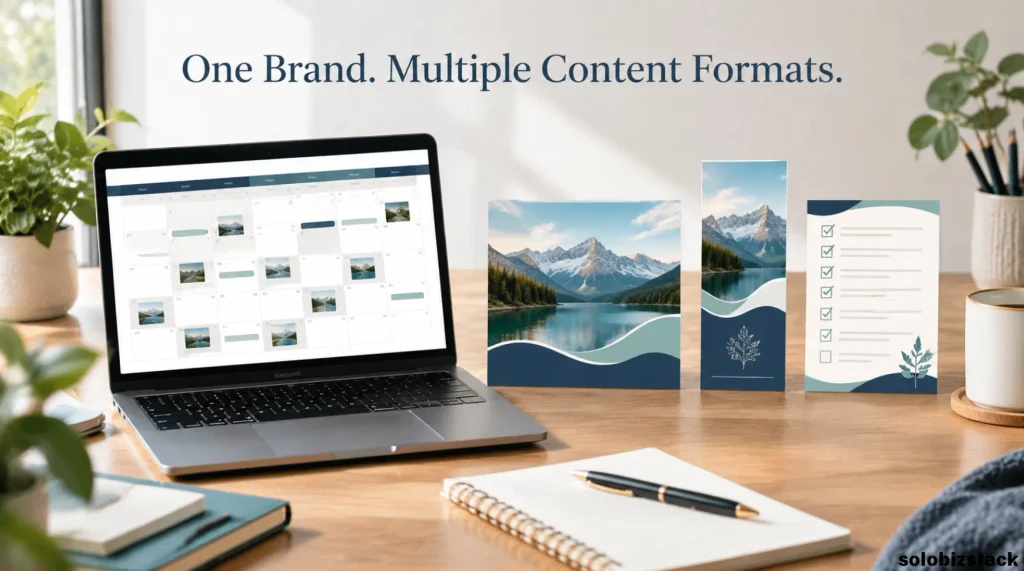
For SoloBizStack, a consistent visual style matters more than using a different template for every article.
Choose a small palette of colors, one or two readable fonts, and a general layout style. Save templates that fit those choices so you can use them again without redesigning everything.
Consistency doesn’t mean every image must look identical. You can vary the layout while keeping enough visual details the same that the graphics feel like they belong to the same website.
Choose a template you can actually reuse
A highly detailed design may look good, but it can be frustrating to update for every new article.
Look for templates where you can easily replace the headline, image, and small supporting details. The easier the design is to adapt, the more likely you’ll use it consistently.
Free Canva Templates vs. Paid Templates: Which Should Bloggers Choose?
For a new blog, free templates are often enough to get started. You can create featured images, simple Pinterest Pins, and basic promotional graphics without buying a large template bundle.
Paid options may be useful if you need particular premium assets, additional design features, or a more extensive collection of templates that fits your workflow.
Before upgrading, ask yourself three questions:
- Is a specific free template or feature preventing me from completing the design?
- Will the paid option save enough time to justify its cost?
- Am I buying something I’ll use regularly, or just collecting more templates?
Don’t assume that a premium design automatically performs better. A clear free template that matches the article can be more effective than an elaborate premium layout that is difficult to read.
You can begin with Canva’s free template library, learn which visual styles suit your audience, and revisit paid options when you have a specific need.
How to Customize a Canva Template Without Design Experience
You don’t need to change every element in a template. In fact, too many edits can make a simple design harder to manage.
Use this basic process for each new graphic.
1. Choose the right format. Select a blog graphic, Pinterest Pin, banner, checklist, or other layout that matches the purpose of the image.
2. Replace the sample text. Write a short headline that accurately represents the article. Remove any text that doesn’t add value.
3. Replace the image. Use a relevant photo, illustration, or screenshot that supports the topic.
4. Apply your colors and fonts. Keep the look consistent with your website. If the template already fits your style, you may only need a few adjustments.
5. Remove unnecessary elements. Delete decorative shapes, icons, and text boxes that make the design feel crowded.
6. Preview the image at a small size. Check that the headline remains readable and the main idea is clear.
7. Export and review. Download the final image and check it before uploading it to WordPress or using it on Pinterest.
Once you have a design you like, save a reusable copy. For the next article, duplicate that design and change only what needs to change.
A Simple Canva Template System for Bloggers
You don’t need dozens of templates. Start with three reliable designs.
Template A: Featured image. Use a clear headline and one main visual. Keep the design simple enough to fit a blog archive and individual article page.
Template B: Pinterest Pin. Use a vertical layout with a headline that makes sense in a discovery feed. Adapt the source image and wording to the topic.
Template C: Checklist or infographic. Use a structured layout for tutorials, practical steps, and summaries that readers may want to save.
Save each design with a descriptive name, such as “SoloBizStack Featured Image” or “SoloBizStack Pinterest Pin.” Keep a clean master copy and duplicate it whenever you need a new design.
This small system is easier to maintain than a large folder of unrelated templates.
For more practical steps, read our guide to creating blog graphics without Canva skills. If you need a wider workflow for choosing images, preparing files, and adding them to your site, see How to Create Blog Images Without a Designer.
Common Canva Template Mistakes to Avoid
Choosing a Template Just Because It Looks Attractive
A design can be beautiful but unsuitable for your content. Check the layout, readability, and image proportions before customizing it.
Using Too Many Fonts and Colors
A large mix of fonts, colors, and decorative elements can make a graphic look inconsistent. Start with a simple visual system and add variety only when it helps the message.
Using the Same Layout for Every Platform
A featured image, Pinterest Pin, banner, and social post have different dimensions and purposes. Adapt the layout rather than stretching one graphic everywhere.
Leaving Template Placeholder Text in the Design
Before exporting, check every text box. Remove sample website names, generic calls to action, placeholder dates, or irrelevant labels.
Forgetting Image Optimization
Large graphics can add unnecessary weight to a page. Use suitable dimensions, compress images where appropriate, and preview the page after uploading.
Buying Templates Before You Know What You Need
It’s easy to collect template bundles because they look useful. Start with a free design, learn what your workflow requires, and purchase additional assets only when they solve a real problem.
Frequently Asked Questions
What are the best Canva templates for bloggers?
Start with blog graphic templates, Pinterest Pin templates, checklists and infographics, and simple social media graphics. If you create downloadable resources, ebook and workbook templates can also be useful. Choose the formats that match your publishing workflow rather than collecting every template type.
Are Canva templates free for bloggers?
Canva offers a free plan and a free template library, but not every template or design element is necessarily free. Some assets and features require a paid plan. Check the labels and current plan details before building your design around a particular element.
Do bloggers need Canva Pro?
Not necessarily. A free plan may be enough for featured images, simple Pins, and basic promotional graphics. A paid plan can be worth considering if you regularly need premium assets or features that save you meaningful time. Decide based on your workflow rather than the number of features available.
Which Canva templates are best for Pinterest?
Vertical Pinterest Pin templates are the most direct starting point. Look for a layout with a clear headline, a relevant visual, and enough space to read the design on a phone. Make sure the Pin accurately represents the article it links to.
Can I use the same Canva template for every blog post?
Yes, and reusing a consistent template can save time. You should still adapt the headline, visual, and layout to the article. For Pinterest, create genuinely useful variations rather than posting many nearly identical designs.
Can Canva templates help with SEO?
Templates don’t directly guarantee higher search rankings. They can help you create useful featured images, checklists, and Pinterest graphics that support your content. For on-page SEO, also use descriptive image filenames, appropriate alt text, relevant internal links, and a clear article structure.Read Google’s Image SEO Guide
Final Thoughts
The best Canva templates for bloggers are the ones that help you publish useful content with less friction.
Start with a featured image template, a Pinterest Pin template, and a checklist or infographic layout. Keep your fonts and colors consistent, replace placeholder content carefully, and choose images that actually support the article.
You don’t need an impressive collection of templates before you begin. A small set of reusable designs can cover much of the visual work a new blog needs.
Build a simple system first. As your content library grows, you can add new formats when they serve a clear purpose.