
Best Tools for Creating Pinterest Pins (2026): 8 Tools for Bloggers and Creators
Creating Pinterest Pins sounds easy until you actually start doing it.
You need the right image size, a headline that makes sense, readable text, a consistent brand style, a link to the right article, and enough fresh designs to keep your content library moving.
Then there is the part nobody talks about: doing it again for the next blog post.
That is why the right Pinterest design tool can make a big difference.
For bloggers and solo creators, the best tool isn’t necessarily the one with the most templates. You might need a simple design editor. You might need AI image generation. Or you might need a scheduler that lets you create and publish Pins without manually uploading everything one by one.The best tools for creating Pinterest Pins can save bloggers hours of repetitive design work.
In this guide, we’ll look at the best tools for creating Pinterest Pins in 2026, including Canva, Adobe Express, Tailwind, VistaCreate, Kittl, PicMonkey, Pallyy, and Simplified.
The goal is not to tell you to subscribe to eight different tools.
It is to help you find the one that fits the way you actually create content.
Quick answer: Canva is a strong all-around choice for bloggers who want templates and easy design. Adobe Express is useful when you want design, AI, stock assets, and scheduling in one ecosystem. Tailwind is more useful when Pinterest creation and scheduling are both important. VistaCreate and Kittl are worth considering for alternative design workflows, while Pallyy and Simplified are more useful when publishing and scheduling become part of the problem.
Affiliate disclosure: Some links in this article may be affiliate links. If you purchase through one of these links, SoloBizStack may earn a commission at no extra cost to you.
The Best Pinterest Pin Creation Tools at a Glance
| Tool | Best For | Design | AI | Pinterest Scheduling | Affiliate Opportunity |
|---|---|---|---|---|---|
| Canva | Most bloggers and creators | Excellent | Yes | Available through content workflows | Yes, subject to approval |
| Adobe Express | Design + Adobe ecosystem | Excellent | Yes | Yes | Yes |
| Tailwind | Pinterest-focused creation + scheduling | Yes | Yes | Excellent | Yes |
| VistaCreate | Canva alternative | Excellent | Yes | Yes | Yes |
| Kittl | Advanced graphic design | Excellent | Yes | Not its main focus | Yes |
| PicMonkey | Photo editing + branded graphics | Excellent | Some | Not its main focus | Partner program |
| Pallyy | Scheduling and publishing | Basic | AI captions | Excellent | Check current partner options |
| Simplified | All-in-one creation + scheduling | Excellent | Yes | Excellent | Check current program |
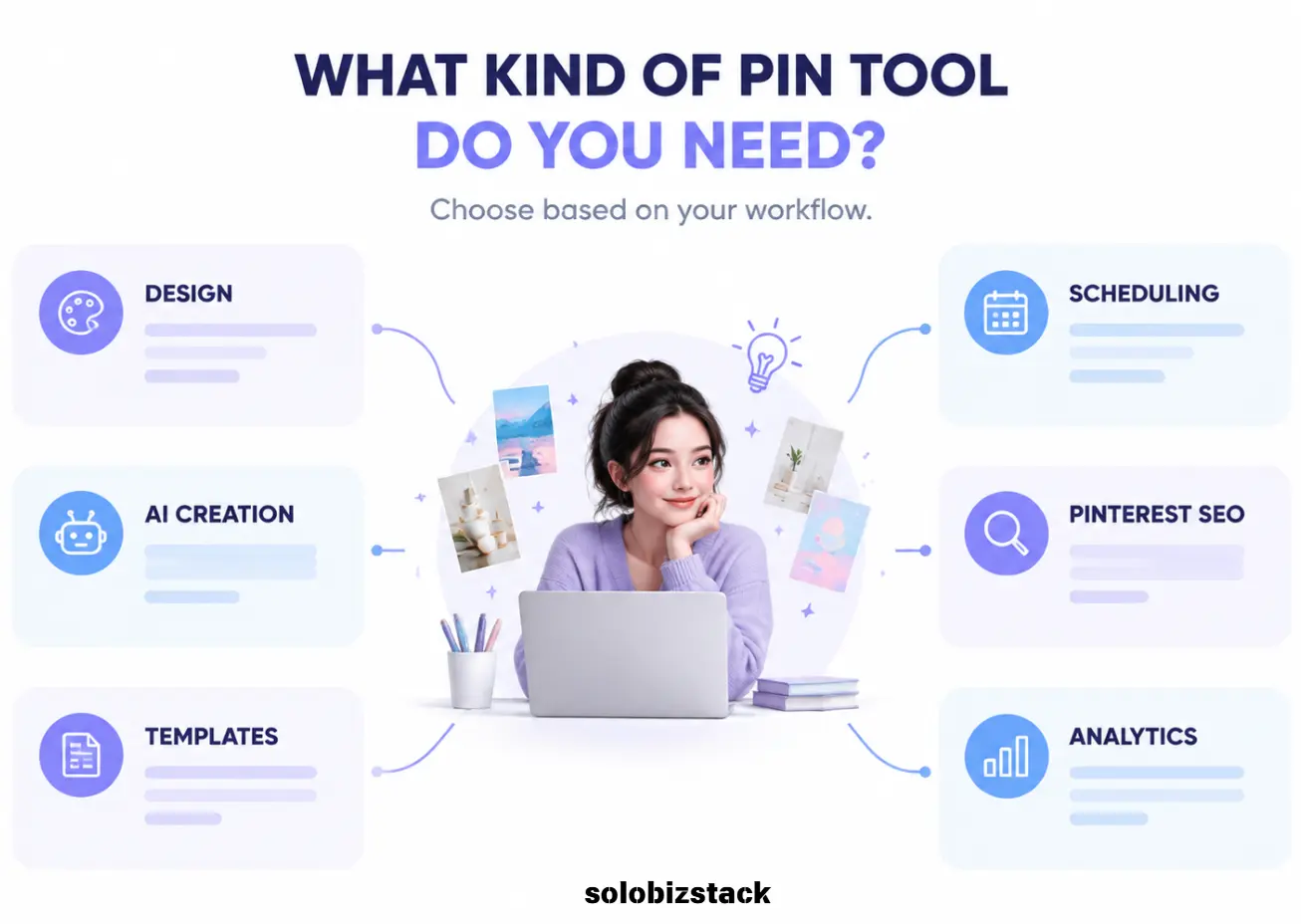
The big takeaway is that these tools solve slightly different problems.
If you only need to design three Pins for a blog post, paying for a full social media management platform may be unnecessary.
If you’re publishing Pins every day, however, spending all your time manually uploading them can become the bigger problem.
So before choosing a tool, decide whether your bottleneck is design, content creation, or publishing.
1. Canva — Best All-Around Tool for Creating Pinterest Pins
For most bloggers, Canva is probably the easiest place to start.
It gives you a visual editor, ready-made templates, stock assets, brand tools, and AI-powered design features in one place. Canva’s AI tools can also generate and edit images, while its template-based workflow makes it easy to create multiple versions of the same design.
That matters for Pinterest because you rarely want to create just one image.
Suppose you publish an article called:
How to Build a WordPress Website for Beginners
You could create:
- A basic tutorial Pin
- A checklist Pin
- A “7 steps” Pin
- A common mistakes Pin
All of them can point to the same article.
Canva makes it easy to duplicate a design, swap the image, change the headline, and keep the same brand style.
For SoloBizStack, that kind of repeatable workflow is more useful than endlessly searching for new templates.
Canva is especially good for:
- Blog promotion
- Pinterest Pins
- Infographics
- Checklists
- Branded templates
- AI-generated visuals
- Social media graphics
- Simple comparison graphics
Canva also offers Pinterest-specific size guidance and templates.
The downside
Canva can become a little overwhelming because there are so many templates, assets, and features.
The solution is simple:
Create your own three or four master templates and reuse them.
Best for: Bloggers who want an easy design tool that can handle almost every part of the Pinterest graphic workflow.
2. Adobe Express — Best for Design + AI + Scheduling
Adobe Express is a strong option if you want more than a design editor.
Adobe currently offers Pinterest Pin creation with templates, stock content, AI image generation, image editing, and custom sizing. Its free plan includes access to more than 100,000 templates, more than 1 million royalty-free assets, and content scheduling for one account per social network. Premium adds additional generative AI credits and other features.
Adobe Express also has a Content Scheduler that can plan, preview, schedule, and publish content to Pinterest and other social platforms. Adobe’s current documentation says its scheduler can publish to Pinterest, Instagram, Facebook, X, LinkedIn, YouTube, and TikTok.
That makes Adobe Express interesting for someone who doesn’t want separate tools for:
Design → Resize → Schedule
You can do much of the workflow in one ecosystem.
Adobe Express is especially good for:
- Pinterest graphics
- AI-generated visuals
- Stock photography
- Branded social graphics
- Simple animation
- Cross-platform publishing
- Creators already familiar with Adobe
The downside
If you’re only creating a handful of Pins each month, Adobe’s larger ecosystem may be more than you need.
But for someone who already uses Adobe products, the integration can make a lot of sense.
Best for: Creators who want design, AI, stock content, and publishing tools in one ecosystem.
3. Tailwind — Best for Pinterest Creation and Scheduling
Tailwind is different from Canva and Adobe Express.
It is much more focused on the Pinterest workflow itself.
Tailwind Create can generate multiple Pin designs using your images, text, brand colors, fonts, and logo. You can then download them or schedule them directly to your social accounts.
Tailwind also provides Pinterest scheduling, SmartSchedule, Pin spacing, Pinterest keyword research, and other Pinterest-specific tools.
Its current pricing page lists a free plan, with paid products for Pin scheduling and creation, Pinterest SEO, and engagement. The current Pin Scheduling & Creation product starts at $17.99/month on annual billing, while a Pinterest SEO product is listed separately at $11.99/month.
This can be useful if your problem isn’t:
“How do I design one Pin?”
but:
“How do I keep my blog’s Pinterest account active without spending every day inside Pinterest?”
Tailwind currently supports Pinterest scheduling through the official Pinterest API and offers tools for scheduling Pins across boards.
Tailwind is especially good for:
- Pinterest-first bloggers
- Scheduling
- Multiple Pin variations
- Pinterest keyword research
- Content planning
- Batch publishing
The downside
If your only goal is designing an attractive Pinterest graphic, Canva may be simpler.
Tailwind becomes more interesting when creation + scheduling + Pinterest workflow are all important.
[Try Tailwind for Pinterest →]
Best for: Bloggers who want Pinterest creation and scheduling in the same workflow.
4. VistaCreate — Best Canva Alternative
VistaCreate is worth considering if you like the template-based approach but want an alternative to Canva.
Its current free Starter plan includes more than 100,000 templates, more than 1 million royalty-free photos, videos, and vectors, basic editing tools, brand tools, and direct publishing to Pinterest.
The Pro plan adds features such as AI image generation, AI writing, background removal, object removal, one-click resizing, unlimited storage, and additional brand tools. The current Pro price listed by VistaCreate is $10/month.
You can also connect VistaCreate directly to Pinterest and publish or schedule designs to your boards.
For someone who wants a straightforward visual content platform, that’s a useful feature.
VistaCreate is especially good for:
- Pinterest Pins
- Social graphics
- Templates
- Brand kits
- Simple AI image creation
- One-click resizing
- Direct publishing
VistaCreate also has an affiliate program. Its current program advertises a 40% reward on a referred user’s first Pro subscription and 15% on subsequent plans.
The downside
If you’re already comfortable with Canva, there’s not necessarily a reason to switch just because another tool has similar features.
Try it because you prefer the workflow—not because you need another subscription.
Best for: Bloggers looking for a Canva alternative with templates, AI tools, and direct Pinterest publishing.
5. Kittl — Best for More Advanced Pin Design
Kittl is a particularly interesting option when your Pins need to look more like designed graphics than ordinary social posts.
Its Pinterest template library includes vertical Pinterest layouts designed for blog promotions, product campaigns, and seasonal content. Kittl also combines templates with image generation, font tools, and other design features.
That can be useful if your Pinterest strategy depends heavily on:
- Typography
- Bold graphic design
- Posters
- Product promotions
- Branded visual campaigns
- Illustrated Pins
One advantage of Kittl is that the same design system can be used beyond Pinterest. You can create social graphics, posters, merchandise designs, and other branded visuals from the same ecosystem.
The downside
Kittl can be more design-oriented than a beginner actually needs.
For a simple blog Pin, Canva is likely easier.
For a distinctive branded Pinterest account, Kittl becomes more interesting.
[Explore Kittl for Pinterest Design →]
Best for: Creators who want stronger typography, illustration, and graphic-design control.
6. PicMonkey — Best for Photo Editing and Branded Graphics
PicMonkey is another option for creators who want both photo editing and graphic design tools.
Its current plans include templates, photo editing, fonts, effects, touch-up tools, and—in higher plans—Smart Resize, Brand Kit, background removal, premium stock assets, and other features.
Smart Resize can be useful if you’re taking one design and adapting it for several platforms.
For example:
Pinterest Pin
↓
Instagram graphic
↓
Facebook graphic
↓
Blog image
That is particularly useful for bloggers who want to reuse visual content instead of creating everything from scratch.
PicMonkey is especially good for:
- Photo-heavy Pins
- Branded social graphics
- Image editing
- Templates
- Resizing
- Small business marketing assets
The downside
It is not as Pinterest-specific as Tailwind.
Think of it more as a flexible design and photo-editing tool.
Best for: Creators who care about photo editing, branded visuals, and cross-platform design.
7. Pallyy — Best for Pinterest Scheduling
Pallyy isn’t primarily a Pinterest design tool.
And that’s exactly why it deserves a place on this list.
Sometimes you already have the Pins.
Your actual problem is publishing them.
Pallyy’s current Pinterest integration can schedule Pins through Pinterest’s official API, including the destination board, title, description, and ALT text.
Its current Free plan includes one social set and 15 scheduled posts per month. The Pro plan is currently listed at $25/month and adds unlimited scheduled posts along with other social management features.
This makes Pallyy more useful for:
- Scheduling
- Content calendars
- Managing several social networks
- Analytics
- Batch publishing
rather than designing the Pin itself.
For example, you could create your Pins in Canva, then move the finished files into Pallyy for scheduling.
That’s a completely reasonable workflow.
You don’t need one platform to do everything.
Pallyy is especially good for:
- Publishing
- Scheduling
- Content calendars
- Multiple social networks
- Pinterest metadata
The downside
You’ll still need a separate design tool.
Best for: Bloggers who already have their Pin designs and mainly need a simple scheduling workflow.
8. Simplified — Best All-in-One Option for Content and Scheduling
Simplified tries to combine design, AI content creation, and social media scheduling in one platform.
Its current Pinterest scheduler supports image and video Pins, bulk queues, multiple accounts, approvals, AI descriptions, and centralized calendars. It also supports Pinterest publishing through the official API.
Simplified also provides Pinterest-specific templates. Its current Pinterest template library includes customizable designs and formats around 735 × 1102 px.
The appeal is obvious if you’re trying to keep your workflow in one place:
Design
→
Write description
→
Schedule
→
Publish
You don’t have to move files between several tools.
Simplified is especially good for:
- All-in-one content workflows
- Pinterest scheduling
- AI-assisted captions
- Templates
- Multiple social networks
- Batch publishing
The downside
All-in-one platforms can feel more complicated than a dedicated design tool.
If you only need Canva-style design, you may not need everything Simplified offers.
Best for: Creators who want design, AI content, and scheduling in one platform.
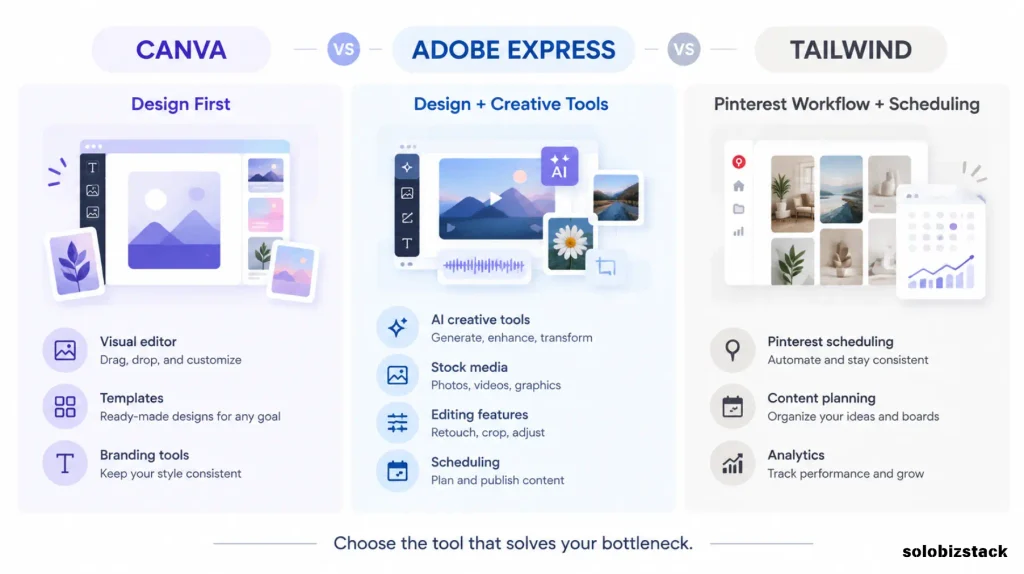
Canva vs Adobe Express vs Tailwind: What’s the Difference?
These three are likely to be the first tools you’ll compare.
The easiest way to think about them is:
Canva
Design first.
Great if your main problem is making attractive Pins quickly.
Adobe Express
Design + creative ecosystem.
Good if you want AI, stock assets, editing, and scheduling in one place.
Tailwind
Pinterest workflow first.
Better if you already know that scheduling, Pinterest SEO, and consistent publishing are becoming the bottleneck.
So instead of asking:
Which platform is best?
ask:
Where am I losing the most time?
If the answer is design, start with Canva or Adobe Express.
If the answer is Pinterest publishing and scheduling, look at Tailwind.
Which Pinterest Tool Is Best for Bloggers?
Again, it depends on how you work.
For a brand-new blogger
Start simple.
Canva + Pinterest
is enough.
You can create the Pin yourself and publish it directly.
You don’t need an automation platform before you know whether Pinterest is actually part of your traffic strategy.
For a growing content site
Consider:
Canva + Tailwind
Canva handles design.
Tailwind handles Pinterest-focused scheduling and workflow.
For a creator already using Adobe
Try:
Adobe Express
You may not need another design platform.
For branded visual content
Consider:
Kittl or VistaCreate
especially if typography, illustration, or brand consistency is important.
For scheduling
Consider:
Tailwind, Pallyy, or Simplified.
That’s where the distinction between a design tool and a publishing tool becomes important.
Do You Need a Pinterest Scheduler?
Not necessarily.
Pinterest already provides native publishing and scheduling features, so a new blogger can start without buying another scheduler.
A dedicated tool becomes more useful when:
- You publish lots of Pins
- You manage multiple boards
- You manage multiple brands
- You want a content calendar
- You want bulk scheduling
- You want Pinterest-focused analytics
- You don’t want to upload Pins manually
Tailwind currently supports SmartSchedule and Pinterest scheduling, while Pallyy and Simplified also provide dedicated Pinterest scheduling workflows.
Don’t pay for automation until manual publishing becomes an actual bottleneck.
What Size Should You Create Pinterest Pins?
For standard Pinterest image creative, Pinterest currently recommends a 2:3 aspect ratio, with 1000 × 1500 px as its example. Larger aspect ratios can be cropped in feeds. Pinterest also currently lists up to 100 characters for Pin titles, with the first 40 being the portion most likely to appear on the platform, and up to 500 characters for descriptions.
For your Canva workflow, use:
1000 × 1500 px
That gives you a simple standard template.
Don’t make the design too busy.
A good Pin should still be understandable when viewed on a relatively small screen.
What Should a Pinterest Pin Include?
A basic blog Pin can include:
Headline
What is the article about?
Visual
Why should someone stop scrolling?
Supporting text
What will they learn?
Brand
Who created the content?
Destination
Where will they go after clicking?
For example:
HOW TO BUILD A WORDPRESS WEBSITE
10 simple steps for beginners
✓ Domain
✓ Hosting
✓ WordPress
✓ Theme
✓ LaunchSoloBizStack
The article contains the full explanation.
The Pin just gives someone enough information to decide whether they want to discover it.
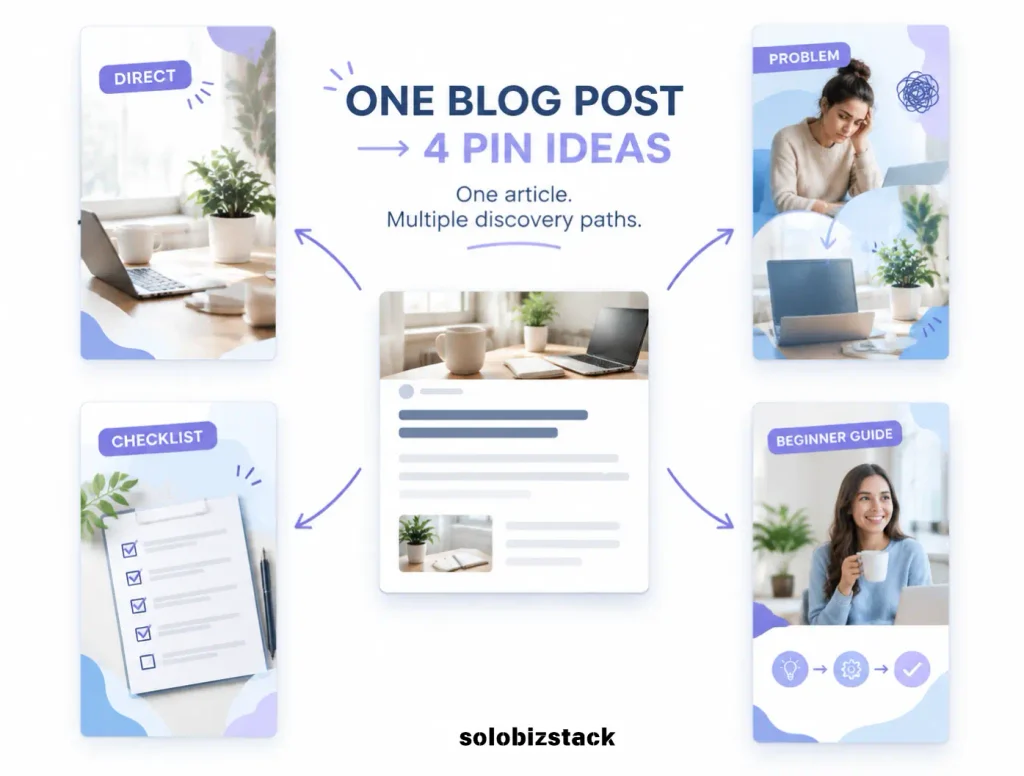
How to Turn One Blog Post Into Multiple Pins
This is probably the most useful workflow for a blogger.
Suppose your article is:
WordPress Website Checklist for Beginners
You could create:
Pin 1 — Direct
WordPress Website Checklist for Beginners
Pin 2 — Problem
Don’t Launch Your Website Until You Check These 15 Things
Pin 3 — Checklist
WordPress Launch Checklist
Pin 4 — Beginner
Your First WordPress Website: What to Check Before Launching
Same article.
Four different creative angles.
You don’t need four articles.
You need four reasons for someone to discover the same useful resource.
Tailwind itself currently recommends creating fresh Pin designs and varying images, layouts, titles, and descriptions rather than repeatedly posting identical creative.
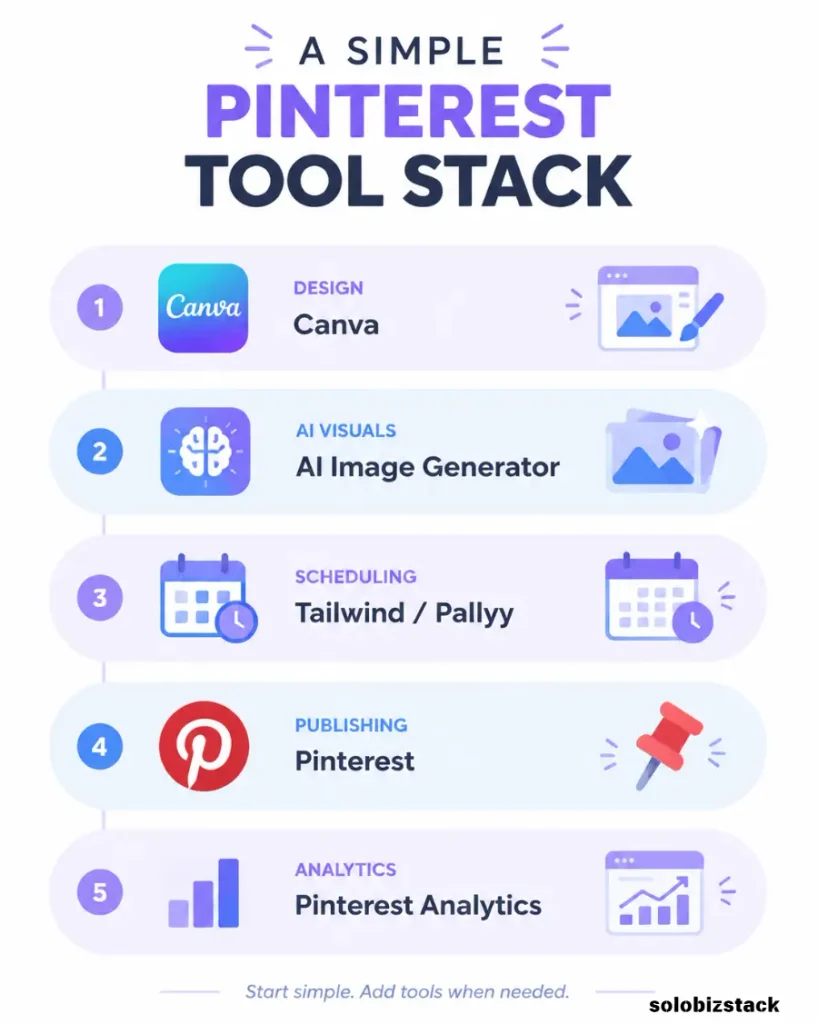
A Simple Pinterest Tool Stack for SoloBizStack
You don’t need eight subscriptions.
For SoloBizStack, I’d build the workflow like this:
Design
Canva
Create the master Pin templates.
AI Images
Use your existing AI image workflow when a Pin needs an original image.
[Best AI Image Generators for Content Creators →]
Content
Use your article itself as the source.
One article → several Pin angles
Scheduling
Start with Pinterest’s own tools.
When manual publishing becomes annoying, add:
Tailwind
or
Pallyy / Simplified
Analytics
Look at Pinterest analytics and your website traffic.
You don’t need to check the dashboard every hour.
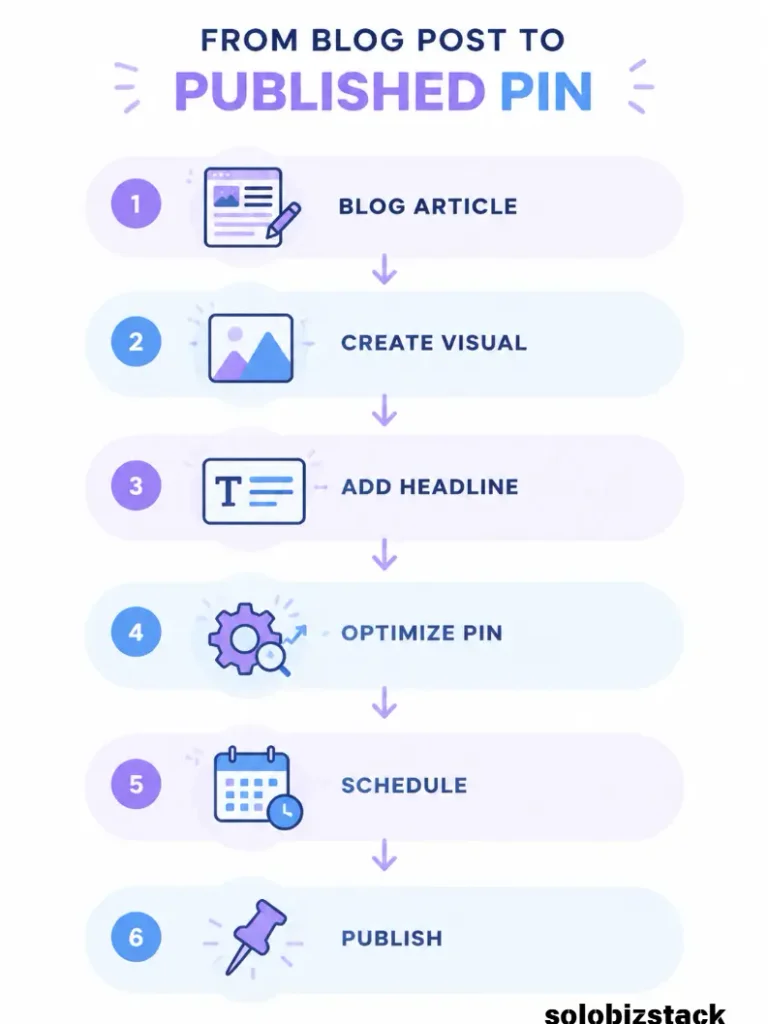
A 15-Minute Pinterest Creation Workflow
Once your template is ready, the process can be simple.
Minutes 1–2
Choose the article.
Minutes 3–4
Choose one keyword and one angle.
Minutes 5–8
Create or select the visual.
Minutes 9–11
Add headline, supporting text, and branding.
Minute 12
Check mobile readability.
Minute 13
Export the Pin.
Minutes 14–15
Add the title, description, URL, and board.
Then schedule it if you’re using a scheduler.
The goal isn’t to create the world’s most beautiful Pin.
The goal is to create a useful, recognizable Pin consistently.
Common Mistakes When Choosing Pinterest Tools
Paying for too many tools
Canva + Tailwind + Adobe Express + Kittl + five other subscriptions can easily become more expensive than the problem you’re trying to solve.
Choosing a scheduler before you have content
A scheduler can’t fix a lack of useful articles.
Build the content library first.
Choosing a tool because it has the most templates
More templates don’t automatically mean better Pins.
You need a workflow you can actually repeat.
Ignoring commercial-use terms
Some tools have different licensing rules for free and paid plans. VistaCreate, for example, documents specific licensing conditions around its designs, including business and commercial use.
Creating designs that only work on desktop
Pinterest is highly visual and heavily consumed on mobile devices.
Make the headline large enough to read.
Frequently Asked Questions
What is the best tool for creating Pinterest Pins?
For many bloggers, Canva is a practical starting point because it combines templates, design tools, brand controls, and AI features. Tailwind becomes more relevant when scheduling and Pinterest-specific workflows become important. Adobe Express is another strong all-in-one option.
Is Canva good for Pinterest Pins?
Yes. Canva provides Pinterest-specific templates and supports the common 2:3 vertical format. It is especially useful when you want to create a template once and reuse it for multiple blog posts.
Is Tailwind worth it for Pinterest?
It depends on your publishing volume. If you’re just starting with a few Pins a week, Pinterest’s native tools may be enough. Tailwind becomes more useful when you need scheduling, Pinterest SEO tools, multiple variations, and a more organized publishing workflow.
Can I create and schedule Pinterest Pins in Adobe Express?
Yes. Adobe Express provides Pinterest Pin creation tools and a Content Scheduler that can schedule and publish to Pinterest.
Is VistaCreate a good Canva alternative for Pinterest?
It can be. VistaCreate’s current free plan includes templates, creative assets, editing tools, social scheduling, and direct Pinterest publishing. Its Pro plan adds AI tools, one-click resizing, and other advanced features.
Can I schedule Pinterest Pins without Tailwind?
Yes. Pinterest has its own scheduling options for business accounts, and other tools such as Adobe Express, Pallyy, and Simplified also provide Pinterest scheduling.
What size should Pinterest Pins be?
A 2:3 vertical design is the standard starting point. Pinterest currently recommends 1000 × 1500 px for standard image creative.
Do I need a separate AI image generator for Pinterest?
No. Canva, Adobe Express, Tailwind, and other design platforms now include AI-assisted creative features. A separate image generator only becomes useful when you need more specialized image generation or a particular visual style.
How many Pinterest Pins should I create for each blog post?
There is no universal number. For a beginner blog, two to four genuinely different Pins for an important article is a reasonable starting point. Focus on different angles rather than making nearly identical versions.
Final Thoughts
The best Pinterest tool isn’t necessarily the one with the most features.
It’s the one that fits your workflow.The best tools for creating Pinterest Pins can save bloggers hours of repetitive design work.
For many bloggers, that means:
Canva for design.
Pinterest for publishing and analytics.
Tailwind when scheduling becomes a real bottleneck.
And tools like Adobe Express, VistaCreate, Kittl, Pallyy, or Simplified when a specific need makes them worthwhile.
Start small.
Create a consistent Pin template.
Turn each useful blog post into several different Pin ideas.
Track what gets clicks.
Then add another tool only when you’ve found a problem your current setup doesn’t solve.
You don’t need a complicated Pinterest stack to promote a blog.
You need a system you can actually keep using.
[Read How to Create Pinterest Pins for Your Blog →]
[Read How to Create Blog Images Without a Designer →]
[Explore Best AI Image Generators for Content Creators →]
Features, pricing, usage limits, licensing terms, and affiliate programs can change. Check each provider’s current website before subscribing or using a tool commercially.





2 Comments