
Pinterest SEO for Beginners: How to Get More Traffic
Getting traffic from Pinterest isn’t just about making pretty Pins.
You can create beautiful graphics, publish them every week, and still wonder why nobody is clicking through to your blog.
The missing piece is often Pinterest SEO.
Pinterest is a visual discovery platform, but people also use it to search for ideas, solutions, products, tutorials, and inspiration. That means the words you use around your Pins matter. Pinterest’s own guidance recommends using relevant keywords in Pin titles and descriptions, completing available Pin information, and keeping the Pin and landing page closely related.(help.pinterest.com)
The good news is that Pinterest SEO is much simpler than traditional SEO.
You don’t need to understand every technical SEO concept to get started.
You need to understand what your audience is searching for, create useful Pins around those topics, and make sure Pinterest can understand what your content is about.Learning Pinterest SEO for beginners is mostly about making your content easier for Pinterest to understand and easier for people to discover.
This beginner’s guide walks through the entire process—from finding Pinterest keywords to optimizing Pin titles, descriptions, boards, images, links, and your website.
Quick answer: Pinterest SEO starts with relevance. Choose a clear topic, research the words people use to search for it, put the main phrase naturally into your Pin title and description, use a clear vertical design, add the right destination URL, organize the Pin on a relevant board, and review outbound clicks and other analytics to see what is actually bringing people to your blog.
Affiliate disclosure: Some links in this article may be affiliate links. If you purchase through one of these links, SoloBizStack may earn a commission at no extra cost to you.
What Is Pinterest SEO?
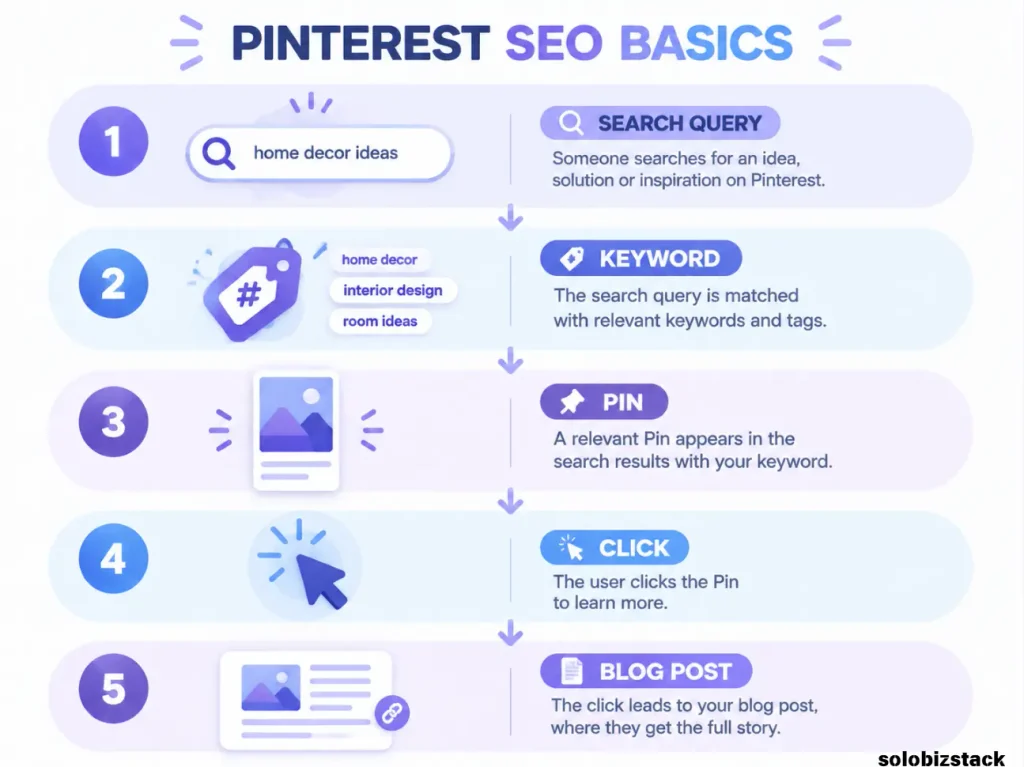
Pinterest SEO is the process of helping Pinterest understand your content so that your Pins can appear in relevant searches and recommendations.
It includes more than just keywords.
Pinterest can use information from your Pin, including its title, description, related topics, visual content, and destination page. Your board context and overall content also help create a clearer picture of what your Pin is about.
Think about it this way:
Google SEO
Search query → webpage
Pinterest SEO
Search/discovery → Pin → webpage
Your Pin is the bridge.
That’s why a Pinterest strategy should never be separated completely from your blog strategy.
The better the Pin matches the article, the easier it is for someone to understand what they are going to get after clicking.
Why Pinterest SEO Matters for Bloggers
Pinterest can be another discovery channel for your blog.
Instead of relying entirely on Google rankings, you can create visual content that gives people another way to find your articles.
Pinterest also doesn’t work exactly like a chronological social feed.
Pinterest says Pins can continue to receive engagement long after they are published. A Pin may gain engagement hours, days, months, or even years later, depending on factors such as searches, saves, engagement, seasons, trends, language, and location.(help.pinterest.com)
That doesn’t mean every Pin has a long life.
It simply means old content can continue to have opportunities to be discovered.
For an evergreen blog, that’s useful.
A guide about building a WordPress website could remain relevant long after you first publish it.
You can create new Pin designs around the same article as your content evolves.
Pinterest SEO Starts With Search Intent
Before worrying about keywords, think about what people actually want.
Someone searching:
Pinterest SEO
could be looking for almost anything.
Someone searching:
Pinterest SEO for beginners
has given you much more information.
And someone searching:
how to get blog traffic from Pinterest
has revealed an even clearer problem.
This is search intent.
Your goal is to match:
What people search for
with:
What your Pin promises
and:
What your article delivers
That alignment matters.
If your Pin says:
Pinterest SEO Checklist
the article should actually contain a checklist.
If the Pin says:
How to Get More Blog Traffic From Pinterest
the landing page should explain how to do exactly that.
Don’t make the headline more specific than the article just to get clicks.
A click that leads to disappointment isn’t useful traffic.
Step 1: Set Up a Pinterest Business Account
If you’re using Pinterest as part of a blog traffic strategy, a business account is the sensible starting point.
Pinterest Analytics requires a business account, and business accounts provide access to analytics and publishing features that are useful for content creators.(help.pinterest.com)
You don’t need to run paid ads.
You simply need access to the business features that help you understand what your content is doing.
Once the account is set up, use a profile name and description that clearly explain your topic.
For example, a profile focused on SoloBizStack might mention:
- Blogging
- WordPress
- Online business
- AI tools
- Content creation
- Pinterest marketing
Keep it natural.
Your Pinterest profile shouldn’t read like a list of keywords.
Step 2: Claim Your Website
This is one of the first technical steps I would complete.
Pinterest says that claiming your website can give you more insight into how often your content is shared, connect Pins saved from your site with your profile, and give people a way to discover your Pinterest account when your site’s content is saved. (help.pinterest.com)
To claim a website, Pinterest requires you to own the domain and be able to edit the site’s source code or DNS settings.
You can currently verify a website using methods such as an HTML tag, HTML file, or DNS TXT record, depending on what is available to your account.
For a WordPress site, this is worth doing early.
It connects your Pinterest activity more closely to the website you’re trying to promote.
[Learn How to Build a WordPress Website →]
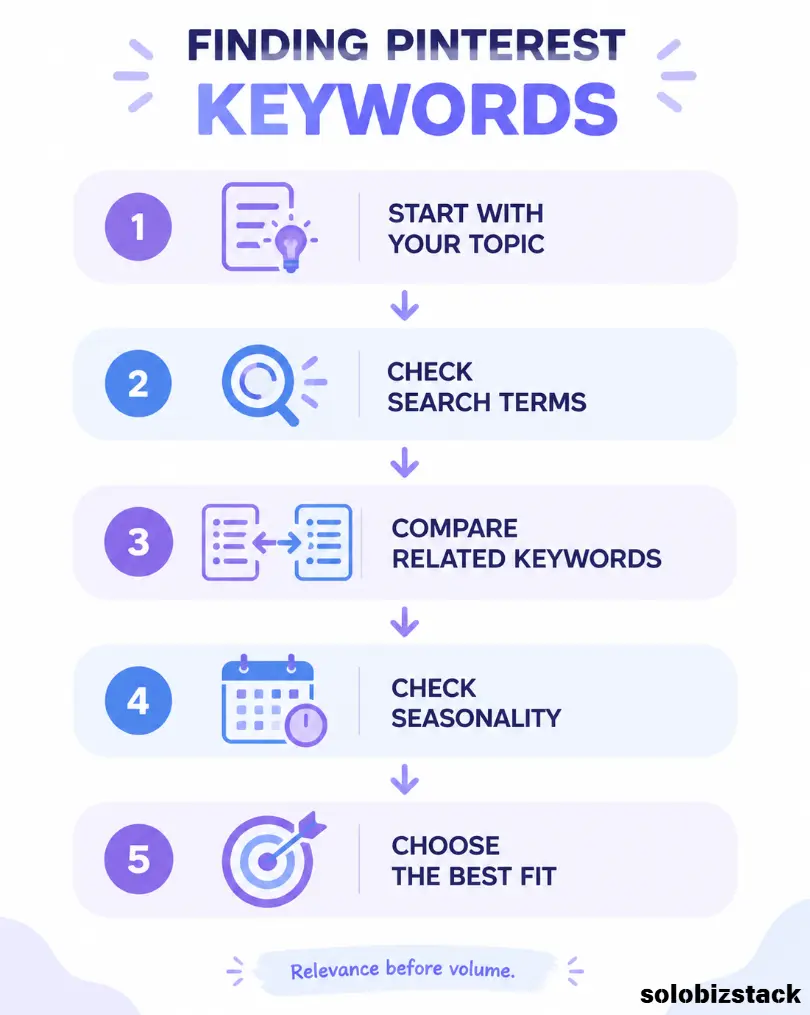
Step 3: Find Pinterest Keywords
Now we get to the part most people think of when they hear “Pinterest SEO.”
Keywords.
But don’t start by guessing.
Start with the actual phrases your audience might type into Pinterest.
For example, if your site is about WordPress:
- WordPress website
- WordPress for beginners
- build a WordPress website
- WordPress checklist
- WordPress website tips
If your topic is blogging:
- blogging tips
- blog traffic
- content creation
- blog design
- blogging for beginners
And if your topic is Pinterest itself:
- Pinterest SEO
- Pinterest marketing
- Pinterest tips for bloggers
- Pinterest traffic
- Pinterest strategy
You don’t need hundreds of keywords.
You need a small group of phrases that match your content.
Step 4: Use Pinterest Trends
Pinterest Trends is one of the most useful places to check what people are searching for.
Pinterest’s current Trends tool provides historical views of search, save, and shopping trends for different regions, with up to two years of historical data. It also lets users compare keywords and inspect weekly, monthly, and yearly changes for searches. Some features are available only in certain regions or to accounts with access to specific audience data.(trends.pinterest.com)
This can help you answer questions like:
Is this topic seasonal?
When does interest start increasing?
Which wording is more popular?
Are two related keywords showing different patterns?
For example, suppose you’re considering two article topics:
Pinterest marketing
vs.
Pinterest SEO
You can compare them inside Pinterest Trends instead of guessing.
Don’t treat Trends as a magic keyword tool, though.
A topic can be popular and still be completely wrong for your website.
The keyword needs to make sense for your audience and your content strategy.
Step 5: Choose One Main Keyword for Each Pin
One of the easiest mistakes to make is trying to optimize one Pin for twenty keywords.
Don’t.
Give the Pin one clear topic.
For example:
Main keyword:
WordPress website checklist
Related phrases:
WordPress checklist
website launch checklist
WordPress for beginners
Your Pin headline might be:
WordPress Website Checklist for Beginners
The description can naturally include the related phrases.
This gives Pinterest a much clearer understanding of the Pin.
Your keyword research doesn’t have to produce one perfect phrase.
It just needs to produce language that accurately describes the content.
Step 6: Put the Main Keyword in the Pin Title
Pinterest’s current creative guidance says Pin titles can contain up to 100 characters, with the first 40 characters more likely to appear for people on the platform.(business.pinterest.com)
That makes the beginning of your title especially important.
For example:
Better:
WordPress Website Checklist for Beginners
Less useful:
Everything You Need to Know About Launching Your New Website If You’re Just Starting Out
The second title is longer but less focused.
Put the most important topic early.
You don’t need to repeat the keyword twice.
You just need to make the topic obvious.
Step 7: Optimize the Pin Description
The description gives you more room to explain the content.
Pinterest currently allows Pin descriptions of up to 500 characters.(business.pinterest.com)
Use that space naturally.
For example:
Building your first WordPress website? Use this beginner-friendly checklist to review your domain, hosting, WordPress settings, mobile design, SEO, security, backups, forms, and launch setup before going live.
Notice what this doesn’t do.
It doesn’t repeat:
WordPress checklist, WordPress checklist, WordPress checklist…
Instead, it uses related language naturally.
That gives both people and Pinterest more context.
Step 8: Optimize Your Pin Image
Pinterest is visual, so image quality still matters.
Pinterest currently recommends a vertical 2:3 aspect ratio for standard image creative, with 1000 × 1500 px as its example. Larger aspect ratios may be cropped in feeds. Pinterest also recommends clear branding and a visual hierarchy where the main visual sits between supporting text elements. (business.pinterest.com)
For your Canva workflow:
1000 × 1500 px
is a practical standard.
Keep the design simple.
Use:
- One strong headline
- One main visual
- Short supporting text
- Small brand name
Don’t try to fit your entire article onto the image.
The article contains the details.
The Pin gets attention.
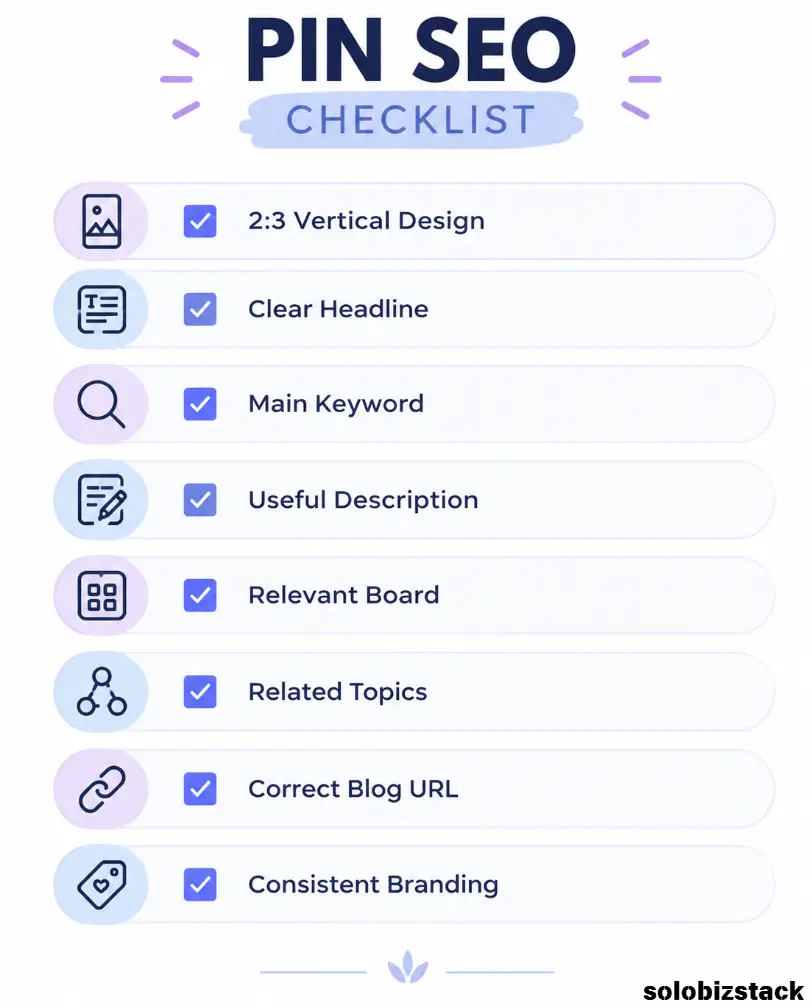
Step 9: Make Your Pin and Landing Page Match
This may be the most important Pinterest SEO rule.
Your Pin and article need to tell the same story.
For example:
Pin
7 WordPress Website Mistakes Beginners Make
Landing page
An article actually explaining seven WordPress mistakes.
That’s a good match.
Now imagine:
Pin
Best Pinterest SEO Tools
Landing page
A generic homepage.
That’s a poor match.
Pinterest’s guidance specifically emphasizes the relationship between the Pin’s visual content, text, keywords, and destination page.(help.pinterest.com)
So before publishing, click the link yourself.
Ask:
Would I be satisfied if I clicked this Pin?
If the answer is no, fix the landing page before creating more Pins.
Step 10: Optimize Your Boards
Boards don’t replace Pin SEO.
But they provide useful context.
Instead of creating boards with vague names like:
My Blog
use topic-based names:
WordPress Tips
Blogging Tips
Pinterest Marketing
AI Tools for Bloggers
Content Creation
Online Business Tools
Your board descriptions should explain what belongs there.
For example:
Practical WordPress tips, beginner tutorials, website checklists, themes, plugins, and resources for building a better website.
Pinterest’s business guidance recommends clear, descriptive board titles and descriptions because boards can also be discovered through search.(help.pinterest.com)
Think of a board as a topic category.
Step 11: Add Related Topics When Appropriate
Pinterest’s Pin creation workflow can offer related topics to help classify the content.
Use them when they’re genuinely relevant.
For a Pin about WordPress hosting, related topics might include:
- WordPress
- Website design
- Blogging
- Small business
Don’t add unrelated topics simply because they’re available.
The goal is relevance.
Step 12: Add the Correct Destination URL
Every traffic-focused Pin should have a clear destination.
If the Pin promotes:
Best AI Writing Tools for Bloggers
the URL should point directly to that article.
If the Pin promotes:
How to Create Pinterest Pins for Your Blog
link directly to that guide.
Pinterest provides a link field for Pins, and its business guidance recommends using a relevant destination URL.(help.pinterest.com)
Deep linking also makes your analytics more useful.
You’ll know which Pin and topic are sending visitors to which article.
Step 13: Use Internal Links Once Pinterest Visitors Arrive
Pinterest is only the first step.
Once a visitor lands on your blog, give them another useful path.
For example:
Pinterest Pin
↓
WordPress Website Checklist
↓
How to Build a WordPress Website
↓
Best Website Hosting for Beginners
↓
This is where a good content structure starts paying off.
You don’t need to push an affiliate offer immediately.
Help the visitor solve the next problem.
Step 14: Track Outbound Clicks
If your goal is blog traffic, don’t judge a Pinterest account entirely by impressions.
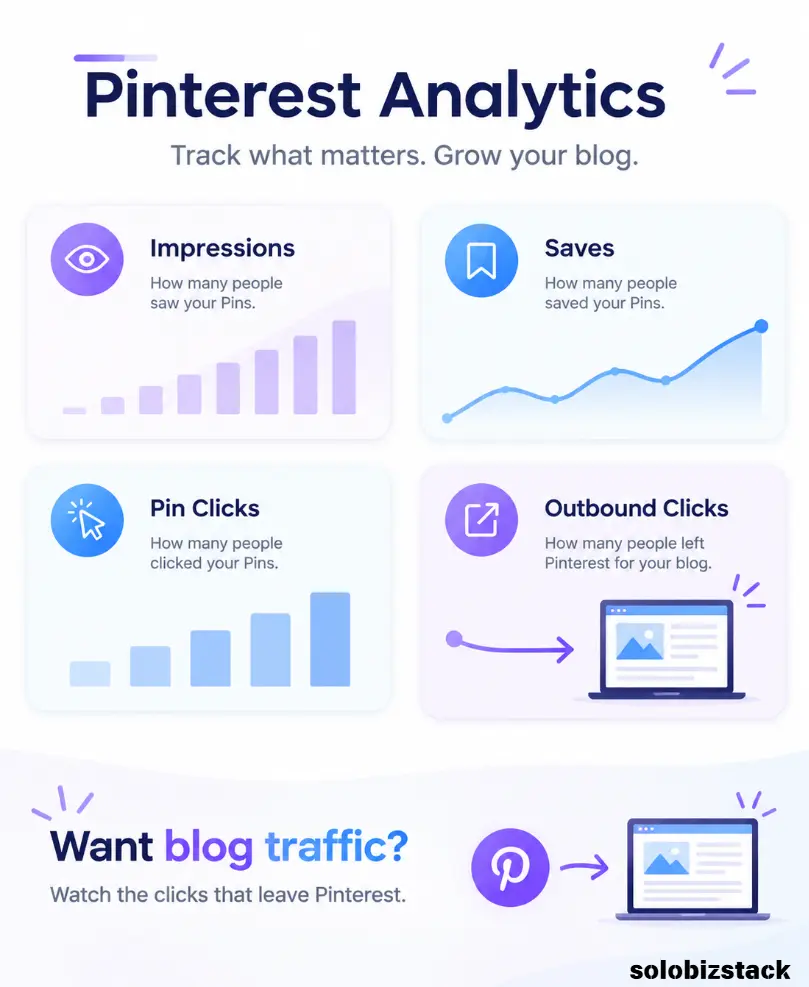
Pinterest Analytics currently defines:
Impressions
as the number of times your Pin was on screen.
Saves
as the number of times people saved the Pin.
Pin clicks
as the number of clicks that open the Pin or ad in close-up.
Outbound clicks
as actions that take people to a destination outside Pinterest.(help.pinterest.com)
For a blog, outbound clicks are particularly important.
They’re much closer to the actual goal:
Pinterest → Your website
You can still watch saves and impressions.
They’re useful context.
But if your primary goal is traffic, don’t celebrate a huge impression count while ignoring the fact that nobody clicked through.
Step 15: Use Analytics to Diagnose Problems
Here’s a simple way to interpret your data.
High impressions, low outbound clicks
Your Pin is being seen.
The problem may be the headline, offer, visual, or relevance.
Test a different angle.
Low impressions, decent outbound click rate
Your content may be useful to the people who see it, but not getting enough discovery.
Try a different keyword, headline, board, or visual.
High saves, low clicks
The Pin may be useful enough to save but not creating enough curiosity to visit the website.
Try making the destination benefit clearer.
High outbound clicks
Pay attention.
Look at the topic.
Look at the headline.
Look at the visual.
Look at the article.
Then create another useful Pin around the same theme.
Pinterest lets business accounts inspect performance using metrics such as impressions, saves, Pin clicks, and outbound clicks. (help.pinterest.com)
Step 16: Create Fresh Pins for Existing Content
Pinterest doesn’t require you to create a brand-new article every time you want to publish a new Pin.
A useful existing article can support several different visuals.
For example:
Article
How to Build a WordPress Website for Beginners
Pin A
Build Your First WordPress Website
Pin B
10 Steps to Start a WordPress Website
Pin C
WordPress Setup Checklist for Beginners
Pin D
What You Need Before Building a WordPress Website
Each one focuses on a different search or problem angle.
Pinterest says Pins can continue receiving engagement long after publishing, and its guidance recommends creating fresh Pins rather than relying on one repeated creative.(help.pinterest.com)
That’s a better long-term strategy than publishing one Pin and forgetting about the article.
Step 17: Use a Simple Pinterest Publishing Schedule
You don’t need a massive schedule when you’re starting.
For SoloBizStack, I’d keep it simple.
Every new article
Create:
3 useful Pin variations
Then schedule them rather than publishing everything at once.
Pinterest’s native scheduling tool currently allows business accounts to schedule standard Pins up to 30 days ahead, with up to 10 future Pins scheduled at a time in the native workflow.(help.pinterest.com)
That may be enough for a small blog.
You can always add a third-party scheduler later.
[Best Tools for Creating Pinterest Pins →]
Step 18: Use Pinterest Trends Before Creating Content
Pinterest SEO shouldn’t start after the article is written.
Sometimes you can use Pinterest data before deciding what to write.
Pinterest Trends currently lets users explore historical search trends by region and compare keywords over different time periods.(help.pinterest.com)
That can help you find:
- Seasonal topics
- Growing searches
- Related keywords
- Different ways people phrase a topic
For example, if you’re planning a series about blogging, you can compare terms around:
blogging tips
blog traffic
Pinterest marketing
content creation
Then decide which topics actually fit your site.
Don’t build your entire content plan around trend data.
Use it as another signal.
Step 19: Don’t Forget Your Blog SEO
Pinterest SEO does not replace regular website SEO.
Your article still needs:
- A useful title
- Clear headings
- Good internal links
- Descriptive URLs
- Useful images
- Fast loading
- Mobile-friendly design
- Helpful content
- Relevant external references
Think of the two systems as working together.
Pinterest SEO
helps people discover your content on Pinterest.
Google SEO
helps people discover your content through search.
The same useful article can benefit from both.
Step 20: Make Your Pinterest Profile Match Your Blog
Your website and Pinterest profile should feel like they belong to the same brand.
Use:
- Similar name
- Similar logo
- Similar colors
- Similar description
- Similar topic categories
If someone discovers a SoloBizStack Pin and then visits the profile, they should immediately understand what the account is about.
Consistency builds recognition.
You don’t need an elaborate brand system.
Just don’t make every platform look like a different business.
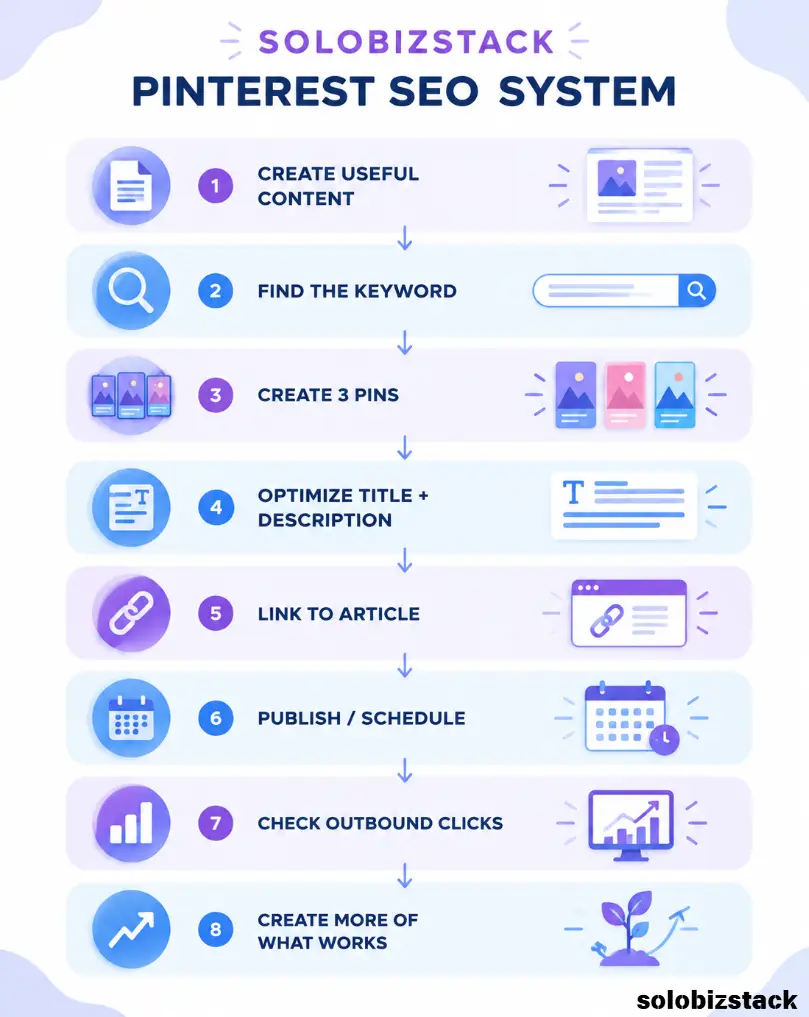
A Simple Pinterest SEO Workflow for SoloBizStack
Here’s the system I’d use for a new article.
Step 1
Publish a useful blog post.
Step 2
Choose one main Pinterest keyword.
Step 3
Create three Pin angles.
Step 4
Use a 1000 × 1500 vertical design.
Step 5
Put the main keyword naturally into the Pin title.
Step 6
Write a useful description with related terms.
Step 7
Add the exact blog URL.
Step 8
Choose the most relevant board.
Step 9
Add relevant Topics when available.
Step 10
Publish or schedule the Pins.
Step 11
Review Analytics later.
Step 12
Create more around the topics that produce useful traffic.
That’s it.
You don’t need a giant spreadsheet to get started.
Pinterest SEO Mistakes to Avoid
Keyword stuffing
Don’t write:
Pinterest SEO Pinterest traffic Pinterest marketing Pinterest Pins Pinterest bloggers Pinterest tips…
Nobody wants to read that.
Using the wrong destination
Don’t send a Pin about WordPress hosting to your homepage.
Making the graphic too complicated
One Pin = one clear idea.
Chasing impressions
Traffic is the goal if traffic is the goal.
Ignoring old content
Good evergreen articles can support new Pin designs later.
Creating duplicate-looking Pins
New Pins should have a real reason to exist.
Buying tools too early
You can start with Pinterest’s native features and Canva.
Add scheduling software when your volume justifies it.
Frequently Asked Questions
What is Pinterest SEO?
Pinterest SEO is the process of optimizing your Pins, boards, profile, keywords, and destination content so Pinterest can better understand and surface your content for relevant searches and discovery.
How do I get more traffic from Pinterest?
Create useful blog content, make multiple relevant Pins for important articles, use natural keywords in Pin titles and descriptions, link each Pin to the relevant article, organize content into useful boards, and review outbound clicks in Pinterest Analytics.
How many Pins should I create for one blog post?
There is no fixed number. For a small blog, starting with two to four meaningfully different Pins for an important article is reasonable. Focus on different angles rather than duplicate designs.
What keywords should I use on Pinterest?
Use the phrases your target audience actually uses to describe the problem or topic you’re covering. Pinterest Trends can help you explore search behavior and compare terms over time.(help.pinterest.com)
Does Pinterest SEO really work?
Pinterest can provide another discovery channel for your content, but there is no guaranteed traffic level. Results depend on topic, content quality, visual quality, search behavior, seasonality, and other factors. Pinterest itself notes that Pin distribution and engagement can continue over long periods and vary by topic and audience.(help.pinterest.com)
Should I use hashtags on Pinterest?
Don’t build your strategy around hashtags. Focus your effort on clear Pin titles, useful descriptions, relevant keywords, good visuals, accurate links, and relevant boards and topics.
Do I need a Pinterest business account?
A business account is useful for bloggers because Pinterest Analytics requires one, and it provides access to business-oriented publishing and measurement features.(help.pinterest.com)
Should I claim my blog on Pinterest?
Yes, especially if Pinterest is an important traffic channel for your website. Claiming your site helps connect content saved from your website with your Pinterest profile and provides additional insight into sharing activity.(help.pinterest.com)
Do I need Tailwind for Pinterest SEO?
No. A new blogger can start with Pinterest’s native tools. A third-party scheduler becomes useful when you have enough content that manual publishing takes too much time.
Final Thoughts
Pinterest SEO for beginners doesn’t have to be complicated.
Start with useful content.
Find the words your audience uses.
Create a clear Pin around one idea.
Use those keywords naturally.
Link to the article that actually answers the promise.
Put the Pin in a relevant board.
Then look at the data.
That’s the whole system.
You don’t need thousands of Pins.
You don’t need to buy every Pinterest tool.
And you definitely don’t need to spend your entire day staring at analytics.
For SoloBizStack, I’d focus on building a library of genuinely useful articles and giving each important article several different ways to be discovered on Pinterest.
Over time, the goal is simple:
Create better content → create better Pins → attract the right clicks → build a useful website → repeat.
[Read How to Use Pinterest to Drive Traffic to Your Blog →]
[Read How to Create Pinterest Pins for Your Blog →]
[Explore the Best Tools for Creating Pinterest Pins →]
[Learn How to Create Blog Images Without a Designer →]
Pinterest features, analytics, distribution, and publishing policies can change. Review current Pinterest documentation when updating this guide.

One Comment