
WordPress Website Checklist for Beginners: 2026 Edition
Building a WordPress website is exciting. You choose a theme, customize the homepage, publish a few pages, and suddenly your website starts to feel real.
But before you share it with the world, there’s one more step worth taking: a proper website check.
A site can look great on your laptop and still have broken links, missing contact details, slow-loading images, or a setting that prevents search engines from indexing it. These are easy things to overlook when you’re focused on design.
The good news? You don’t need to be a developer to catch most of them.
This WordPress website checklist for beginners walks you through the essential things to review before launching your website. Whether you’re building a blog, portfolio, small business website, or affiliate site, you can use it to make sure the basics are covered.
Work through the checklist at your own pace. You don’t need a perfect website on day one—you need a website that works, is easy to use, and is ready to improve.
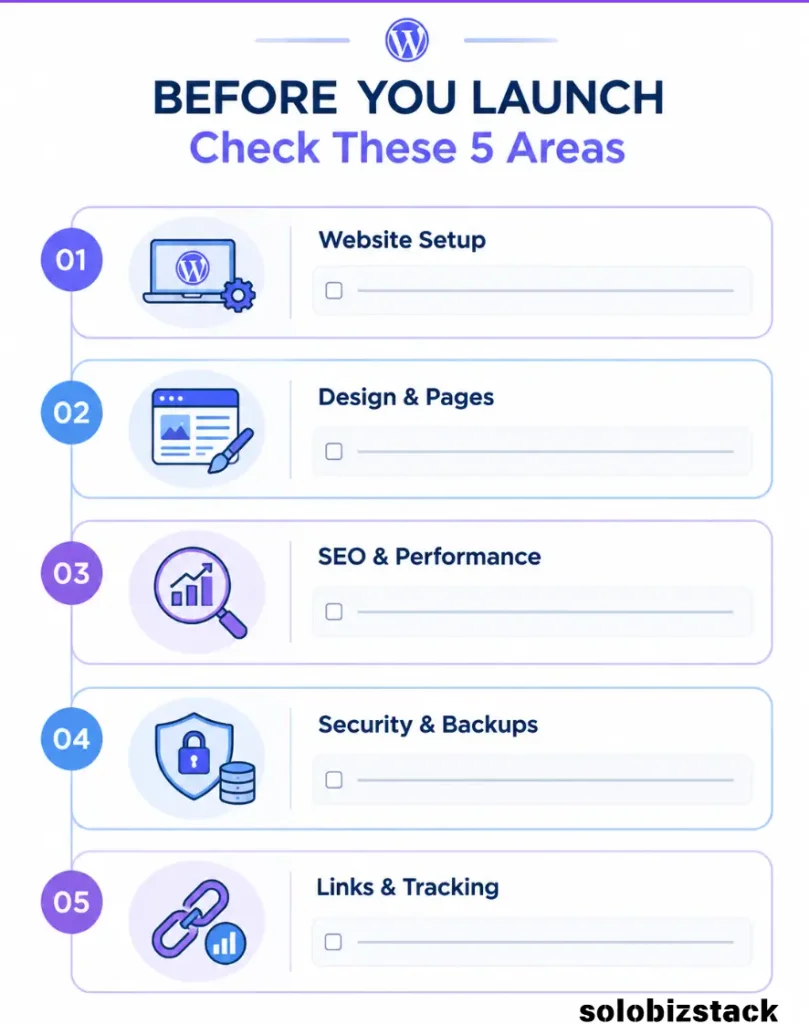
Quick answer: Before launching a WordPress website, check your domain and SSL, WordPress settings, navigation, core pages, mobile layout, forms, backups, security, SEO settings, analytics, and important links. Then test the site as if you were a first-time visitor.
In a hurry? Jump to the Final WordPress Website Launch Checklist and use it as your quick pre-launch review.
1. Domain, Hosting, and WordPress Setup
Before polishing your design, make sure the foundation of your website is working properly. These are the settings that can be annoying to fix later if they’re overlooked.
Domain and Hosting
- My website uses the correct domain name.
- The domain is connected to the correct hosting account.
- My hosting plan is active.
- I know when my domain and hosting renew.
- I know where to manage my domain and hosting settings.
If you’re still choosing a hosting provider, compare the full cost—not just the advertised monthly price. Introductory offers, renewal rates, and plan limits can vary.
Compare Hostinger vs SiteGround →
Read Our Best Website Hosting for Beginners Guide →
HTTPS and SSL
- My website loads using
https://. - The SSL certificate is active.
- The homepage doesn’t show browser security warnings.
- My website doesn’t have obvious mixed-content warnings.
HTTPS helps protect the connection between your website and its visitors. Most beginner hosting plans include SSL, but you should still confirm that it’s active and working.
Test both the http:// and https:// versions of your domain. The HTTP version should redirect to the secure HTTPS version.
WordPress General Settings
In your WordPress dashboard, go to Settings → General.
- My Site Title is correct.
- My Tagline describes the website clearly.
- My WordPress Address and Site Address use the correct domain and HTTPS.
- My site language is correct.
- My timezone is correct.
- My administration email address is accurate.
Your Site Title and Tagline help identify your website. They don’t need to sound clever or stuffed with keywords. Make them clear and relevant to what your site offers.
Permalink Structure
Go to Settings → Permalinks.
- My posts use a clean, readable URL structure.
- I avoid unnecessary numbers or confusing URL strings where possible.
- My published URLs are consistent.
For most new content sites, the Post name structure is a simple choice. For example:
example.com/wordpress-website-checklist/
Choose your URL structure early. If you change existing URLs later, you’ll need to consider redirects and update internal links.
2. Website Design and Navigation
Your website doesn’t need a fancy design to be useful. Visitors should be able to understand what you offer and find the information they’re looking for without guessing.
Header and Navigation
- My logo displays correctly.
- My main navigation links work.
- Menu labels are easy to understand.
- The header looks good on desktop and mobile.
- Visitors can easily return to the homepage.
For a content website like SoloBizStack, keep the main navigation focused. Too many menu items can make a new site feel cluttered.
Use clear labels that tell visitors what they’ll find. If a section contains tutorials, tools, or comparisons, make that obvious.
Homepage
- My homepage explains what the website is about.
- The main headline is clear.
- The primary call-to-action button works.
- Important content or categories are easy to find.
- There are no placeholder sections or unfinished blocks.
- The homepage looks good on mobile.
A first-time visitor should be able to answer three questions quickly:
- What is this website about?
- Who is it for?
- Where should I go next?
You don’t need to explain everything on the homepage. Give visitors a clear starting point.
Footer
- My footer displays correctly.
- Important pages are linked.
- Contact information or a contact link is available.
- Privacy Policy is linked.
- Affiliate disclosure is easy to find if the site uses affiliate links.
- Copyright information is accurate.
The footer is a useful place for supporting links. Keep it organized rather than turning it into a second, oversized navigation menu.
3. Essential Pages Every Website Should Have
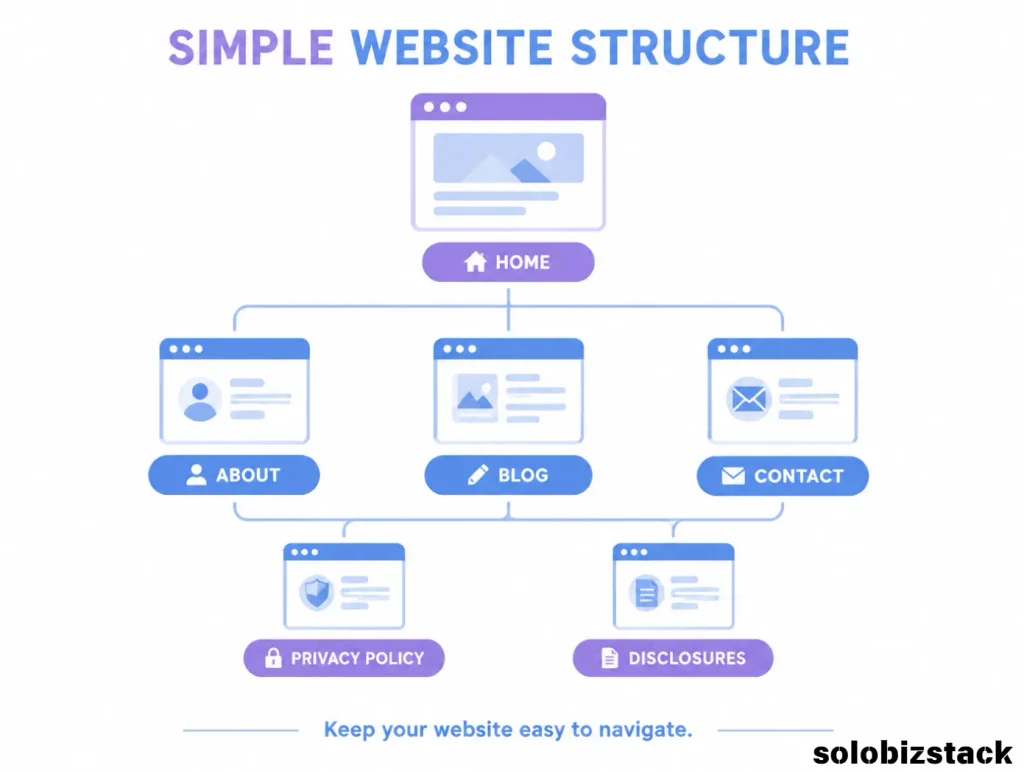
The exact pages you need depend on your website. A personal blog doesn’t need the same structure as an online store, but most websites benefit from a few basic pages.
Core Website Pages
- Home
- About
- Contact
- Privacy Policy
- Terms and Conditions, where appropriate
- Blog or Resources page, if your site publishes articles
For an affiliate website, also consider:
- Affiliate Disclosure
- Relevant disclaimers for your content
- Clear information about how affiliate links work
Don’t publish legal pages copied blindly from another website. Make sure your policies fit your actual website, business model, and applicable requirements.
About Page
Your About page should explain what your website does and who it helps.
- It clearly explains the site’s purpose.
- It identifies the intended audience.
- It gives visitors a reason to trust the content.
- It contains no placeholder text.
You don’t need a long personal story. A short, honest explanation of why the site exists is often enough.
Contact Page
- My contact form works.
- The correct email address receives submissions.
- The confirmation message is clear.
- The page doesn’t expose personal information I don’t want public.
Test the form yourself. Don’t assume it works just because it looks right in the editor.
4. WordPress Theme, Plugins, and Functionality
A theme controls much of your website’s appearance, while plugins add features. Both can affect how your site works, so this is a good time to check the essentials.
Theme and Layout
- My active theme is the one I intended to use.
- The header and footer display correctly.
- Typography is readable.
- Buttons and links have consistent styling.
- There are no broken layouts or overlapping sections.
- My site looks good on desktop, tablet, and mobile.
If you’re using Kadence with Gutenberg, preview your pages outside the editor. A layout that looks fine while editing may need spacing or alignment adjustments on a real screen.
Plugins
- I have installed only the plugins I actually need.
- Important plugins are updated.
- I removed unused plugins.
- I checked that key plugins work together.
- I know which plugin handles backups, SEO, forms, and other essential tasks.
More plugins don’t automatically make a website better. Every plugin should have a clear purpose.
Avoid installing multiple plugins that do the same job unless you understand why you need both.
Test Important Features
- Buttons lead to the correct pages.
- Search works, if enabled.
- Forms submit successfully.
- Menus open and close properly on mobile.
- Pop-ups or banners can be dismissed.
- No important feature is blocked by an error.
A quick test as a visitor can catch problems that aren’t obvious in the WordPress dashboard.
5. Mobile Responsiveness and User Experience
A website that works on desktop but feels awkward on a phone isn’t ready for a broad audience.
You don’t need to test every device ever made. Start with a few common screen sizes and check the parts visitors use most.
Mobile Checklist
- The navigation menu works on mobile.
- Text is readable without zooming.
- Buttons are easy to tap.
- Images fit the screen.
- Tables don’t overflow awkwardly.
- There is no unwanted horizontal scrolling.
- Pop-ups don’t cover the entire page.
- Important content appears in a sensible order.
Pay particular attention to comparison tables, pricing sections, and CTA buttons. These can look great on desktop and become difficult to use on smaller screens.
Quick test: Open your website on your phone and try to use it without switching back to your computer. If you struggle to find the menu, read the text, or tap a button, your visitors may struggle too.
6. Website Speed and Image Optimization
You don’t need to obsess over every millisecond when launching your first website. But you should make sure the site feels reasonably quick and doesn’t contain unnecessarily large files.
Speed Checklist
- My images are appropriately sized.
- I use compressed image formats where suitable.
- I avoid unnecessary animations and heavy effects.
- I removed plugins and elements I don’t use.
- I tested key pages using a speed-testing tool.
- My website loads without obvious delays or layout problems.
Large images are a common issue on new websites. A full-size image uploaded straight from a camera can be much larger than the space it occupies on the page.
Resize images to fit their intended display size, compress them, and use a modern format such as WebP when appropriate.
You can test your pages with Google’s PageSpeed Insights. Treat the results as diagnostic guidance, not a requirement to chase a perfect score at the expense of usability.
7. WordPress SEO Checklist for Beginners
SEO isn’t something you finish once and forget. But there are several important basics you can set up before launching.
SEO Plugin and Metadata
- I installed and configured one SEO plugin.
- My homepage has a clear SEO title.
- Important pages have unique SEO titles.
- Important pages have useful meta descriptions.
- My content uses headings in a logical order.
- Images have descriptive ALT text when appropriate.
If you’re using Rank Math, review the SEO title, meta description, focus keyword, and indexing settings for your key pages and posts.
Don’t force the exact keyword into every heading. Write for people first, and use the keyword naturally where it makes sense.
Indexing and Sitemap
- I checked that my live website isn’t accidentally discouraging search engines from indexing it.
- My important pages are set to be indexable.
- My XML sitemap is available.
- I connected the site to Google Search Console.
- I submitted the sitemap in Search Console.
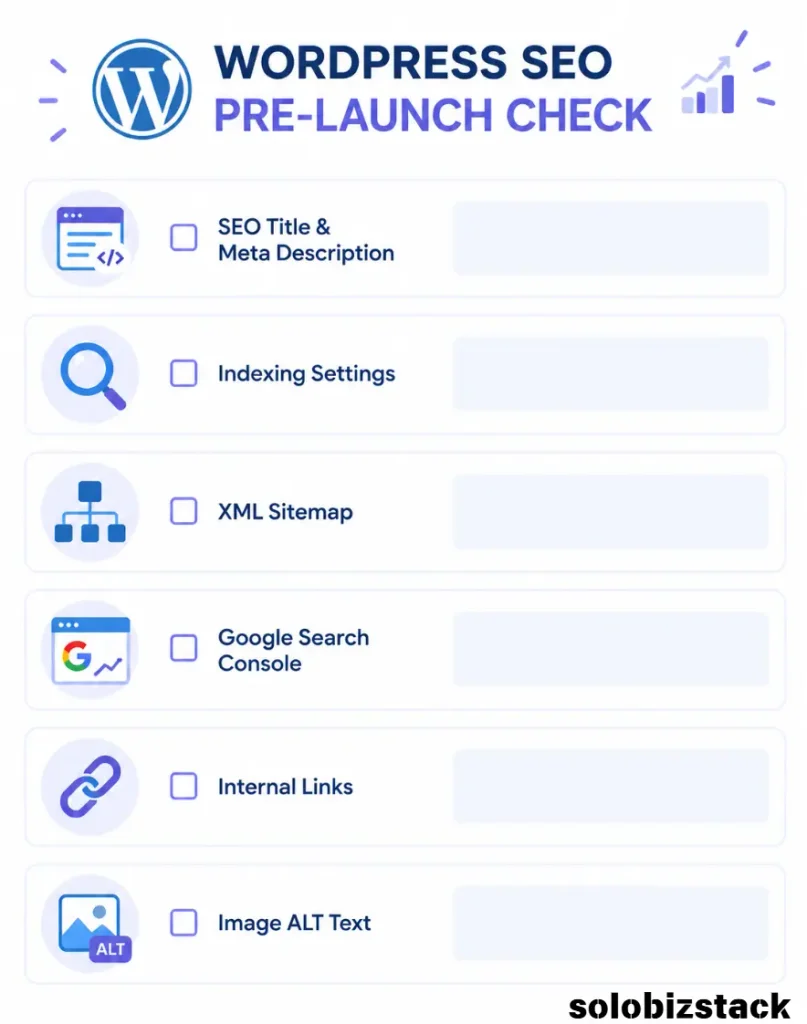
In WordPress, the setting under Settings → Reading that discourages search engines from indexing the site is especially important to review before launch.
If you used a staging site or built your website privately, double-check this setting before making the site public.
Google Search Console can help you monitor indexing and search performance after launch. Submitting a sitemap is a useful discovery signal, but it does not guarantee that every URL will be indexed.
Official resources:
Internal Links
- Important pages link to relevant content.
- My articles link to related articles where useful.
- I use descriptive anchor text.
- I checked for broken internal links.
- I don’t add links just to increase the number of links.
For example, a WordPress beginner guide can naturally link to a hosting comparison, while a hosting comparison can link back to the beginner guide.
Internal links should help readers take the next useful step—not send them in circles.
8. Security, Backups, and Maintenance
A website isn’t finished when it goes live. It needs a basic maintenance routine so small problems don’t turn into bigger ones.
Security Checklist
- I use a strong, unique administrator password.
- My WordPress account uses an appropriate username.
- WordPress, themes, and plugins are kept updated.
- I removed unused themes and plugins.
- I use HTTPS.
- I know how to contact my hosting provider if something goes wrong.
WordPress includes a Site Health tool under Tools → Site Health. It can highlight critical issues and recommended improvements related to your site’s configuration. Review the results and investigate anything you don’t understand.
Backup Checklist
- I have a backup solution.
- I know how often backups run.
- I know where backups are stored.
- I understand how to restore a backup.
- I have a plan for backing up important content before major changes.
A backup is only useful if you can restore it. If possible, keep a copy separate from your hosting account and understand what your hosting plan or backup plugin actually covers.
9. Affiliate Links, Analytics, and Conversion Checks
If you’re building an affiliate website, a few additional checks can save headaches later.
Affiliate Link Checklist
- Affiliate links point to the correct destination.
- Buttons work on desktop and mobile.
- Affiliate disclosures are visible and easy to understand.
- I don’t make unsupported claims about products.
- I checked the affiliate program’s rules for link placement and tracking.
- I tested my Pretty Links redirects, if I use them.
Don’t use a live affiliate link until you’ve confirmed that it belongs to your account and points where you expect. Keep a record of which pages contain affiliate links so you can update them later.
Analytics and Tracking
- I connected Google Analytics or another analytics tool, if needed.
- I connected Google Search Console.
- I tested that tracking is installed correctly.
- I know where to check basic traffic and search data.
You don’t need a complicated analytics setup on day one. Start with the information that helps you understand whether people are finding your website and using it.
Calls to Action
- My main CTA is clear.
- Buttons describe what happens when clicked.
- I don’t overwhelm readers with too many competing buttons.
- CTA links work correctly.
- Affiliate buttons are clearly presented as links to external services.
A useful CTA tells visitors what they’ll get next. “Compare Hosting Plans” is clearer than a vague “Click Here.”
10. Final WordPress Website Launch Checklist
You’ve made it through the details. Use this condensed checklist for one final review before announcing your website.
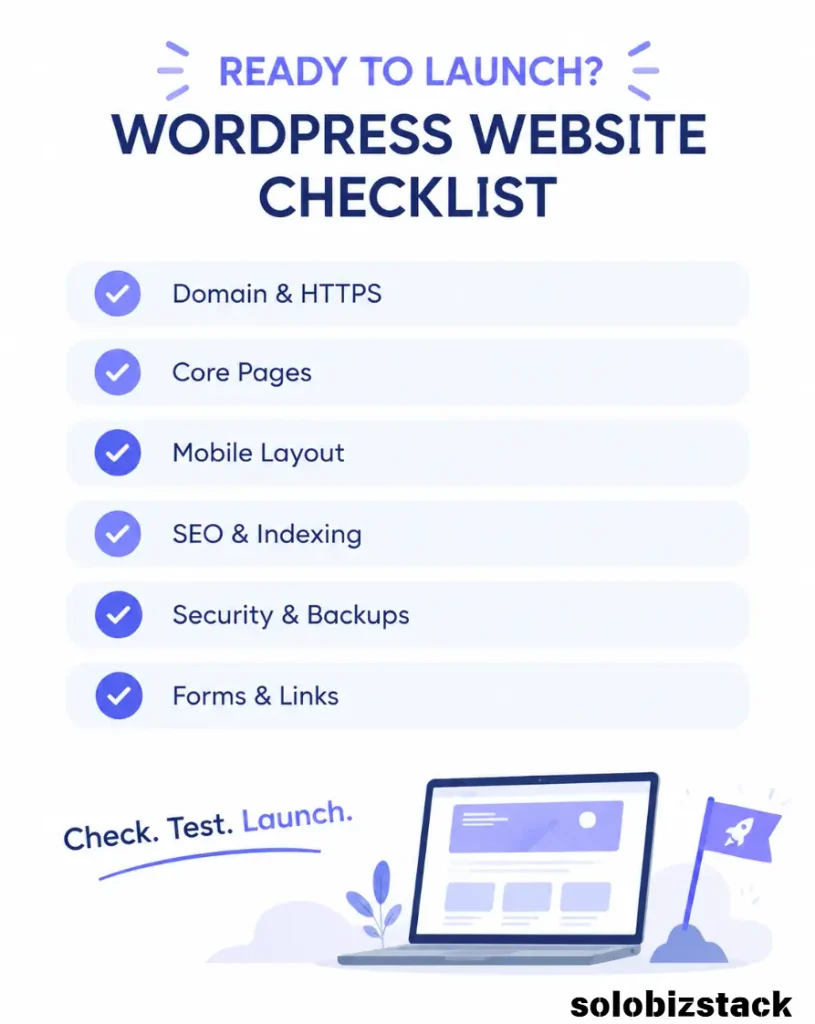
Website Foundation
- Domain and hosting are connected.
- HTTPS works correctly.
- WordPress settings are accurate.
- Permalink structure is set.
Design and Pages
- Homepage is clear and complete.
- Navigation and footer links work.
- About and Contact pages are ready.
- Privacy Policy and relevant disclosures are published.
- No placeholder text or demo content remains.
Functionality
- Forms have been tested.
- Buttons and internal links work.
- Mobile layout is usable.
- Images display correctly.
- No obvious errors appear on important pages.
SEO and Performance
- SEO titles and meta descriptions are set for key pages.
- Search engine indexing settings are correct.
- Sitemap is available.
- Search Console is connected.
- Images are optimized.
- Important pages load without obvious issues.
Security and Tracking
- WordPress, themes, and plugins are updated.
- Backup solution is active.
- Administrator account is secure.
- Analytics is configured if needed.
- Affiliate links and disclosures are checked.
If you’ve checked the essentials, your website is ready for its next stage: publishing useful content, learning from visitors, and improving as you go.
Frequently Asked Questions
What should I do before launching a WordPress website?
Check your domain, hosting, HTTPS, WordPress settings, navigation, core pages, mobile layout, forms, backups, security, SEO settings, and important links. Then test the website as if you were a first-time visitor.
How do I know if my WordPress website is ready to launch?
Your website is ready for launch when its essential pages work, visitors can navigate it, forms and buttons function, HTTPS is active, important SEO settings are correct, and you have a backup plan. It doesn’t need to be perfect to go live.
Do I need an SEO plugin before launching WordPress?
An SEO plugin is useful for managing titles, meta descriptions, indexing settings, and other SEO tasks. You can launch without one, but setting up an SEO plugin early can make ongoing optimization easier. Use one plugin that fits your workflow.
Should I discourage search engines from indexing my website?
That setting can be useful while building a private or staging website. For a public website that you want to appear in search results, check that you haven’t accidentally enabled the option to discourage indexing. Indexing is not guaranteed, even when the setting is correct.
How often should I check my WordPress website?
Check your website after major changes, theme or plugin updates, and new integrations. It’s also useful to review backups, updates, forms, links, and Search Console regularly. A simple monthly maintenance routine is a good starting point.
Can I launch my WordPress website before every page is finished?
Yes. You can launch with a focused set of useful, complete pages and add more over time. Just avoid publishing unfinished pages, broken navigation, placeholder content, or features that don’t work.
Final Thoughts
Launching a WordPress website doesn’t have to be stressful. You don’t need to know every technical detail or spend weeks polishing every corner before anyone can visit.
What matters is getting the essentials right: a secure setup, clear navigation, useful pages, working links, sensible SEO settings, and a backup plan.
Use this WordPress website checklist as a practical reference—not a test you have to pass perfectly. Work through it, fix the important issues, and keep improving as your website grows.
Ready to build or improve your WordPress website?
Read How to Build a WordPress Website for Beginners →
Explore Our Website Tools & Hosting Comparisons →
SoloBizStack may earn a commission when you purchase through qualifying affiliate links. This does not affect the price you pay.
4 Comments