
Essential WordPress Plugins Every New Website Needs (2026)
When you launch a new WordPress website, one of the first things you will probably notice is the enormous number of plugins available. There are plugins for SEO, security, backups, forms, performance, analytics, email, and almost everything else you can imagine.
That can make it tempting to install as many useful-looking plugins as possible. But a new website does not need every feature on day one.
The essential WordPress plugins every new website needs are the ones that help you manage the site, protect your content, reach your audience, and understand whether your website is working properly. The exact plugins will depend on your hosting plan, website type, and business goals.
In this guide, we will cover the functions worth setting up first, recommend suitable plugins for each job, and explain which extras you can add later. The aim is to help you build a dependable website without turning your WordPress dashboard into a complicated collection of tools.
Affiliate Disclosure: This article may contain affiliate links. If you purchase through these links, SoloBizStack may earn a commission at no extra cost to you. We aim to provide useful, honest information to help you make an informed decision.
The Essential WordPress Plugins Every New Website Needs: Quick Checklist
For most new content or small business websites, start by making sure you have a solution for these jobs:
| Website function | Plugin or solution to consider | Why it matters |
|---|---|---|
| SEO | Rank Math SEO | Manage titles, descriptions, sitemaps, and other SEO settings |
| Contact forms | WPForms Lite | Give visitors a simple way to contact you |
| Backups | Hosting backups or UpdraftPlus | Recover content and files if something goes wrong |
| Security | Hosting security tools or Wordfence | Add appropriate protection and security monitoring |
| Performance | Your host’s caching solution or a compatible performance plugin | Improve how efficiently your site serves pages |
| Analytics and search data | Google Search Console, Google Analytics, or Site Kit | Understand search visibility and visitor activity |
| Email delivery | WP Mail SMTP, if needed | Help WordPress send form notifications and other emails reliably |
These are essential functions to consider, not seven plugins that every website must install. Your hosting provider may already cover backups, security, or caching. Some sites do not need a contact form, and email troubleshooting plugins are only useful when your email setup needs them.
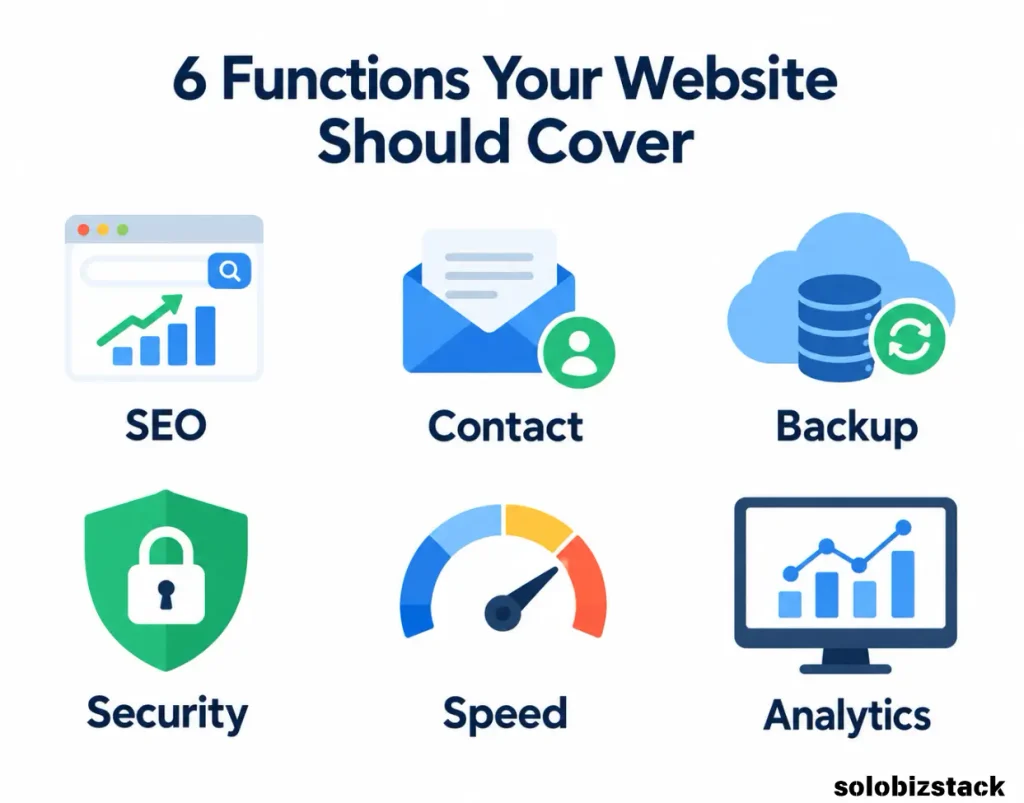
Start with the functions your website actually needs, then choose the simplest reliable solution for each one.
1. An SEO Plugin: Rank Math SEO
If your website publishes blog posts, guides, reviews, or service pages, you need a way to manage the basic SEO elements of your content.
Rank Math SEO is a WordPress plugin that helps you configure SEO titles, meta descriptions, XML sitemaps, structured data, and other optimization settings. It also provides on-page checks to help you identify items that may need attention. You can review the current features on the official Rank Math plugin page.
For a new website, an SEO plugin can help you:
- Write a suitable SEO title and meta description for each important page
- Configure and manage your XML sitemap
- Set up structured data where appropriate
- Review on-page optimization issues
- Maintain consistent SEO settings across your posts and pages
Remember that a high plugin score does not guarantee higher Google rankings. You still need useful content, appropriate search intent, a crawlable website, and clear internal links.
For SoloBizStack, Rank Math is a sensible fit because the site depends on informational guides, tool comparisons, and affiliate content.
[Compare Rank Math and Yoast →]
2. A Contact Form: WPForms Lite
A contact form gives visitors, potential partners, and customers a straightforward way to reach you.
WPForms Lite offers a visual form builder with basic contact form functionality. The free version is a practical starting point for many small websites, while some advanced features are available only in paid plans. Check the official WPForms Lite listing for current features.
A simple contact form may need only three fields:
- Name
- Email address
- Message
Keep it simple at the beginning. You can add extra fields later if your business needs them.
Once the form is published, submit a test message yourself. Confirm that the form works, the notification goes to the correct inbox, and the page displays properly on mobile devices.
If your contact form is already provided by your theme or another tool, you may not need an additional form plugin. Avoid adding a second plugin that duplicates the same functionality.
3. A Backup Solution: Your Host’s Backups or UpdraftPlus
Imagine spending weeks creating articles and building your pages, then losing content after a failed update, a hosting issue, or a mistake while editing the site.
Backups give you a way to recover your website.
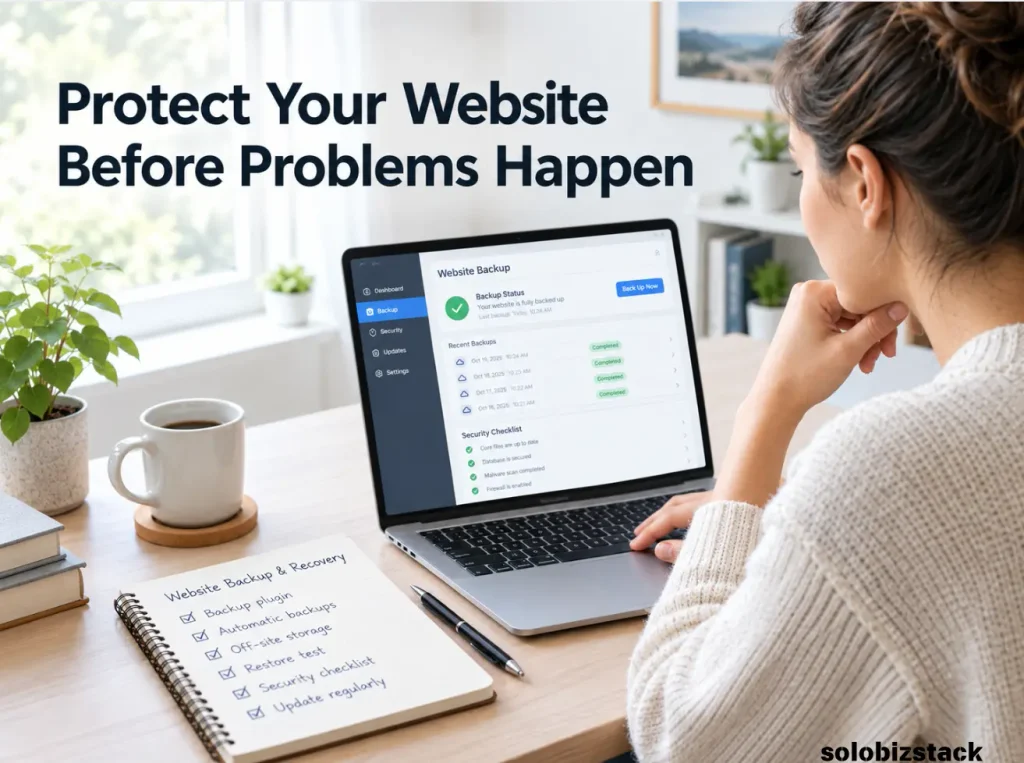
Before installing a backup plugin, check what your hosting provider already offers. Find out how frequently backups are created, how long they are retained, whether your database and files are included, and how restoration works.
If the hosting backup service does not meet your needs, UpdraftPlus is one option to consider. It supports backing up and restoring WordPress sites, with storage options that include services such as Google Drive and Dropbox. See the official UpdraftPlus plugin page.
A good backup setup should cover three things:
Regular backups: Schedule them according to how frequently your website changes.
Independent storage: Consider keeping a copy separate from your main hosting account.
Tested restoration: Make sure you understand how to restore the site if necessary.
For SoloBizStack, your posts, images, site settings, and other content are valuable assets. Make sure you have a recovery plan before making major changes or updating important components.
A backup plugin is not mandatory if your host already provides suitable backups, but simply assuming that backups exist is not enough. Verify the coverage and recovery process.
4. A Security Solution: Wordfence or Your Hosting Provider’s Tools
WordPress security should begin with good basic habits: use strong passwords, limit unnecessary user accounts, keep WordPress and plugins updated, and maintain current backups.
Wordfence Security offers a firewall, security scanning, and login protection features. It can be useful if you need additional WordPress security controls or want security information accessible through your dashboard. See the official Wordfence plugin listing.
However, do not automatically install Wordfence without checking your existing hosting setup. Some hosting plans include security monitoring, firewalls, malware scanning, or other protective features.
Choose a security arrangement you understand and can maintain. If you use Wordfence, review its settings after activation rather than assuming the default configuration is suitable for every website.
Security is not a one-time installation task. Keep software updated, review alerts, use strong authentication, and make sure backups are available.
[Follow the WordPress Website Checklist →]
5. A Performance Solution: Caching and Optimization
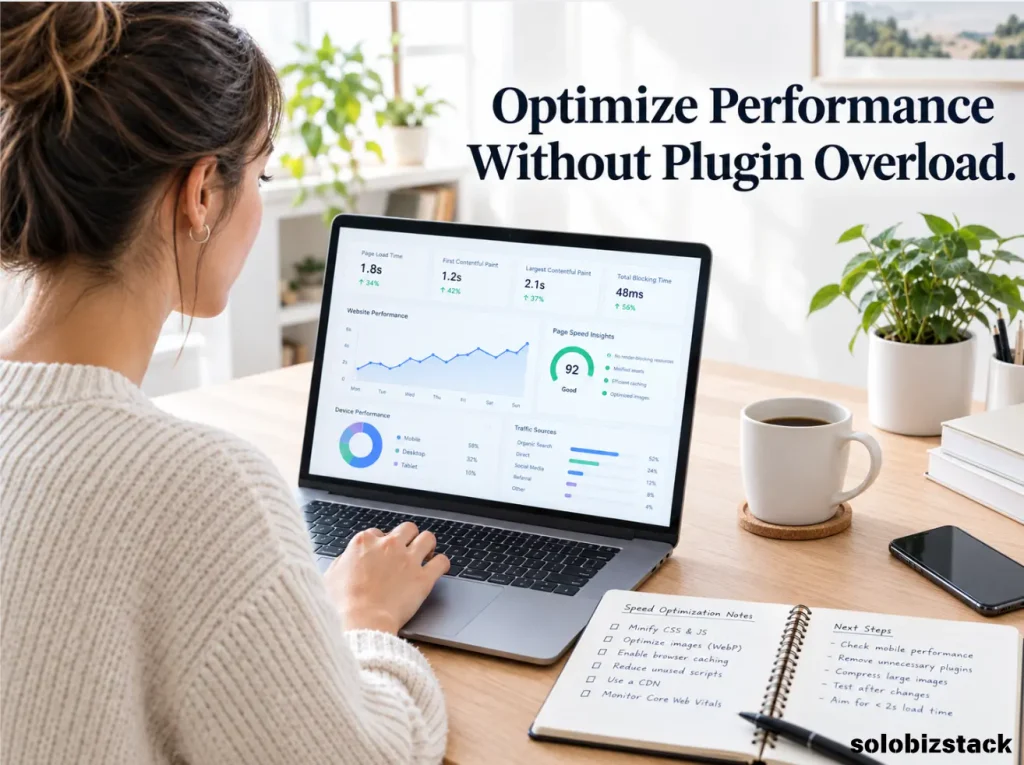
Website performance matters because visitors should be able to open your pages without unnecessary delays. A performance plugin can help with caching and other optimization tasks, but the right choice depends on your hosting environment.
If your host already provides page caching or a recommended optimization plugin, begin there.
LiteSpeed Cache is worth considering when its available features fit your setup. Its server-level caching functionality relies on a compatible LiteSpeed server environment or supported QUIC.cloud configuration. Some of its page optimization features may also be available in other hosting environments, but these are not equivalent to server-level caching. See the official LiteSpeed Cache documentation.
Before activating a caching plugin, check:
- Does your host already cache pages?
- Does the plugin support your server setup?
- Are image optimization features already available elsewhere?
- Could another active plugin perform the same task?
Do not install two caching plugins simply because both promise speed improvements. Overlapping settings can cause conflicts and make troubleshooting more difficult.
After changing performance settings, test the homepage, important articles, contact forms, navigation, and mobile layout.
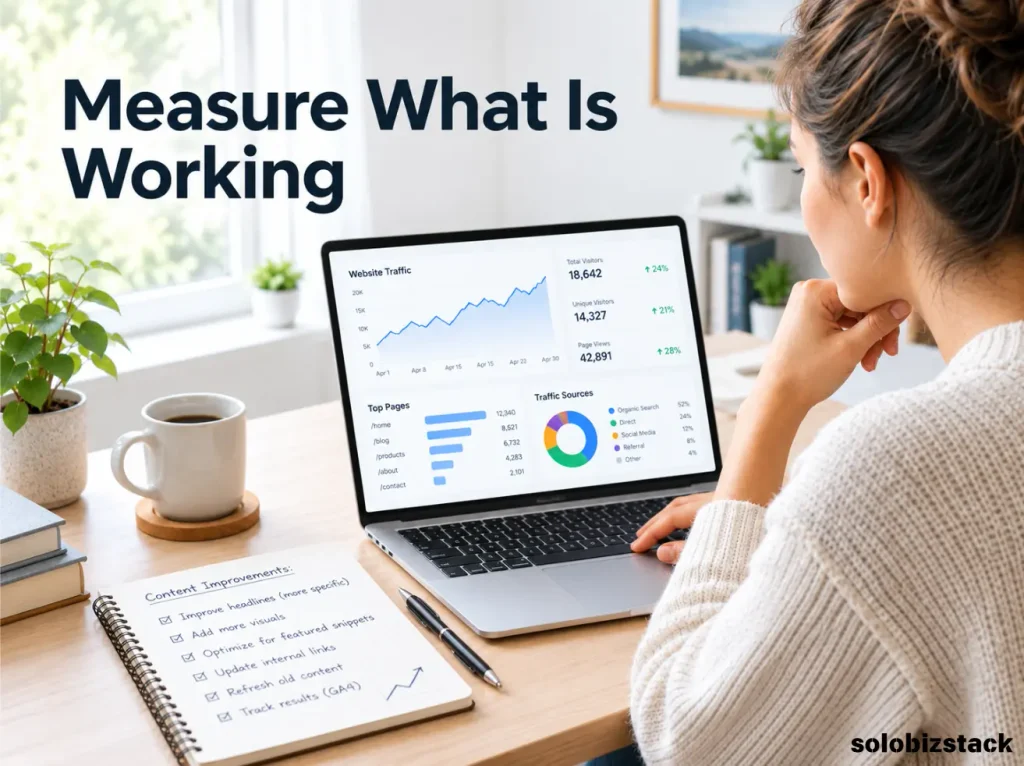
6. Search and Analytics Tools: Google Search Console, Analytics, or Site Kit
A new website needs a way to learn whether people are finding its pages.
Google Search Console provides data about how your site appears in Google Search, including queries, impressions, clicks, click-through rate, and average position. Google Analytics can help you understand visitor activity after people arrive.
Site Kit by Google connects supported Google services to your WordPress dashboard, allowing you to view relevant information without switching between as many tools. It is Google’s official WordPress plugin. See the Site Kit plugin page.
You do not have to install Site Kit to use Search Console or Analytics. You can access those services directly if you prefer.
For a new website, the most important thing is to configure your measurement setup correctly. Confirm that the right website and Google account are connected, and make sure your data collection settings are appropriate.
You will not have meaningful data immediately. That is normal. Over time, these tools can help you understand which pages attract impressions, which searches lead to clicks, and where your content strategy might need improvement.
[Explore SEO Tools for Small Websites →]
7. An Email Delivery Plugin: WP Mail SMTP, If Needed
Your WordPress website may send contact form notifications, password reset messages, and other emails. Depending on your hosting and email configuration, some messages may fail to arrive or end up in spam.
WP Mail SMTP reconfigures WordPress to send email through an appropriate SMTP or mail provider. Its free version includes a setup wizard and support for multiple mailer options. Read the official WP Mail SMTP plugin page for details.
Consider using an SMTP plugin if:
- Contact form notifications are not arriving
- Password reset emails are unreliable
- Messages sent by WordPress are missing or repeatedly landing in spam
You may not need it if your current email delivery setup is already working properly. If you install it, follow the configuration steps for your chosen mail provider and test email delivery after setup.
An email plugin also does not replace an email marketing service. If you later build a newsletter or automated email sequence, that may require a separate solution.
8. An Anti-Spam Plugin: Only If You Need It
If your website allows comments or receives spam through supported contact forms, an anti-spam solution may help reduce unwanted submissions.
Akismet checks supported comments and form submissions against its spam database. Review the official Akismet plugin page for its current features and commercial-use terms.
It is not necessary for every website. If comments are disabled and your form already has suitable spam protection, you may be able to defer this plugin.
Before adding an anti-spam tool, check whether your form plugin or hosting setup already includes suitable protection.
9. An Affiliate Link Manager: Pretty Links for Monetized Websites
An affiliate link manager is not essential for every new website. It becomes more useful when your site starts publishing product comparisons, reviews, tool recommendations, and affiliate content.
Pretty Links helps WordPress users create branded redirect links, organize affiliate URLs, and review click activity. Its documentation also explains options for adding rel="sponsored" and nofollow attributes to affiliate links when appropriate. See the official Pretty Links plugin page and link options documentation.
For SoloBizStack, a link management tool can eventually help organize affiliate links across hosting reviews, AI tool guides, SEO comparisons, and Fiverr articles.
However, you do not need to install it before you have affiliate links worth managing. When you begin monetizing, remember that a link manager does not replace a clear affiliate disclosure or the requirements of each partner program.
[Learn How to Start Affiliate Marketing With a Small Website →]
Which Plugins Should You Install First?
You do not need to install every plugin in this guide on the same day.
For most new content-focused websites, I would use this order:
First: Set up one SEO plugin and check that the sitemap and important page settings are configured correctly.
Second: Make sure you have a working contact method, if your website needs one.
Third: Confirm you have reliable backups and appropriate security protection, whether through your hosting provider or a suitable plugin.
Fourth: Check your hosting’s performance features before adding a caching solution.
Fifth: Connect Google Search Console and, if needed, Analytics or Site Kit.
Later: Add an email delivery plugin if WordPress emails are unreliable, anti-spam protection if spam becomes a problem, and Pretty Links when affiliate link management becomes useful.
This sequence focuses on website reliability first, then measurement and optional monetization tools.
How to Avoid Installing Too Many WordPress Plugins
The problem is not simply the number of plugins. It is unnecessary overlap, poor maintenance, incompatible settings, and features that do not support your website’s goals.
Before installing a plugin, ask these questions.
Do I really need this feature? If it does not solve a current problem, you may be able to wait.
Does my host or theme already provide it? Avoid paying for or maintaining duplicate functionality.
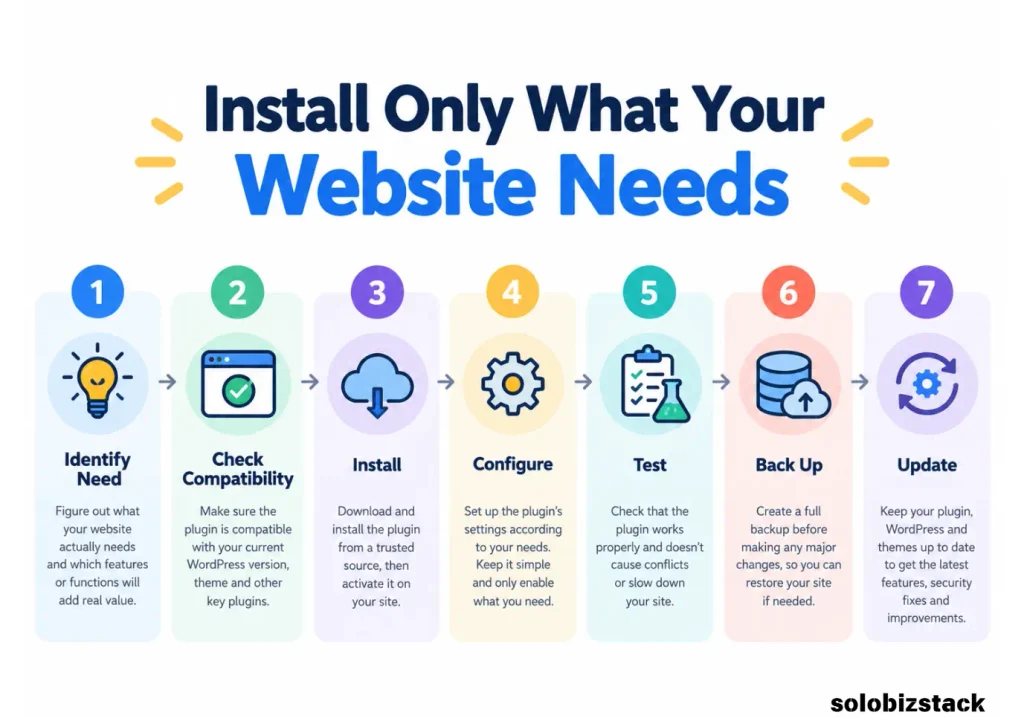
Is the plugin maintained and compatible? Check its current documentation, compatibility details, and recent update information in the official WordPress plugin directory.
Can I configure and test it properly? Installing a plugin without completing its setup can leave you with little practical benefit.
What happens when I update it? Keep a recent backup before major updates, especially when the plugin affects caching, forms, security, or other core functions.
WordPress recommends keeping plugins updated and checking compatibility information. Its official documentation also recommends ensuring a current backup is available before updating because problems can occasionally occur. See Managing WordPress Plugins.
The Recommended Plugin Setup for SoloBizStack
For SoloBizStack, I would keep the initial configuration focused on publishing and protecting content:
- SEO: Rank Math
- Forms: WPForms Lite, if needed
- Backups: A reliable hosting backup service or UpdraftPlus
- Security: Hosting protection or Wordfence, according to your setup
- Performance: The caching solution recommended for your hosting environment
- Search data: Google Search Console, with Site Kit as an optional dashboard connection
- Email delivery: WP Mail SMTP if email problems occur
- Affiliate links: Pretty Links when you begin managing a meaningful collection of affiliate URLs
That is a practical foundation. It does not mean every tool must be installed, and it does not require you to pay for premium plans immediately.
[What Tools Does a Solopreneur Actually Need? →]
Frequently Asked Questions
What are the essential WordPress plugins every new website needs?
Most new websites should have a plan for SEO, backups, security, performance, and measurement. A contact form may be useful for business sites, while email delivery, anti-spam, and affiliate link plugins depend on the site’s needs. Some of these functions may already be covered by your hosting provider.
How many plugins should a new WordPress website have?
There is no ideal plugin count. Choose plugins based on the jobs your website needs to perform, avoid overlapping features, and remove tools you no longer use. A small, well-maintained setup is generally easier to manage than a collection of redundant plugins.
Are free WordPress plugins enough for a new website?
Often, yes. Many free plugins provide the basic features a new website needs. Paid plans may become useful when you need advanced integrations, additional support, or more complex workflows.
Do I need both a backup plugin and hosting backups?
Not necessarily. Check your host’s backup frequency, retention period, storage location, and restoration process. If the service meets your requirements, a separate plugin may not be needed. Independent backups can provide an additional recovery option.
Should I install a security plugin on a new WordPress website?
You should have a suitable security plan, but that does not always mean you need a separate plugin. Check which protections your hosting provider already supplies. If you install a plugin, configure it properly and continue following good security practices.
Do WordPress plugins affect website speed?
They can, depending on what they do and how they are configured. Some add scripts, requests, database work, or additional processing. Avoid unnecessary plugins, check for overlapping functionality, and test performance after making significant changes.
Which WordPress plugins are useful for affiliate marketing?
An SEO plugin helps manage on-page settings, while a link manager such as Pretty Links can organize and track affiliate URLs. You should also provide clear affiliate disclosures and follow each affiliate program’s rules.
Final Thoughts
The essential WordPress plugins every new website needs are not necessarily the most popular plugins or the ones with the longest feature lists.
A good setup helps you publish content, protect your work, maintain reliable performance, and understand how visitors use your website.
Start with the functions your site genuinely needs. Check what your hosting provider already includes, configure each tool carefully, and add new plugins only when they solve a clear problem.
For SoloBizStack, the goal is a website that remains easy to maintain as its content grows. A small, reliable plugin stack is a better starting point than installing every tool you might eventually use.
Build the foundation first. Add complexity only when your website needs it.
One Comment