
How to Choose a WordPress Theme for Your Website (2026)
Choosing a WordPress theme is one of the first big decisions you’ll make when building a website.
And it’s easy to make the process harder than it needs to be.
Open the WordPress theme library and you’ll find thousands of options. Some look great on a demo site. Others come with dozens of features, sliders, animations, page builders, and customization settings.
The problem is that a beautiful demo doesn’t necessarily mean the theme is right for your website.
Your theme should fit what you’re building, how you plan to manage the site, and what you actually need. A simple blog has different requirements from an online store, a portfolio, or a service business.
So, how do you choose a WordPress theme without wasting time testing dozens of them?
The easiest approach is to start with your website goals and then evaluate themes based on speed, usability, customization, mobile experience, accessibility, support, and long-term maintenance.
This guide walks you through that process step by step.
Quick answer: The best WordPress theme is not necessarily the one with the most features or the most impressive demo. For most beginners, look for a well-maintained theme that fits your website type, works well with the WordPress editor or your preferred builder, offers the customization you actually need, and doesn’t add unnecessary complexity.
Best Website Hosting for Beginners →
Affiliate Disclosure: This article may contain affiliate links. If you purchase through one of our links, SoloBizStack may earn a commission at no extra cost to you.
What Is a WordPress Theme?
A WordPress theme controls much of the visual design and presentation of your website.
It affects things such as your site’s layout, typography, colors, menus, headers, footers, blog presentation, and other design elements. WordPress supports both traditional themes and newer block themes, which use the Site Editor to customize more areas of a website.
Think of your WordPress theme as the basic design system for your website.
Your content is the articles, images, pages, products, and other information you publish. The theme determines how much of that content is presented to visitors and how the site looks around it.
That’s why choosing a theme is different from choosing a plugin.
A plugin usually adds functionality. A theme primarily handles the design and structure of your website.
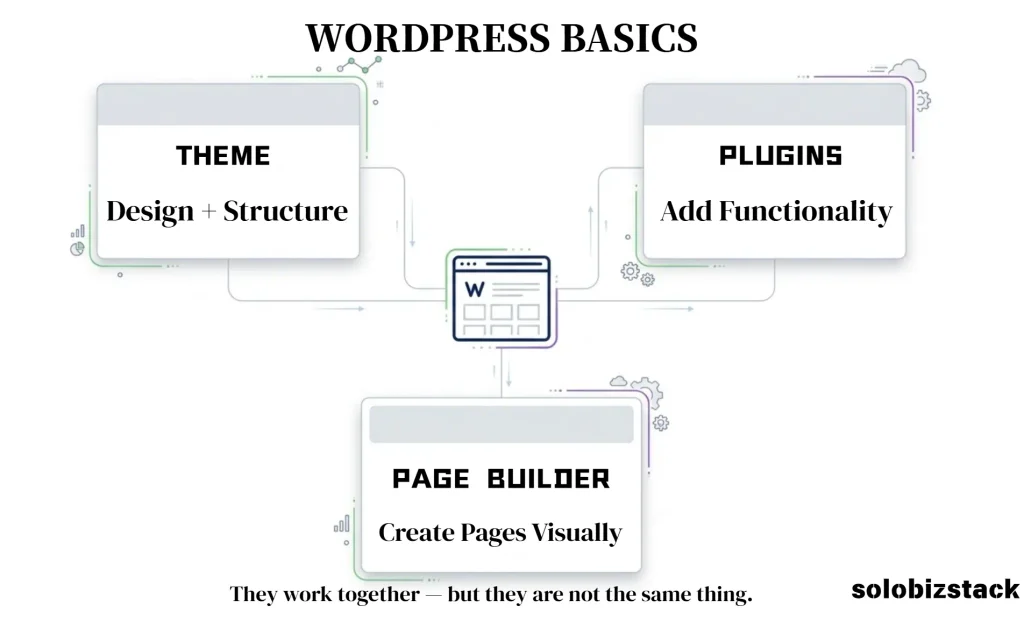
You may also hear about page builders such as Elementor. That’s another layer of the WordPress setup. Elementor is a website builder with a visual drag-and-drop editing experience, and it can work with many WordPress themes.
Learn WordPress Website Building →
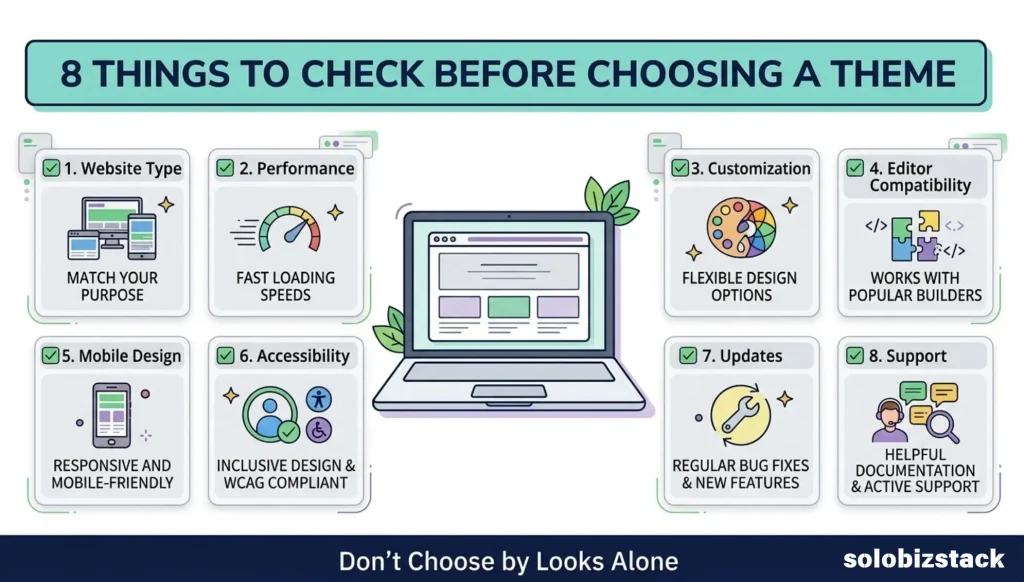
What Should You Look for in a WordPress Theme?
You don’t need to judge a theme by every feature on its sales page.
Instead, focus on the things that will actually affect your website.
Here are the main questions to ask before installing one.
1. Does the Theme Fit Your Website Type?
Start with the most basic question:
What are you building?
A theme designed for a photography portfolio may not be the best fit for a text-heavy affiliate blog.
A restaurant website may need menus, location details, and booking-related layouts.
A small business website may need strong service pages and clear calls to action.
An affiliate content website may care more about blog layouts, category pages, comparison tables, readability, and conversion-focused buttons.
Before looking at colors or animations, write down the main purpose of your site.
For example:
“I want to build a WordPress website that publishes tutorials, comparisons, reviews, and resource guides.”
That one sentence can eliminate a lot of themes that look attractive but aren’t designed around your actual content.
2. Is the Theme Fast and Lightweight?
Website performance matters.
Visitors don’t want to wait for unnecessary effects and large design assets to load, especially on mobile connections.
But you should be careful with marketing claims like “the fastest WordPress theme.”
A theme is only one part of website performance. Hosting, plugins, images, fonts, scripts, caching, and the complexity of the page all matter too.
A sensible approach is to look for themes that are built with performance in mind, then keep the rest of your website lightweight as well.
For example, Kadence provides performance-related settings in its theme, and its documentation specifically discusses controlling how styles and other resources load.
That doesn’t mean every Kadence website will automatically be fast. It means the theme provides tools and design choices intended to support a performance-conscious setup.
3. Is It Easy to Customize?
A theme can have hundreds of options and still be frustrating to use.
For a beginner, the important question isn’t:
“How many customization options does it have?”
It’s:
“Can I make the changes I actually need without fighting the theme?”
Look for simple controls for:
- Colors
- Fonts
- Header
- Footer
- Navigation
- Page width
- Blog layout
- Buttons
- Spacing
- Mobile appearance
You should also be able to understand where these settings live.
A good theme doesn’t require you to search through five different menus every time you want to change a font or button style.
4. Does It Work With Your Preferred Editor?
This is easy to overlook.
WordPress now supports block-based editing, including block themes that allow broader site customization through the Site Editor.
Some people prefer this native WordPress workflow.
Others prefer a visual page builder such as Elementor.
Neither workflow is automatically right for every website.
The important thing is to choose a theme that works well with the editing system you actually want to use.
For example, if you enjoy Gutenberg and want to keep your WordPress setup relatively simple, a theme that is built around the block editor can make sense.
If you plan to use Elementor heavily, check the theme’s compatibility with Elementor before building your entire site. Elementor states that its builder works with most properly constructed WordPress themes, while also noting that theme compatibility can affect how some Theme Builder features behave.
5. Is the Theme Mobile-Friendly?
Your website should work well on phones and tablets, not just on a desktop monitor.
When checking a theme demo, don’t only look at the desktop version.
Open the mobile preview and check:
- Is the text easy to read?
- Does the navigation make sense?
- Are buttons easy to tap?
- Do images fit the screen?
- Is there excessive horizontal scrolling?
- Does the layout still look balanced?
A theme can look impressive on a large screen and feel completely different on a phone.
Don’t discover that after you’ve already built fifty pages.
6. Does It Support Good Accessibility Practices?
Accessibility is another important consideration when choosing a theme.
WordPress’s own theme guidance treats accessibility as part of good theme development, including considerations for people who cannot see or use a mouse.
You don’t need to become an accessibility expert before selecting a theme.
At a minimum, look for a theme that takes accessibility seriously and gives you a clean foundation.
Then make sure your own content choices help visitors too.
Use clear headings, readable text, sufficient contrast, descriptive links, and properly labeled interactive elements.
A technically solid theme can still be used to create a difficult website if the content and design are poorly structured.
7. Is the Theme Regularly Updated?
WordPress changes over time.
Plugins change. Browsers change. WordPress itself changes.
Your theme needs to stay maintained as the rest of your website evolves.
Before installing a theme, check:
- When was it last updated?
- Does the developer actively maintain it?
- Does it have documentation?
- Is support available?
- Is there a clear changelog?
- Is it compatible with current versions of WordPress?
The WordPress Theme Directory reviews submitted themes against a set of requirements, and the directory provides information and previews that can help users evaluate a theme before installing it.
A theme that hasn’t been maintained for a long time deserves extra caution, even if its demo still looks excellent.
8. Does the Theme Have Good Documentation and Support?
This becomes important the first time something doesn’t work.
You may eventually ask:
“How do I change the header?”
“Why does this layout look different on mobile?”
“Where do I change the blog archive?”
“How do I import this starter template?”
Good documentation can save hours.
Support also matters, especially if you’re new to WordPress.
You don’t necessarily need live chat or premium support. Even a well-organized knowledge base and active support forum can make a big difference.
9. Are Starter Templates Available?
Starter templates can save beginners a lot of time.
Instead of designing your website from scratch, you can import a pre-designed layout and replace the demo content with your own.
Kadence, for example, offers both free and premium starter templates, with options covering different types of websites.
This can be especially useful when you’re learning WordPress.
Just remember that importing a template doesn’t mean your site is finished.
You’ll still need to replace the placeholder text, images, menus, pages, and branding.
Don’t Choose a Theme Just Because the Demo Looks Great
This is one of the biggest mistakes beginners make.
You see a beautiful demo with perfect images, carefully written copy, custom icons, and polished layouts.
Then you install the theme.
Suddenly, your website looks nothing like the demo.
That’s normal.
Theme demos are designed to show possibilities. They aren’t a guarantee that your own site will look the same.
Before choosing a theme, ask:
Can this theme support my content structure?
That’s much more important than:
Does this demo look impressive?
If you’re building an information website, a simple article layout may be more useful than a theme full of visual effects.
If you’re building a portfolio, strong image presentation may matter more.
If you’re running an online store, product and checkout layouts may be a priority.
Choose based on the job the theme needs to do.
Free vs Premium WordPress Themes
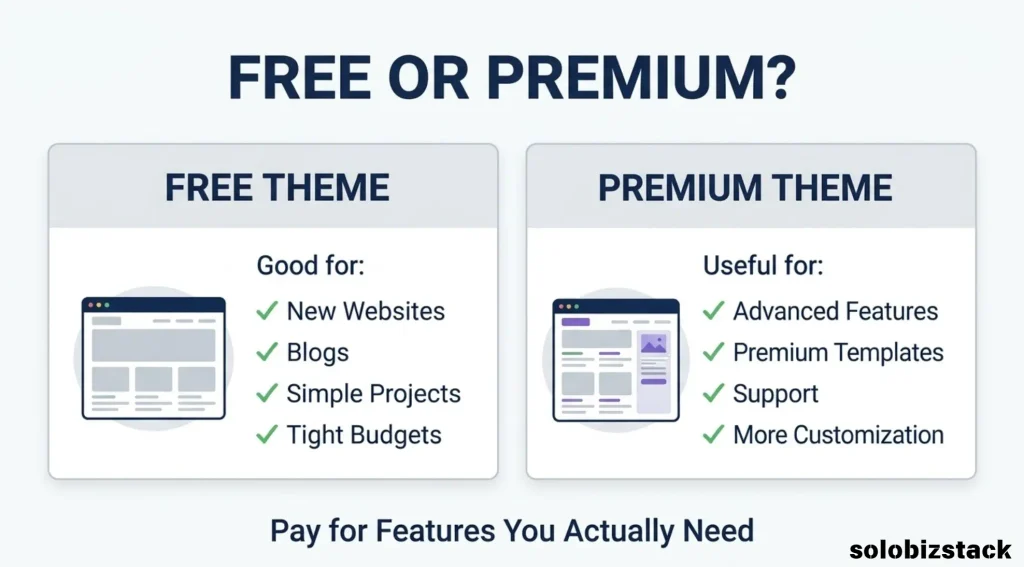
You don’t necessarily need to buy a premium theme when starting a WordPress website.
A good free theme can be enough for a blog, affiliate site, portfolio, or small business website.
The better question is:
What do I actually get by paying?
Premium themes may offer additional templates, support, customization options, advanced features, or bundled products.
Those things can be valuable.
But paying for a premium theme just because it has a long feature list isn’t necessarily a good use of your budget.
When a Free Theme Is Enough
A free theme may be enough when:
- You’re building your first website.
- You mainly publish blog content.
- You don’t need advanced design features.
- You’re comfortable using the WordPress editor.
- You want to keep startup costs low.
When a Premium Theme May Be Worth Considering
A premium theme may make sense when:
- You need specific advanced features.
- You want premium templates.
- You need developer support.
- You’re building multiple websites.
- The paid features save you significant time.
Don’t buy first and figure out what the product does later.
Identify the feature you need first.
Then decide whether it’s worth paying for.
WordPress Theme vs Page Builder: What’s the Difference?
This is a common source of confusion.
A theme and a page builder are not exactly the same thing.
A theme provides the foundation for your site’s presentation and templates.
A page builder provides another way to create and customize page content.
Elementor describes itself as a WordPress website builder with visual editing, templates, responsive controls, and Theme Builder capabilities.
You can therefore have a setup such as:
WordPress + Theme + Page Builder + Plugins
For example:
WordPress + Kadence + Gutenberg + Plugins
or:
WordPress + Theme + Elementor + Plugins
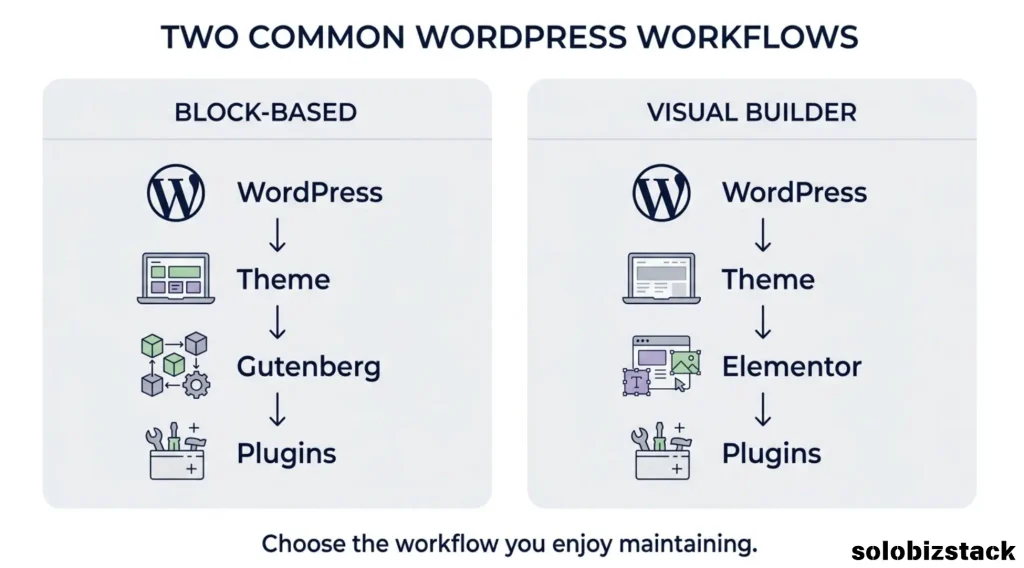
You can sometimes combine a theme with Elementor, but you should avoid adding tools simply because you can.
More tools can mean more settings, more things to maintain, and more opportunities for conflicts.
For a beginner, a simple setup is often easier to understand.
Kadence vs Elementor: Which Is Better for Beginners? →
How Many Plugins Should Your Theme Require?
Be careful with themes that require a large collection of additional plugins just to reproduce the demo.
There is nothing inherently wrong with plugins.
The problem is unnecessary complexity.
Each additional plugin introduces another piece of software that needs to be maintained and potentially configured.
Before importing a starter site, check what it installs.
Kadence’s own documentation, for example, explains which Kadence products and plugins are needed for its starter-template workflow and notes that some premium starter templates may also depend on third-party premium plugins.
That doesn’t make starter templates a bad idea.
It simply means you should know what you’re installing.
How to Check a WordPress Theme Before You Install It
You can do a surprisingly useful theme check in about ten minutes.
Step 1: Look at the Demo
Don’t just look at the homepage.
Check the:
- Blog
- Single post
- Category/archive
- About page
- Contact page
- Mobile layout
Step 2: Check the WordPress Theme Directory
If you’re considering a free theme, check whether it’s available through the official WordPress Theme Directory and review its available information before installing it.
Step 3: Read the Documentation
Search for answers to the questions you expect to have.
If the documentation is difficult to understand, the theme may not be a comfortable choice for a beginner.
Step 4: Check the Update History
A polished demo doesn’t tell you whether the product is actively maintained.
Look at its update history and current compatibility information.
Step 5: Test It on Mobile
Don’t skip this.
A large percentage of visitors may reach your website on a phone, so the mobile version deserves the same attention as desktop.
Step 6: Check Your Required Features
Make a simple list.
For example:
Header builder
Blog layout
Custom buttons
Starter templates
WooCommerce support
Then check whether the theme supports those things.
This prevents you from paying for ten features when you only need three.
What Type of WordPress Theme Should You Choose?
Best WordPress themes for bloggers and small businesses.
The answer becomes easier when you start with your website type.
For a Blog
Look for:
- Clean typography
- Comfortable reading width
- Good blog archive layouts
- Categories and navigation
- Easy image handling
- Mobile-friendly article pages
Your content is the main product, so don’t let the theme overpower it.
For an Affiliate Website
Look for:
- Readable article layouts
- Comparison table support
- Buttons and call-to-action sections
- Good category navigation
- Flexible landing pages
- Easy internal linking
- Fast-loading layouts
For an affiliate site, usability is especially important.
A visitor should be able to understand the page, find the information they need, and move naturally to the next relevant resource.
For a Small Business Website
Look for:
- Strong homepage layouts
- Service pages
- Contact forms
- Testimonials or case-study sections
- Clear navigation
- Mobile support
- Easy branding controls
For an Online Store
Focus on:
- WooCommerce compatibility
- Product pages
- Product archives
- Cart and checkout presentation
- Mobile shopping experience
- Performance
- Compatibility with your required plugins
Don’t choose a store theme based only on how attractive its homepage looks.
The product pages matter more.
What About SEO?
Your theme matters for SEO, but it isn’t an SEO strategy by itself.
No theme can compensate for thin content, poor site structure, confusing navigation, or a lack of useful information.
A sensible theme should provide a solid technical and visual foundation, while you handle the parts that depend on your website.
Focus on:
- Clear headings
- Logical page structure
- Readable content
- Mobile usability
- Internal links
- Image optimization
- Fast loading
- Helpful, original content
For your own website, it also makes sense to use an SEO plugin if it fits your workflow.
And don’t obsess over a theme’s marketing claims about SEO.
Ask what the theme actually does.
Should You Choose Kadence for Your WordPress Website?
Kadence is one option worth considering, especially if you like the WordPress block editor and want a theme that provides additional customization without requiring a separate visual builder for every page.
Kadence describes its free theme as a lightweight foundation and provides a range of customization and performance settings. It also offers starter templates designed for different website types.
For a content-heavy website, this can be a practical workflow.
You can use the theme for the site’s overall design, WordPress blocks for content, and additional Kadence blocks when you need more layout options.
That’s the kind of setup that can work well for blogs, affiliate websites, tutorials, and resource sites.
But that doesn’t mean everyone should use Kadence.
A different theme may fit your workflow better.
Should You Choose Elementor Instead?
Elementor is a different type of solution.
It focuses on visual editing and gives you a drag-and-drop interface for creating pages. Its paid Theme Builder features can also be used to customize site-wide areas such as headers, footers, posts, and archives.
Elementor can make sense when visual page design is a major part of your workflow.
For example, you may want to create custom landing pages, highly designed service pages, or pages where you want more direct control over individual design elements.
But again, you don’t need to install Elementor simply because other WordPress users are using it.
Choose the tool that fits the way you want to work.
A Simple WordPress Theme Checklist
Before you commit to a theme, run through this checklist.
| Question | What You’re Looking For |
|---|---|
| Does it fit my website type? | Blog, business, store, portfolio, etc. |
| Is it actively maintained? | Recent updates and current compatibility |
| Is it mobile-friendly? | Good layout and navigation on phones |
| Is it easy to customize? | Simple controls for the settings you actually need |
| Does it work with my editor? | Gutenberg, Site Editor, Elementor, etc. |
| Does it provide good documentation? | Clear setup and troubleshooting resources |
| Does it support accessibility? | Sensible semantic and navigation foundations |
| Does it avoid unnecessary complexity? | No long list of required plugins for basic use |
| Is the free version enough? | Test before paying |
| Will I still like this workflow in a year? | Consider long-term maintenance |
If a theme passes most of these checks, you don’t need to keep searching forever.
Common WordPress Theme Mistakes to Avoid
Choosing the Prettiest Theme
A pretty homepage doesn’t guarantee a good content layout.
Choose based on your website’s needs.
Switching Themes Too Often
Every theme change can mean redesigning layouts, menus, widgets, templates, and styling.
Spend some time choosing your initial theme, then focus on building the website.
Installing Too Many Plugins
Don’t turn a simple blog into a complicated software stack before you have a reason to.
Paying for Features You Don’t Need
A premium plan isn’t automatically better for your specific project.
Ignoring Mobile Design
Always check your pages on smaller screens.
Forgetting About Long-Term Maintenance
Your theme is something you’ll probably live with for years.
Consider updates, support, compatibility, and ease of editing before making your final choice.
How to Choose a WordPress Theme: A 5-Step Method
Here’s the entire process in five steps.
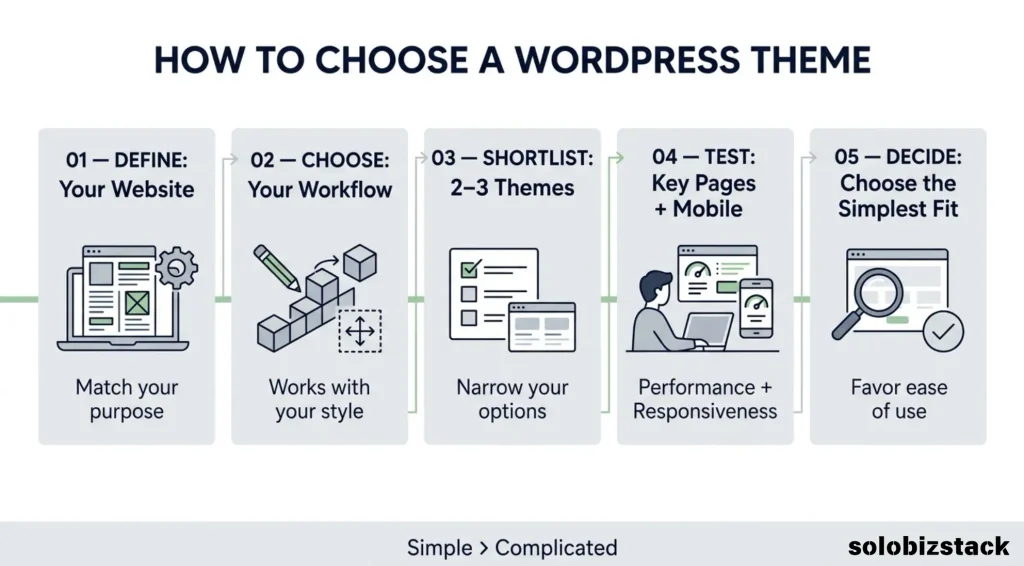
Step 1: Define the website.
Write down what the site is supposed to do.
Step 2: Choose your editing workflow.
Decide whether you want to work primarily with the WordPress editor, a visual builder such as Elementor, or another supported workflow.
Step 3: Shortlist two or three themes.
Don’t compare twenty themes at once.
Step 4: Test the important pages.
Check your homepage, blog post, archive, navigation, and mobile layout.
Step 5: Pick the simplest option that meets your needs.
You don’t need every feature.
You need the right features.
Final Thoughts: Choose a Theme That Helps You Build
Choosing a WordPress theme doesn’t have to be complicated.
The right theme should fit your website, not force your website to fit the theme.
Start with your goals. Then look at usability, performance, mobile experience, accessibility, compatibility, updates, support, and customization.
Don’t get distracted by a long feature list or an impressive demo.
And don’t feel pressured to buy a premium theme immediately.
For many beginners, starting with a solid free theme and learning the WordPress workflow first is a perfectly reasonable approach.
Once you understand what your website actually needs, you’ll have a much better idea of whether you need premium features, a page builder, or additional design tools.
The goal isn’t to build the most complicated WordPress website.
It’s to build a website that is easy to use, easy to maintain, and capable of growing with your project.
Learn How to Build a WordPress Website →
Compare Kadence vs Elementor →
Frequently Asked Questions
What is the best WordPress theme for beginners?
There isn’t one theme that is ideal for every beginner. Start by matching the theme to your website type, preferred editing workflow, required features, and budget.
Should I use a free or paid WordPress theme?
A free theme may be enough for a new blog, affiliate website, or small business site. Consider paying when you need specific premium features, templates, or support that will actually save you time.
Is Kadence a good WordPress theme for beginners?
Kadence can be a practical option for beginners who want a flexible theme that works well with the WordPress block editor. It also provides starter templates and additional customization tools.
Can I use Elementor with any WordPress theme?
Elementor states that it is compatible with most themes that follow WordPress coding standards, although theme compatibility can affect certain Theme Builder features.
Does my WordPress theme affect SEO?
Yes, your theme can affect aspects of your site’s technical structure, performance, usability, and presentation. But rankings depend on many other factors, including content, site structure, links, and overall user experience.
How often should I change my WordPress theme?
There is no fixed schedule. Ideally, choose a theme you can maintain for the long term and change it only when there is a clear reason, such as outdated technology, poor compatibility, or a change in your website’s requirements.
Can I change my WordPress theme later?
Yes. But changing a theme can affect layouts, templates, menus, widgets, and styling. Always back up your site and test the new theme before making major changes on a live website.
Do WordPress themes affect website speed?
They can. A theme contributes to the resources and structure your website loads, but overall performance also depends on hosting, plugins, images, scripts, caching, and how your pages are built.
What should I check before installing a WordPress theme?
Check its compatibility, update history, documentation, support, mobile layout, accessibility considerations, required plugins, customization options, and whether it works with the editor or page builder you plan to use.
Official Resources
- WordPress Theme Handbook
- WordPress Theme Directory
- WordPress Themes Documentation
- Kadence WordPress Theme
- Kadence Starter Templates
- Elementor Website Builder
- Elementor Theme Builder
Theme features, compatibility, pricing, and product offerings can change. Check the relevant official website before purchasing or installing a product.
One Comment