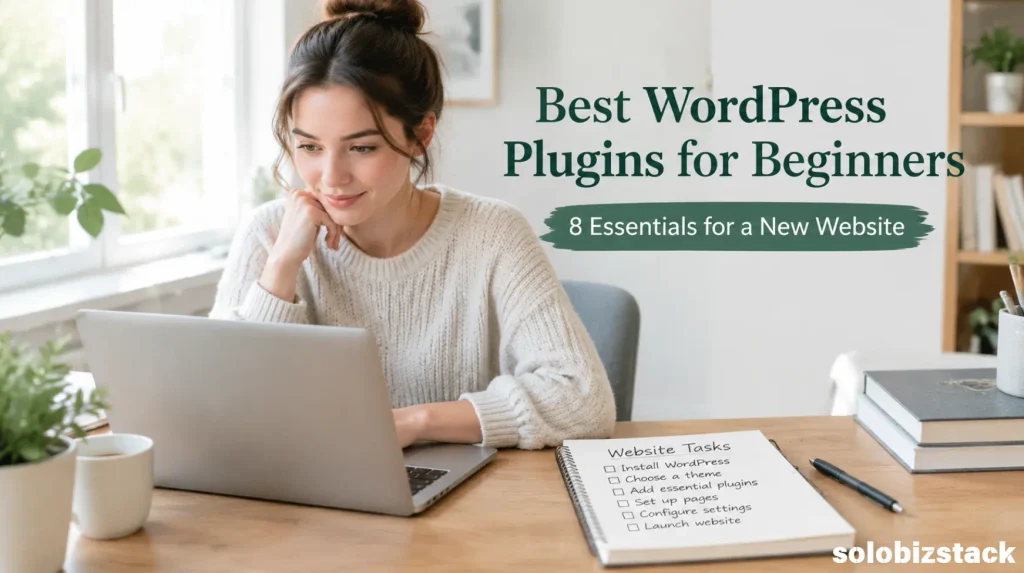
Best WordPress Plugins for Beginners (2026): 8 Essentials
Starting a WordPress website is exciting, but the number of available plugins can make the next step surprisingly confusing. You might need an SEO plugin, a contact form, backups, security, analytics, and a way to make your site faster. Before long, you have a long list of things to install without knowing which ones actually matter.
The best WordPress plugins for beginners are not necessarily the ones with the most features. They are the ones that solve real problems, work well with your setup, and make your website easier to manage.
You do not need dozens of plugins to build a professional website. A small, carefully chosen set is often easier to maintain and troubleshoot than a collection of overlapping tools.
In this guide, we will look at eight useful WordPress plugins for new websites, explain what each one does, and help you decide which ones are worth installing. We will also cover what to avoid so you can build a reliable site without creating unnecessary technical work.
Affiliate Disclosure: This article may contain affiliate links. If you purchase through these links, SoloBizStack may earn a commission at no extra cost to you. We aim to provide useful, honest information to help you make an informed decision.
The Best WordPress Plugins for Beginners at a Glance
Here is a quick overview of the plugins covered in this guide.
| Plugin | Main purpose | Best for |
|---|---|---|
| Rank Math SEO | On-page SEO and structured data tools | Bloggers and content websites |
| WPForms Lite | Contact forms and form submissions | Websites that need a contact form |
| UpdraftPlus | Website backups and restoration | Owners who need an independent backup solution |
| Wordfence Security | Firewall, security scanning, and login protection | Sites that need additional WordPress security tools |
| LiteSpeed Cache | Caching and performance optimization | Websites on compatible hosting setups |
| Site Kit by Google | Connect Google services to WordPress | Owners who want search and traffic data in one dashboard |
| WP Mail SMTP | Improve WordPress email delivery configuration | Sites whose form notifications or other emails are unreliable |
| Pretty Links | Organize and track affiliate links | Affiliate blogs and tool recommendation websites |

These are recommendations by use case, not a requirement to install all eight. Some hosting providers already provide backups, caching, security, or email services. Check your existing features before adding another plugin.
1. Rank Math SEO: For Optimizing Your WordPress Content
If you run a blog, SEO should be part of your publishing workflow. A WordPress SEO plugin can help you manage important elements such as SEO titles, meta descriptions, sitemaps, and structured data.
Rank Math is one option that brings SEO settings, structured data features, and related optimization tools into the WordPress dashboard. Its free plugin provides a useful starting point for a beginner content website. See the official Rank Math plugin page.
For a blog, you can use an SEO plugin to:
- Set a title and meta description for each article
- Manage XML sitemap settings
- Configure appropriate structured data
- Review on-page SEO issues
- Organize your SEO workflow while publishing
An important point: an SEO plugin does not automatically make an article rank. It helps you manage technical and on-page elements, while content quality, search intent, competition, and the website’s overall usefulness still matter.
My recommendation: Choose one main SEO plugin. Since SoloBizStack already uses Rank Math, there is no need to install another SEO plugin to perform the same job.
[Compare Rank Math and Yoast →]
2. WPForms Lite: For Contact Forms
A contact form makes it easier for readers, potential partners, and customers to reach you without displaying your email address directly on the page.
WPForms Lite is a beginner-friendly option with a drag-and-drop form builder. Its official plugin listing describes support for contact forms and other basic form types. Some advanced features, such as certain integrations and conditional logic, require a paid plan. Check the official WPForms Lite page for the current feature list.
For a new website, start with a simple form containing:
- Name
- Email address
- Message
You can add more fields later if you have a genuine reason to collect more information.
Before publishing your form, submit a test message and make sure the notification reaches the correct inbox. Also check your privacy notice if you collect personal information.
3. UpdraftPlus: For Backing Up Your Website
Imagine spending weeks publishing articles and configuring your website, only to lose important content after an update or an unexpected technical problem.
A backup gives you a way to restore your website if something goes wrong.
UpdraftPlus is a WordPress backup plugin that supports backing up, restoring, and migrating websites. Its documented storage options include services such as Google Drive and Dropbox. See the official UpdraftPlus plugin page.
A sensible backup setup should answer three questions:
What gets backed up? Make sure both your database and website files are covered when required.
Where are backups stored? An independent storage location gives you another option if the main hosting account becomes unavailable.
Can you restore the backup? A backup is only useful if you can recover the site from it.
Before installing a backup plugin, check your hosting plan. If your provider already offers reliable automatic backups, you may only need to confirm the retention period, storage location, and restoration process.
Do not assume that having a backup plugin installed means that your site is protected. Configure it and verify that backups are completing successfully.
4. Wordfence Security: For Additional WordPress Protection
WordPress security involves more than installing one plugin. You should keep WordPress, themes, and plugins updated, use strong passwords, limit unnecessary user accounts, and maintain backups.
Wordfence Security offers a firewall, security scanner, and login protection features. The free version provides a useful set of tools for site owners who want additional WordPress security controls. The official documentation explains its free and premium security features.
For a beginner website, the main value is having a place to review security alerts and investigate suspicious activity.
However, do not assume a security plugin replaces everything else. Your hosting provider may already offer server-level protection, malware scanning, or account security tools. Review what is included and avoid enabling overlapping features without understanding how they interact.
[Review Your WordPress Website Setup →]
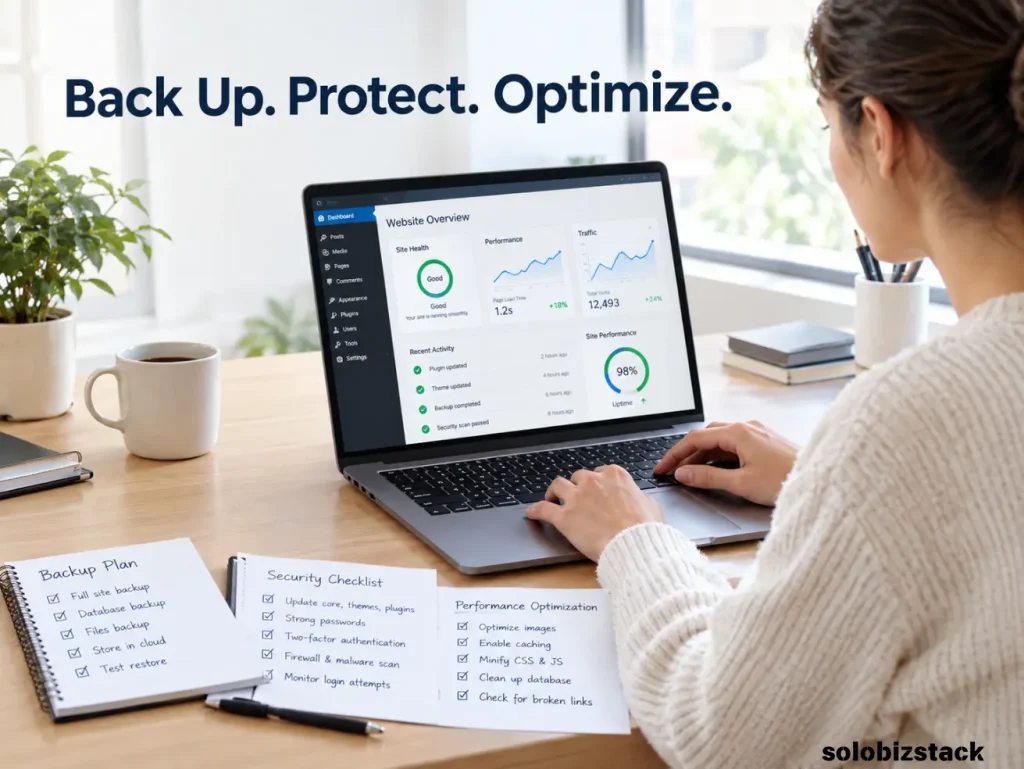
5. LiteSpeed Cache: For Website Performance
Slow pages can make a website frustrating to use, especially on mobile devices. Caching and performance optimization can help reduce unnecessary work when your site serves pages to visitors.
LiteSpeed Cache offers caching and other optimization features, including image optimization and page optimization options. However, its full server-level cache functionality requires a compatible LiteSpeed server setup or supported QUIC.cloud configuration. The plugin’s general optimization features and its server-dependent features are not the same. See the official LiteSpeed Cache documentation.
Before installing a caching plugin, check what your hosting provider already includes.
Some hosts provide their own performance plugins or cache settings. Using multiple caching plugins can create confusing settings or conflicts, so choose one approach and test your site after configuration.
For a beginner, start with the basics:
- Use a lightweight theme
- Upload appropriately sized images
- Enable the caching solution recommended for your hosting setup
- Test pages after changing optimization settings
Do not enable every performance option at once. Make one change at a time so it is easier to identify the cause if a page or design element stops working.
6. Site Kit by Google: For Search and Traffic Data
Publishing articles is only part of running a website. You also need to understand whether people are finding your content and which pages are getting attention.
Site Kit is Google’s official WordPress plugin. It can connect services such as Search Console, Analytics, PageSpeed Insights, and other supported Google products, then display useful information inside your WordPress dashboard. See the official Site Kit documentation.
For a blog, this can help you review:
- Search queries and impressions from Search Console
- Website traffic from Analytics
- Basic performance information
- How individual pages are performing over time
You do not have to install Site Kit to use Google Search Console or Google Analytics. You can access those services directly. Site Kit is mainly helpful if you prefer having connected information visible inside WordPress.
After setting it up, confirm that the correct website and Google account are connected. Allow some time for the reports to populate.
7. WP Mail SMTP: For More Reliable WordPress Emails
WordPress websites may send emails for contact form notifications, password resets, user messages, and other events. Depending on the hosting and email configuration, some messages may fail to arrive or be marked as spam.
WP Mail SMTP reconfigures WordPress email sending to use a suitable SMTP or mail provider. Its free version includes a setup wizard and integrations with a range of mail services. Review the official WP Mail SMTP plugin page for supported options.
This plugin is especially useful if:
- Contact form notifications do not arrive
- Password reset emails are unreliable
- Messages sent by WordPress are not reaching the inbox
It is not automatically necessary on every website. If your host or current email setup already sends messages reliably, you may not need an additional plugin.
If you install it, follow the setup instructions for the email provider you use and test the form again after configuration.
8. Pretty Links: For Managing Affiliate Links
If you plan to monetize your blog through affiliate marketing, link management can become useful as your content library grows.
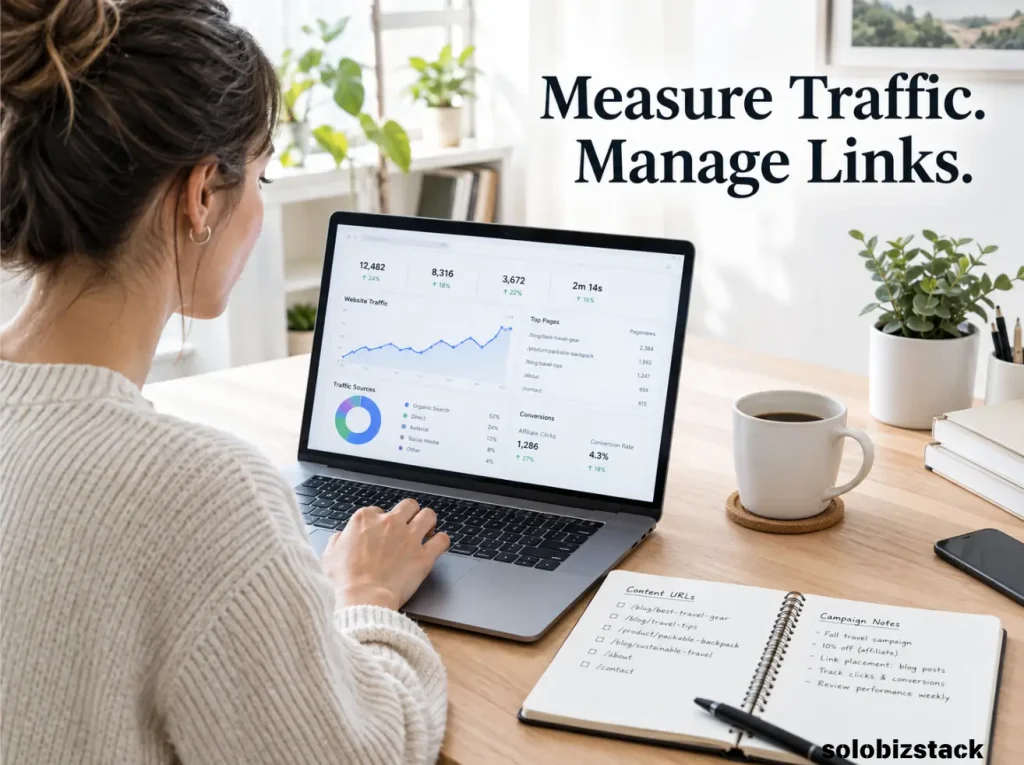
Pretty Links lets you organize affiliate URLs, create cleaner redirect links, and track clicks. It also supports link options such as adding rel="sponsored" or nofollow attributes where appropriate. See the official Pretty Links documentation.
For example, instead of manually searching through multiple articles to update a long affiliate destination URL, you can manage the link centrally when your setup supports that workflow.
For SoloBizStack, this type of tool can be helpful when managing links in:
- Hosting comparisons
- AI tool recommendations
- SEO software guides
- Fiverr and outsourcing articles
However, Pretty Links is optional. You do not need it before you have affiliate links to manage. Also, link cloaking does not replace affiliate disclosure. Tell readers when you may earn a commission, and follow the applicable program requirements.
Optional Plugins: Install Them Only When You Need Them
The eight plugins above cover common website tasks, but not every WordPress site needs every function.
Akismet: For Sites With Comments or Spam Problems
Akismet checks comments and supported form submissions against its spam database. It can be helpful if you allow comments or receive repeated spam through supported forms. Its official listing explains that personal blogs and commercial sites may have different subscription requirements, so check the current terms before using it on a business website. (Akismet plugin page)
If comments are disabled and your forms already have suitable spam protection, an anti-spam plugin may not be an immediate priority.
WooCommerce: For Online Stores
If you decide to sell products directly from your WordPress website, WooCommerce adds ecommerce functionality, including tools for products and orders. It is not necessary for an ordinary blog or a site that only recommends third-party products. Read the official WooCommerce documentation before setting up a store.
Comparison Table Plugins
If your site publishes a lot of tool reviews and product comparisons, a table plugin may help you maintain consistent comparison tables. But start with the blocks and table features already available in your WordPress editor before adding another plugin.
WordPress Plugins Beginners Should Avoid Installing Together
More plugins do not automatically make a website better. The problem is not a particular plugin count; it is installing overlapping tools without a clear purpose.
Do Not Run Two SEO Plugins for the Same Tasks
Choose Rank Math or another primary SEO plugin, not several SEO plugins all managing titles, sitemaps, or structured data. Overlapping settings can create confusion and make troubleshooting harder.
Do Not Stack Multiple Caching Plugins
Choose a performance setup that matches your hosting environment. If your host already provides caching, check its documentation before adding another caching plugin.
Do Not Install a Plugin for a Feature You Already Have
Your theme, host, or an existing plugin may already provide a feature you need. Check before adding another tool.
Do Not Ignore Plugin Maintenance
Before installing a plugin, review its description, compatibility information, documentation, and recent updates. WordPress recommends keeping plugins updated and maintaining backups before updates, since problems can sometimes occur. Read the official WordPress plugin management guide.
How to Install WordPress Plugins Safely
Once you know which plugin you need, installation is straightforward.
Step 1: Open the WordPress dashboard. Go to Plugins → Add New Plugin.
Step 2: Search for the plugin. Check the name, developer, description, compatibility information, and links to documentation.
Step 3: Install and activate it. Use the dashboard’s Install Now and Activate options for plugins in the official WordPress directory.
Step 4: Configure its settings. Do not assume that installation alone completes the setup. Backups, email delivery, analytics, and security tools often need additional configuration.
Step 5: Test your website. Open important pages, test forms, review the mobile layout, and confirm that the features you depend on still work.
Step 6: Keep it updated. Review update notices and maintain a current backup before making significant changes.
WordPress provides a step-by-step explanation of installing and managing plugins in its official documentation.

The Recommended WordPress Plugin Stack for SoloBizStack
For a content-focused website like SoloBizStack, I would keep the starting setup practical rather than install every plugin mentioned in this guide.
SEO: Rank Math
Contact form: WPForms Lite, if you need a contact form
Backups: Your host’s backup system or UpdraftPlus, depending on your requirements
Security: Wordfence or the security setup recommended by your host
Performance: Your host’s recommended caching solution; LiteSpeed Cache when your setup supports it
Search and traffic data: Google Search Console and Analytics directly, or Site Kit to connect them within WordPress
Email delivery: WP Mail SMTP if needed
Affiliate links: Pretty Links when you have enough affiliate URLs to manage
This approach provides a foundation for publishing, monitoring, maintaining, and monetizing your website while keeping the number of moving parts under control.
[Read the WordPress vs Website Builders Guide →]
Frequently Asked Questions
What are the best WordPress plugins for beginners?
Useful starting options include an SEO plugin such as Rank Math, a contact form plugin such as WPForms Lite, a backup solution such as UpdraftPlus, and security and performance tools suited to your hosting setup. Add analytics, email delivery, and affiliate link management as needed.
How many plugins should a beginner install on WordPress?
There is no ideal plugin count. Install what your website actually needs, avoid overlapping functions, and remove plugins you no longer use. A small, well-maintained setup is often easier to manage than a larger collection of redundant tools.
Are free WordPress plugins enough for a beginner?
Often, yes. Many free plugins provide the basic functions needed by a new website. Paid plans may become useful when you need advanced features, additional support, integrations, or more complex workflows.
Do I need an SEO plugin for WordPress?
An SEO plugin is helpful if you want a convenient way to manage page titles, descriptions, sitemaps, and other SEO settings. However, a plugin does not guarantee rankings. Useful content, correct technical setup, and search intent still matter.
Do WordPress plugins slow down a website?
Some plugins can add requests, scripts, database work, or other processing, but the effect depends on the plugin and how it is configured. Avoid unnecessary overlap, use compatible tools, and test performance rather than judging plugins only by their number.
Should I install a backup plugin if my host provides backups?
Not necessarily. First check how often your host creates backups, how long they are retained, where they are stored, and whether restoration is included. An independent backup solution can be valuable if the host’s coverage does not meet your needs.
Which WordPress plugins are useful for affiliate marketing?
An SEO plugin can help manage on-page settings, while a link management plugin such as Pretty Links can help organize affiliate URLs. You should also use clear affiliate disclosures and follow each partner program’s requirements.
Final Thoughts
The best WordPress plugins for beginners are the ones that make your site easier to publish, protect, measure, and improve.
Start with the essentials for your business. Check whether your hosting or theme already covers a feature, and add plugins only when they solve a specific problem.
For SoloBizStack, a sensible starting point is WordPress with Kadence, Rank Math, appropriate backup and security coverage, Google search and analytics tools, and affiliate link management when it becomes useful.
You do not need every plugin on this list on day one. Build your website first, learn how you use it, and expand your setup as your needs grow.
A well-maintained WordPress website is more valuable than a dashboard full of plugins you do not really need.