
How to Use Pinterest to Drive Traffic to Your Blog (2026 Guide)
Getting people to visit a new blog is one of the hardest parts of publishing content.
You can write useful articles, optimize them for search, share them on social media, and still have very little traffic in the beginning.
That’s where Pinterest can be useful.
Pinterest is a visual discovery platform, but it also works like a search engine for ideas. People use it to find guides, recipes, products, tutorials, inspiration, and solutions to problems. Pinterest’s own business guidance recommends using relevant keywords, completing Pin information, and linking Pins to useful destinations.
That makes Pinterest particularly interesting for bloggers.
You already have the content.
Pinterest gives you another way to put that content in front of people who may be looking for it.
The trick is not to treat Pinterest like another social media feed where you simply post a link and hope someone clicks.Learning how to use Pinterest to drive traffic to your blog doesn’t require a huge audience or a complicated content system.
You need a simple system:
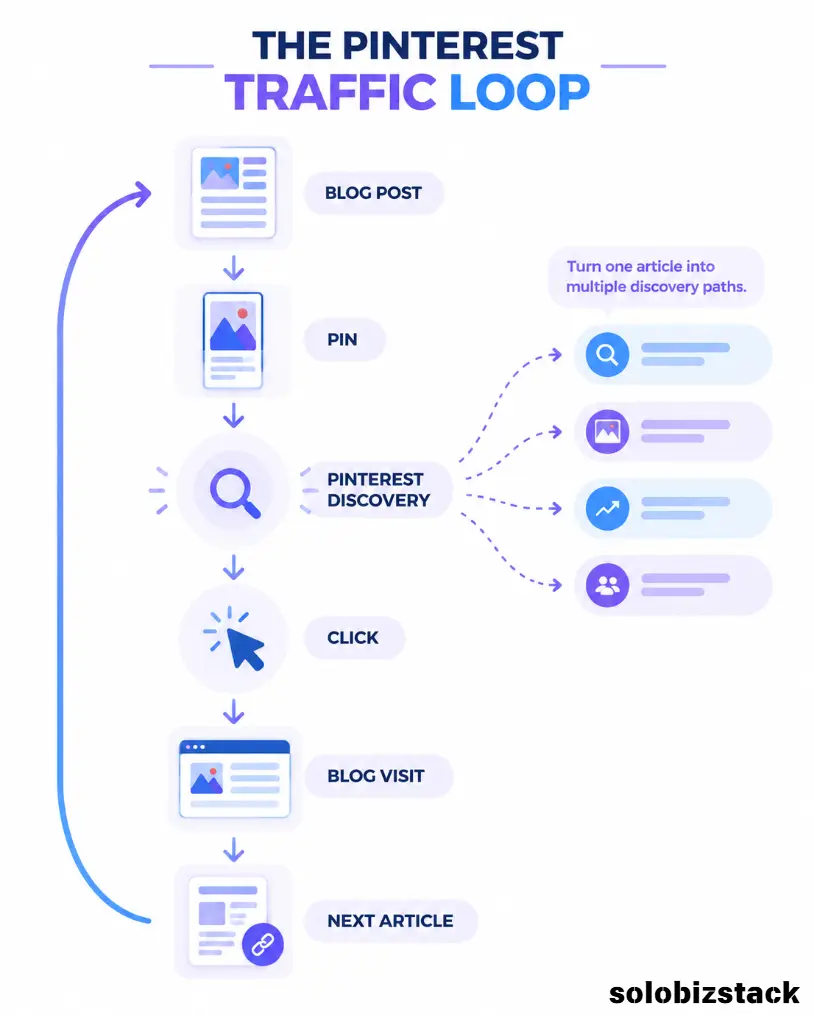
Blog post → Pin → Pinterest search/discovery → Click → Blog
This guide explains how to build that system without spending hours every day on Pinterest.
Quick answer: To use Pinterest to drive traffic to your blog, publish useful articles, turn each important article into several relevant Pins, use natural keywords in your Pin titles and descriptions, link each Pin to the most relevant page, organize Pins into useful boards, and review your Pinterest analytics to see which topics and designs generate outbound clicks. Pinterest’s current Analytics dashboard includes impressions, saves, Pin clicks, and outbound clicks for Pins.
Affiliate disclosure: Some links in this article may be affiliate links. If you purchase through one of these links, SoloBizStack may earn a commission at no extra cost to you.
Why Pinterest Can Work for Bloggers
Pinterest and a traditional social feed are not exactly the same thing.
On many social platforms, a post is heavily tied to when it was published.
Pinterest works differently.
Pinterest says there is no fixed engagement window for Pins. A Pin can gain engagement hours, days, months, or even years after it is first published. Pinterest also says distribution can be affected by searches, saves, engagement, language, location, seasons, holidays, and trends.
That doesn’t mean every Pin will suddenly become a traffic machine months later.
It means useful content can have a longer opportunity to be discovered than a typical time-sensitive social post.
For a blogger, that’s valuable.
Your article might take weeks or months to gain meaningful organic search traffic. Pinterest gives you another discovery channel while you continue building your site.
It also works well with evergreen content.
A guide such as:
How to Build a WordPress Website for Beginners
can remain relevant much longer than a post about a one-day event.
That makes it a good candidate for multiple Pinterest Pin angles over time.
Pinterest Traffic Starts With Your Blog
This sounds obvious, but it’s worth saying.
Pinterest isn’t the business.
Your blog is.
Pinterest is a distribution channel that can send people to the content you’ve created.
That means your first question shouldn’t be:
“What should I post on Pinterest today?”
It should be:
“What useful page on my website do I want more people to discover?”
For SoloBizStack, that might be:
- WordPress tutorials
- Hosting guides
- Website checklists
- AI tools
- Blogging tools
- Pinterest tutorials
- Online business resources
The better your destination page is, the more useful Pinterest traffic becomes.
A beautiful Pin that sends someone to a weak article is still a weak content strategy.
Step 1: Choose Blog Posts That Are Worth Promoting
Don’t try to turn every page on your website into a Pinterest campaign.
Start with articles that solve a clear problem.
Good Pinterest candidates include:
- How-to guides
- Checklists
- Tutorials
- Beginner guides
- Comparisons
- Resource lists
- Templates
- Step-by-step articles
- Visual explanations
For example, these types of SoloBizStack articles make sense:
How to Build a WordPress Website for Beginners
WordPress Website Checklist for Beginners
Best Website Hosting for Beginners
Best AI Writing Tools for Bloggers
Best AI Image Generators for Content Creators
How to Create Blog Images Without a Designer
Each one gives you a clear subject for a Pin.
Your article does not need to be about Pinterest.
It just needs to solve a problem that people might discover on Pinterest.
Step 2: Create a Pinterest-Friendly Content Library
Pinterest works much better when your blog already has useful content to promote.
Instead of creating Pins randomly, build your content library around topics.
For example:
WordPress
- How to Build a WordPress Website
- WordPress Website Checklist
- How to Choose a WordPress Theme
- WordPress Hosting Guides
Content Creation
- AI Writing Tools
- AI Image Generators
- Blog Image Tutorials
- Content Planning
- How to Create Pinterest Pins
- Best Tools for Creating Pinterest Pins
- How to Drive Traffic With Pinterest
This creates natural relationships between your articles.
You can then create Pins for different pages without running out of relevant topics.
It also gives your website a better internal structure.
Step 3: Create Pins for Each Important Article
You don’t need one Pin per article.
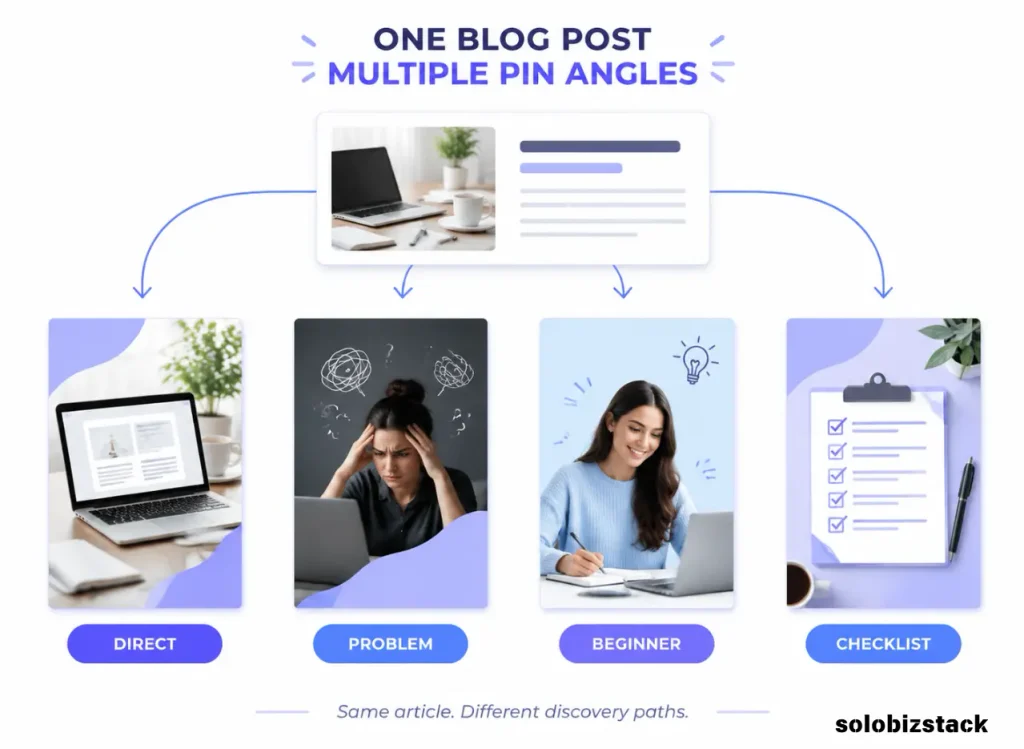
You need different ways to present the same article.
Suppose your article is:
WordPress Website Checklist for Beginners
You could create:
Pin 1 — Direct
WordPress Website Checklist for Beginners
Pin 2 — Problem
15 Things to Check Before Launching Your Website
Pin 3 — Beginner
Your First WordPress Website: Launch Checklist
Pin 4 — Quick Reference
WordPress Website Launch Checklist
All four can point to the same article.
The important part is that each Pin has a genuinely different angle.
Don’t create four copies with a new background color.
The reader should have a reason to notice each one.
Step 4: Use the Right Pinterest Pin Size
Pinterest currently recommends a vertical 2:3 aspect ratio for standard image creative, with 1000 × 1500 px as its example. Pinterest also notes that larger aspect ratios may be cropped in feeds.(business.pinterest.com)
For a blog-focused Pinterest workflow, I recommend:
1000 × 1500 px
This gives you a simple master template in Canva.
Keep your headline large enough to read on a phone.
Pinterest’s own creative guidance emphasizes vertical layouts, visible branding, and a clear visual hierarchy.
For your SoloBizStack Pins, a simple structure works well:
┌──────────────────────┐
│                      │
│  BIG HEADLINE        │
│                      │
│  Short promise       │
│                      │
│      MAIN IMAGE      │
│                      │
│  2–3 key points      │
│                      │
│      SoloBizStack    │
└──────────────────────┘
You don’t need to fill every part of the canvas.
Empty space can actually make a Pin easier to understand.
Step 5: Write Pin Headlines Around Problems
A blog title and a Pinterest headline don’t have to be identical.(help.pinterest.com)
Your article might be called:
How to Build a WordPress Website for Beginners
Your Pin could say:
Build Your First WordPress Website: 10 Simple Steps
Same destination.
Different presentation.
Good Pinterest headlines often focus on:
The result
Build Your First Website
The problem
Don’t Launch Your Website Until You Check These
The number
10 Steps to Start a WordPress Website
The audience
WordPress Guide for Complete Beginners
Try to avoid vague headlines such as:
Blogging Tips
or:
Website Ideas
Tell the reader what they’re going to get.
Step 6: Use Pinterest Keywords Naturally
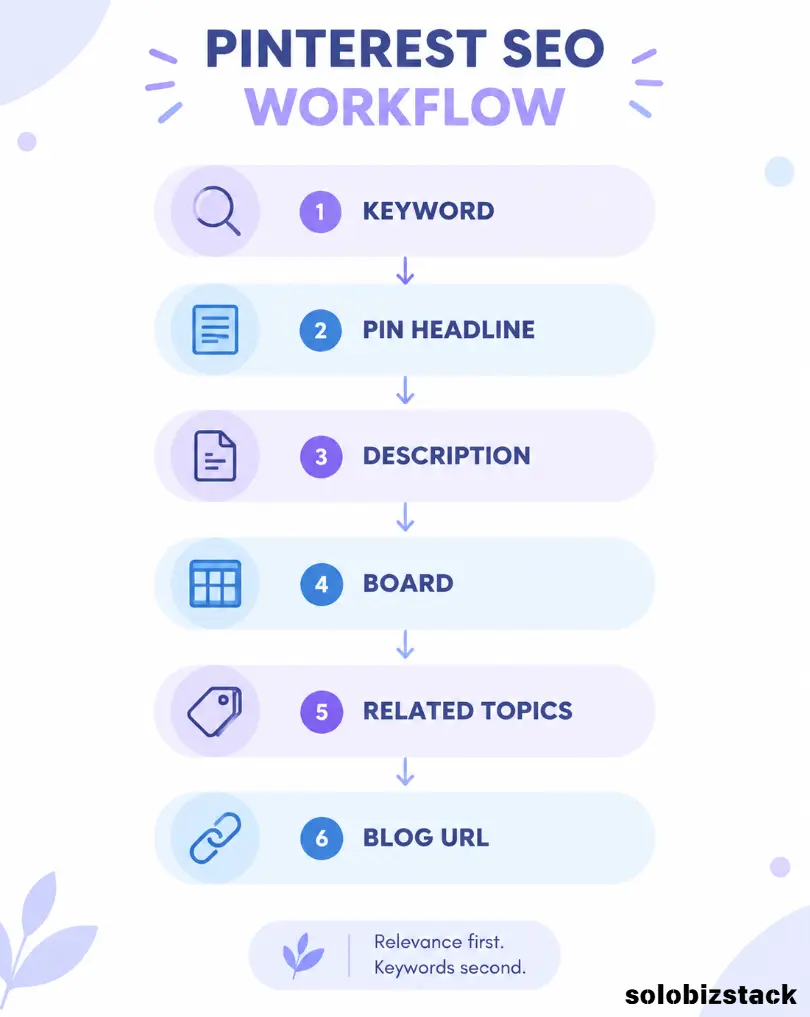
Pinterest is visual, but keywords still matter.
Pinterest’s current guidance recommends using relevant keywords in Pin titles and descriptions, completing available fields, and using related topics where appropriate.
Start with the same language your audience would use when searching.
For a Pinterest article, that might be:
- Pinterest marketing for bloggers
- Pinterest traffic
- Pinterest Pins
- blog traffic
- Pinterest SEO
- promote your blog
- Pinterest strategy
For a WordPress article:
- WordPress for beginners
- build a WordPress website
- WordPress website checklist
- WordPress setup
Don’t put every keyword into every Pin.
Choose one main topic and a few closely related phrases.
The text on the image, Pin title, Pin description, board, and destination page should all make sense together.
Pinterest specifically recommends that the images, text, and keywords in the Pin match the landing page.
Step 7: Write Useful Pin Descriptions
The description should give Pinterest and the reader more context.
A simple formula:
What the article helps with
Who it is for
What they will learn
Relevant keywords naturally included
For example:
Learn how to build a WordPress website from scratch with this beginner-friendly guide. This step-by-step tutorial covers domains, hosting, WordPress installation, themes, essential pages, plugins, SEO, and launch checks.
That’s better than:
WordPress tips! #blog #website #SEO #Pinterest #blogging
The goal is to describe the destination.
Pinterest currently allows up to 500 characters for Pin descriptions and up to 100 characters for titles, with the first 40 title characters more likely to appear on the platform.
You don’t need to use every character.
Useful is better than long.
Step 8: Always Link the Pin to the Right Article
This is one of the most important parts of the whole strategy.
If the Pin says:
How to Create Pinterest Pins for Your Blog
the link should take the visitor to that article.
Not your homepage.
Not a random category.
Not an unrelated affiliate page.
Pinterest provides a Link field when creating a Pin specifically so people can visit a destination URL.
Pinterest also recommends checking that links work correctly and that the landing page clearly provides related content.
This is important for both users and your website.
A visitor who clicks expecting a checklist and lands on a generic homepage hasn’t had a great experience.
Step 9: Create Useful Boards
Your Pinterest boards should make sense from a visitor’s point of view.
For SoloBizStack, possible boards could include:
WordPress Tips
For WordPress tutorials, setup guides, themes, plugins, and website advice.
Blogging Tips
For blogging, content planning, writing, and website growth.
Pinterest Marketing
For Pinterest strategy, Pin design, Pinterest SEO, and traffic tips.
AI Tools for Creators
For AI writing, AI images, productivity tools, and content creation.
Online Business Tools
For hosting, website tools, outsourcing, and business software.
Pinterest recommends clear, descriptive board titles and descriptions so people can understand what the board is about.
Think of boards as categories.
Don’t create a board called:
My Blog Stuff
Make it obvious what someone will find there.
Step 10: Claim Your Website
If you’re using Pinterest to drive traffic to your own blog, claiming your website is an important setup step.
Pinterest says that when you claim and verify your website, you can access analytics for Pins you publish from your site and analytics for Pins other people create from your site. Without claiming the website, content saved from your site isn’t highlighted in Analytics Overview in the same way.
For a blog, this is worth doing early.
It helps connect your Pinterest activity to your website rather than treating Pinterest as a completely separate account.
Make sure your Pinterest account, website domain, and destination URLs are set up consistently before you start publishing at scale.
Step 11: Create a Pinterest Business Account
You don’t need to buy advertising to use Pinterest as a traffic channel.
But a business account gives you access to useful publishing and analytics features.
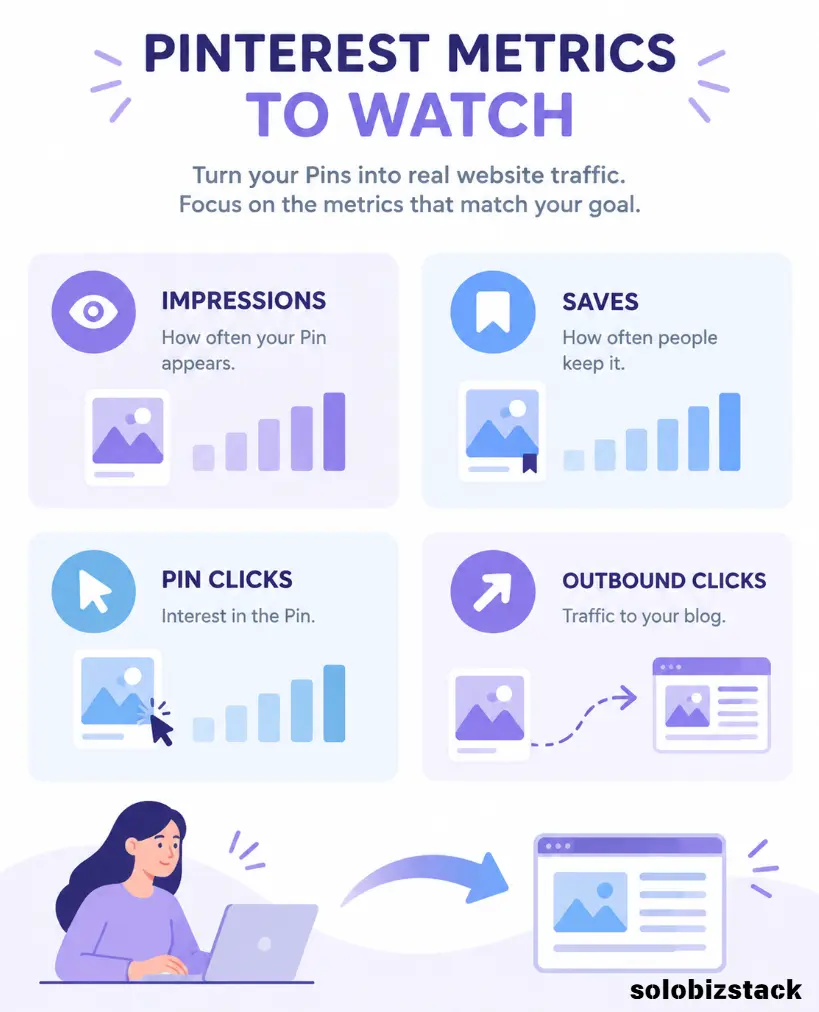
Pinterest says Analytics requires a business account. Its analytics dashboard shows metrics including impressions, saves, Pin clicks, and outbound clicks.
For a blogger, the important word here is:
outbound.
Impressions tell you how often the Pin appeared.
Saves tell you that someone wanted to keep the idea.
Pin clicks show people interacting with the Pin.
Outbound clicks show people actually leaving Pinterest for the destination URL.
If your main goal is blog traffic, that last metric deserves attention.
Step 12: Use Pinterest Analytics to Improve Your Content
Don’t judge your Pinterest strategy by impressions alone.
A Pin can receive thousands of impressions and very few visits to your website.
Look at the whole picture.
High impressions + low outbound clicks
People are seeing the Pin, but the message may not be giving them enough reason to click.
Test:
- Stronger headline
- More specific promise
- Better visual
- Clearer destination
Low impressions + good outbound click rate
The Pin may be useful to the right people but isn’t being discovered often.
Test:
- Better keyword targeting
- Different board placement
- New visual angle
- Related topics
- More relevant content
High saves + low clicks
The content may be useful enough to save but not compelling enough to visit.
Try a clearer reason to continue reading.
High outbound clicks
This is where you pay attention.
Look at the article behind the Pin.
What topic was it?
What headline did the Pin use?
What visual did you choose?
Can you create another useful variation?
Pinterest Analytics lets you filter and sort top Pins and boards by metrics including impressions, engagements, Pin clicks, outbound clicks, and saves.(analytics.pinterest.com)
That’s much more useful than guessing what your audience likes.
Step 13: Don’t Chase Viral Pins
This is especially important for a new blog.
You don’t need every Pin to go viral.
You need a system that produces useful visitors.
Imagine you create a Pin that gets:
20,000 impressions
but only:
40 outbound clicks
Another Pin might get:
2,000 impressions
and:
100 outbound clicks
The second Pin may be much more interesting from a blog-traffic perspective.
The exact numbers above are just an example.
The point is that reach and traffic are different measurements.
For SoloBizStack, I’d pay particular attention to:
Outbound clicks
Outbound click rate
Saves
and then what those visitors do on the website.
Step 14: Create Fresh Pins Instead of Repeating the Same Design
Pinterest says creators should create their own Pins and recommends fresh, high-quality Pins; its guidance also notes that older Pins can resurface later.
That doesn’t mean you need to create a completely new article every time.
It means you can create new visual treatments for existing useful content.
For example:
Article:
Best AI Writing Tools for Bloggers
Pin A:
8 AI Writing Tools for Bloggers
Pin B:
Which AI Writing Tool Should Bloggers Use?
Pin C:
AI Writing Workflow for Bloggers
Pin D:
Best AI Writing Tools Compared
Same article.
Four distinct reasons to discover it.
Step 15: Build a Simple Publishing Schedule
You don’t need to publish dozens of Pins per day.
Start with something you can maintain.
For example:
New blog article
Create:
3 Pin variations
Then:
Schedule them over time
You can use Pinterest’s native scheduling or a third-party tool when your volume grows.
Pinterest’s current business scheduling tool allows business accounts to schedule standard Pins up to 30 days in advance, with up to 10 future Pins scheduled at a time in the native interface.(help.pinterest.com)
If you’re just starting, that may be enough.
You don’t need Tailwind on day one.
When your content library becomes large enough that scheduling takes too much time, then look at a dedicated Pinterest tool.
[Best Tools for Creating Pinterest Pins →]
Step 16: Make Pinterest Part of Your Blog Publishing Process
The easiest way to maintain Pinterest is to make it part of your normal publishing checklist.
Instead of:
Publish article
and then remembering Pinterest a month later,
use:
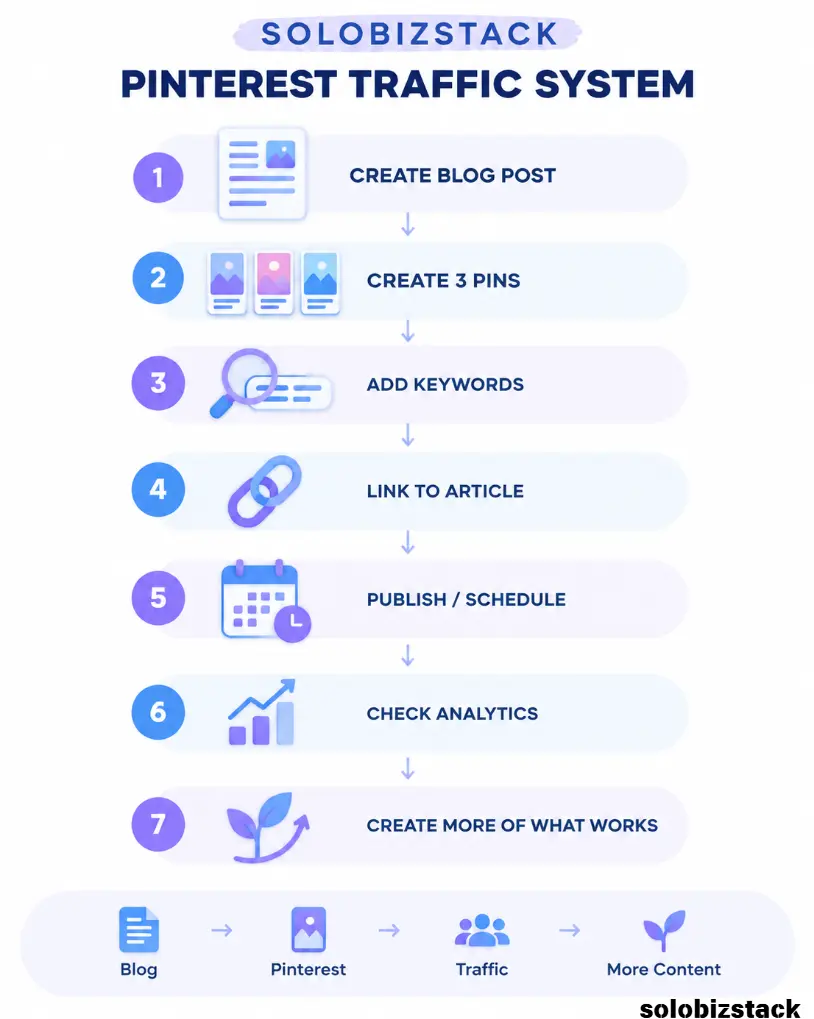
Blog publishing workflow
Write article
↓
Optimize article
↓
Create featured image
↓
Create 2–3 Pinterest Pins
↓
Write Pin titles and descriptions
↓
Add article URL
↓
Choose board
↓
Publish or schedule
↓
Review results later
That turns Pinterest from another task into part of your content system.
Step 17: Use Pinterest Trends Before Writing Some Articles
Pinterest Trends can be useful not just for Pin creation, but for deciding what to write.
Pinterest’s 2026 Marketing Moments Guide describes Pinterest Trends as a way to discover trending keywords and understand what is inspiring users.
For example, instead of brainstorming article topics completely from scratch, you might investigate whether people are searching for:
- WordPress tips
- Blogging workflows
- AI content tools
- Pinterest marketing
- Website checklists
- Content planning
Then compare those ideas with your site’s niche and existing content.
Don’t chase every trend.
Use Pinterest Trends as an additional research signal.
The topic still needs to make sense for your audience and your website.
Step 18: Make Your Blog Worth Clicking
This is the part that gets overlooked.
Pinterest can send someone to your website.
It can’t make them stay on a bad page.
Before promoting an article heavily, check:
- Does the headline match the Pin?
- Is the first screen useful?
- Is the article easy to scan?
- Are the images relevant?
- Are the links working?
- Is the page fast enough?
- Is there a clear next step?
Pinterest itself recommends checking website load speed, broken links, and the relationship between the Pin and landing page. Its current guidance suggests using a speed test and notes that website load time can affect the user experience.
For SoloBizStack, this matters because your Pinterest visitor shouldn’t have to hunt around to find the information promised by the Pin.
Step 19: Connect Pinterest Traffic to Your Internal Links
A Pinterest visitor may land on one article.
That doesn’t mean the session should end there.
Give them another useful step.
For example:
Pinterest Pin
→
WordPress Website Checklist
→
How to Build a WordPress Website
→
Best Website Hosting for Beginners
→
Hostinger vs SiteGround
This is where your existing content library becomes valuable.
A Pinterest visitor who enters through one article can discover several related resources.
You don’t need to sell immediately.
Give them the next useful answer.
Step 20: Add Pinterest Save Opportunities to Your Blog
Pinterest recommends adding a Save button to your website so visitors can save your content directly to Pinterest.
For a content site, this can be useful on:
- Infographics
- Checklists
- Recipes
- Tutorials
- Visual guides
- Printable resources
You don’t necessarily need a Save button on every image.
Use it where saving the content makes sense.
A checklist, for example, is naturally saveable.
A Simple Pinterest Strategy for SoloBizStack
You don’t need a large team.
A simple SoloBizStack workflow could be:
Every new article
Create:
1 featured image
3 Pinterest Pins
Each Pin
Uses:
1 clear keyword
1 strong headline
1 relevant visual
1 destination URL
1 relevant board
Once a month
Check:
Top Pins
Outbound clicks
Saves
Top boards
Best-performing topics
Pinterest Analytics lets you identify which Pins and boards perform best and filter the results by metrics such as outbound clicks and saves.(help.pinterest.com)
Then create more content around the topics that are actually showing useful signals.
Example: How I’d Promote One SoloBizStack Article
Let’s use:
WordPress Website Checklist for Beginners
Pin 1
Headline:
WordPress Website Checklist for Beginners
Description focuses on:
WordPress setup, SEO, mobile, security, and launch checks.
Destination:
WordPress Website Checklist article
Board:
WordPress Tips
Pin 2
Headline:
15 Things to Check Before Launching Your Website
Description focuses on:
Domain, HTTPS, forms, mobile layout, SEO, backups, and links.
Destination:
Same article.
Board:
Website Launch Tips
Pin 3
Headline:
Don’t Launch Your WordPress Website Until You Check These
Description focuses on:
Beginner launch mistakes and final checks.
Destination:
Same article.
Board:
Blogging Tips
Then link internally
The article can send visitors to:
How to Build a WordPress Website for Beginners
and:
Best Website Hosting for Beginners
and:
How to Choose a WordPress Theme
Now one Pinterest campaign is helping more than one page.
Common Pinterest Traffic Mistakes
Sending every Pin to your homepage
Send visitors to the most relevant article.
Focusing only on impressions
Traffic comes from people actually leaving Pinterest.
Using vague headlines
Make the benefit obvious.
Making one Pin and stopping
Build several meaningful angles.
Keyword stuffing
Use natural, relevant language.
Ignoring the article behind the Pin
A Pin can only do so much.
Publishing content your website isn’t ready for
Make sure the destination page is complete.
Changing everything at once
Test one variable at a time when possible.
Buying tools too early
Start with Canva and Pinterest’s native tools. Add scheduling software once volume justifies it.
Frequently Asked Questions
Can Pinterest really drive traffic to a blog?
Yes, Pinterest provides Pins with destination links and analytics that include outbound clicks. Pinterest also says Pins can continue receiving engagement long after publication, although performance varies by topic, audience, language, season, and other factors.
It is better to think of Pinterest as an additional discovery and distribution channel rather than a guaranteed traffic source.
How many Pins should I create for each blog post?
There is no fixed number. For a new blog, 2–4 meaningfully different Pins for an important article is a reasonable starting point.
Should all Pins link to the same blog post?
They can, especially when they’re different angles of the same article. The important thing is that the destination page matches what the Pin promises.
Do Pinterest keywords matter?
Yes. Pinterest’s current guidance recommends relevant keywords in Pin titles and descriptions, along with complete Pin information and relevant topic tags.
What Pinterest metric matters most for blog traffic?
For a blog whose goal is website traffic, outbound clicks and outbound click rate are particularly useful because they measure actions that lead people away from Pinterest to the destination URL. Saves and impressions are still useful context.
Do I need a Pinterest business account?
A business account is useful for bloggers because Pinterest Analytics requires a business account, and business accounts also provide native scheduling for standard Pins.
Should I use Tailwind?
Not necessarily at first. Pinterest’s own tools may be enough while your publishing volume is small. A dedicated scheduler becomes more useful when manual publishing and content planning become time-consuming.
How long does it take to get Pinterest traffic?
There is no reliable universal timeline. Pinterest says Pins can gain engagement hours, days, months, or even years after publication, and performance can vary based on search behavior, seasons, trends, language, location, and other factors.
Can Pinterest replace Google traffic?
It shouldn’t be treated as a replacement. A stronger strategy is to build multiple discovery channels: search traffic, Pinterest traffic, direct traffic, email, and other sources that fit your business.
Final Thoughts
Pinterest can be useful for bloggers because it gives your content another way to be discovered.
But it works much better when you stop thinking about Pinterest as:
“A place where I post my blog links.”
and start thinking about it as:
A visual discovery layer for your content library.
Your blog creates the useful information.
Your Pins package that information into different discovery paths.
Pinterest helps people find those Pins.
Your links bring interested readers back to the site.
Your internal links help them discover the next useful article.
And your analytics tell you what deserves more attention.
That’s the system.Learning how to use Pinterest to drive traffic to your blog doesn’t require a huge audience or a complicated content system.
You don’t need hundreds of Pins before you start.
Start with a small group of useful articles, create a few distinct Pins for each one, make the destinations genuinely helpful, and learn from the data.
Then keep building.
[Read How to Create Pinterest Pins for Your Blog →]
[Explore the Best Tools for Creating Pinterest Pins →]
[Learn How to Create Blog Images Without a Designer →]
[Read Best AI Image Generators for Content Creators →]
Pinterest features, distribution, analytics, specifications, and policies can change. Review current Pinterest documentation when updating this guide.


2 Comments