
How to Build a WordPress Website for Beginners
Updated September 2026
Building your first WordPress website can feel overwhelming. There are domains, hosting, themes, plugins, pages, menus, and SEO settings to figure out—and it’s not always obvious where to start.
The good news is that you don’t need to be a developer to build a WordPress website. With the right setup, you can get a simple, professional-looking site online without writing code.
In this guide, I’ll walk you through the process step by step, from choosing a domain and hosting to installing WordPress, setting up your theme, creating essential pages, and getting your site ready for visitors.
You may be wondering:
- Do I need to know how to code?
- Which hosting should I use?
- How do I install WordPress?
- What theme should I choose?
- Which plugins do I actually need?
- How do I create pages and a navigation menu?
- What should I do before launching?
The good news is that you don’t need to be a developer to build a WordPress website.
WordPress is designed around a visual block-based editing system, allowing you to create and organize content using blocks such as headings, images, paragraphs, buttons, and columns instead of writing everything manually in code.
In this beginner-friendly guide, I’ll walk you through the entire process of building a WordPress website from scratch, from choosing hosting and installing WordPress to creating your pages, setting up your navigation, installing essential plugins, and getting your website ready for visitors.
Quick Answer: How Do You Build a WordPress Website?
To build a WordPress website, you’ll need a domain name, WordPress hosting, and the WordPress software. From there, you can install WordPress, choose a theme, create your main pages, set up your navigation, install essential plugins, optimize your site for search engines, and test everything before launch.
The basic process is:
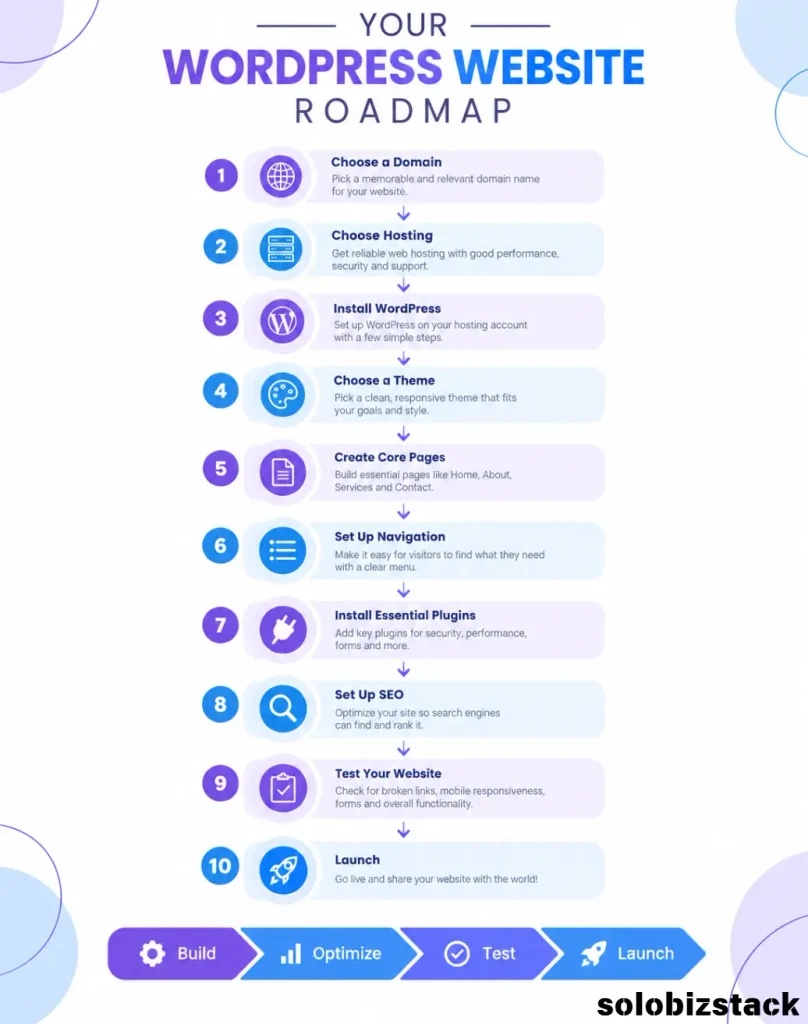
1. Choose a domain name
2. Choose WordPress hosting
3. Install WordPress
4. Configure your basic settings
5. Choose a theme
6. Create your essential pages
7. Set up your navigation
8. Install essential plugins
9. Optimize your site for SEO
10. Test and launch
For most beginners, you don’t need an expensive setup or a complicated technical stack.
A simple WordPress website can start with:
- A domain name
- WordPress hosting
- WordPress
- A lightweight theme
- A few essential plugins
- Useful content
- A basic SEO setup
If you’re starting a blog, affiliate website, portfolio, small business website, or online resource site, this is enough to get started.
What You Need Before Building a WordPress Website
Before you start, there are a few basic pieces you’ll need to understand.
1. Domain name
Your domain name is your website’s address—the name people type into their browser to visit your site.
For example:
yourwebsite.com
Choose something that is:
- Easy to remember
- Easy to spell
- Relevant to your website
- Not unnecessarily long
- Available as a domain
For example, if you’re building a website about online business tools, a brandable name is usually more flexible than something extremely narrow.
2. Web hosting
Web hosting is the service that stores your website’s files and makes them available online.
Think of it this way:
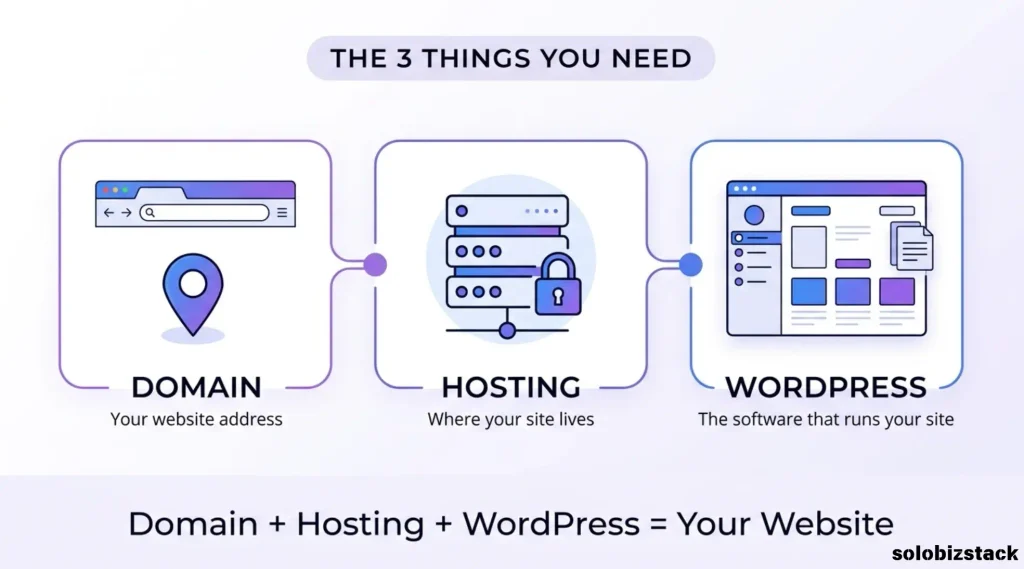
Domain = your address
Hosting = the space where your website lives
WordPress = the software that runs your website
WordPress itself recommends choosing a host that supports the requirements needed to run WordPress, and many hosts provide automated WordPress installation.
For beginners, managed or simplified WordPress hosting can reduce the amount of technical setup required.
Beginner Hosting Options
Your hosting provider is one of the first decisions you’ll make, but you don’t need the most expensive plan when you’re just starting out.
For a new website, look for a host that makes WordPress setup simple and provides the features you’ll actually use, such as SSL, backups, support, and an easy way to manage your site.
Hostinger is one option worth comparing if you’re looking for beginner-friendly WordPress hosting. Its current WordPress plans include features such as automated setup, backups, CDN options, and 24/7 support.
SiteGround is another option to consider, particularly if managed WordPress features and support are important to you. Its WordPress hosting includes features such as backups, CDN, migration tools, and 24/7 support.
Important: Hosting prices and promotional terms change. Always check the provider’s current pricing page before purchasing.
Step 1: Decide What Your Website Is For
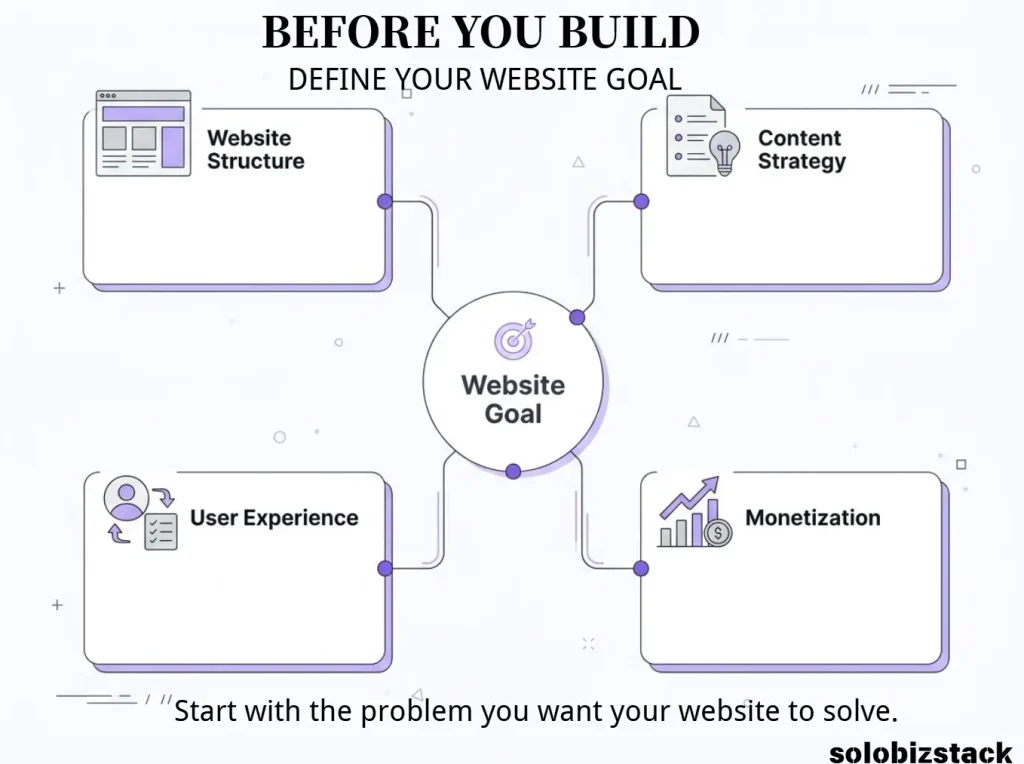
Before buying hosting or choosing a theme, take a few minutes to define what you want your website to do.
Are you building a blog? An affiliate site? A portfolio?
A website for a small business?Knowing the answer will make many of your later decisions easier.
Before touching WordPress, decide what your website is actually going to do.
This step is easy to overlook, but it can save you a lot of work later.
Common types of WordPress websites include:
- Blogs
- Affiliate websites
- Small business websites
- Portfolio sites
- Personal brands
- Online stores
- Membership sites
- Resource websites
You don’t need a perfect business plan before you start. You just need a clear enough direction to decide what your website should help visitors do.
For example, SoloBizStack is designed around:
Tools, guides, comparisons, and resources for people building one-person online businesses.
That decision influences your:
- Navigation
- Categories
- Pages
- Content strategy
- Monetization
- Internal linking
A simple rule
Don’t start by asking:
“What should my homepage look like?”
Start with:
“What should a visitor be able to accomplish on my website?”
This makes the rest of the setup much easier.
Step 2: Choose a Domain Name
Your domain is one of the first things visitors will associate with your website, so keep it simple.
A good domain name should be:
- Easy to remember
- Easy to spell
- Easy to pronounce
- Relatively short
- Flexible enough for future content
Don’t try to force your main keyword into the domain just for SEO. A memorable brand name can give you more flexibility as your website grows.
Once you know your website’s purpose, choose your domain.
Avoid:
- Excessively long domains
- Difficult spelling
- Too many hyphens
- Numbers unless they are part of your brand
- Trademarked names
- Names that lock you into one narrow topic
Pro Tip
Don’t obsess over finding a “perfect” domain.
A clear, memorable brand that you can build content around is usually more useful than trying to create a domain stuffed with keywords.
Step 3: Choose Your WordPress Hosting
What should beginners look for in WordPress hosting?
Look for:
- Easy WordPress installation
- SSL
- Regular backups
- Reliable customer support
- Enough storage and resources for your website
- Simple website management
- A clear upgrade path as your site grows
Option 1: Hostinger
Hostinger currently advertises WordPress hosting with one-click setup, free weekly backups on its Premium plan, CDN, AI tools, and 24/7 priority support.
Option 2: SiteGround
SiteGround currently advertises one-click WordPress setup, free migration, free domain promotions, backups, CDN, and 24/7 human support.
Check SiteGround WordPress Hosting →
Which Hosting Should a Beginner Choose?
There isn’t one hosting provider that is right for every website.
Consider:
| Factor | What to Look At |
|---|---|
| Budget | Introductory and renewal pricing |
| Website size | Storage and resource limits |
| Number of sites | How many websites you can host |
| Support | Availability and support options |
| Backups | Frequency and restoration options |
| WordPress tools | Setup, migration, updates |
| Growth | Whether the plan can handle future needs |
For a more detailed comparison:
[Hostinger vs SiteGround: Which Is Better for Beginners? →]
Step 4: Install WordPress
Once your hosting account is ready, the next step is installing WordPress.
Most beginner-friendly hosting providers offer a guided or automated WordPress installation process, so you usually won’t need to upload WordPress files manually.
ou’ll typically need to enter:
- Website name
- Domain name
- Admin email
- Username
- Password
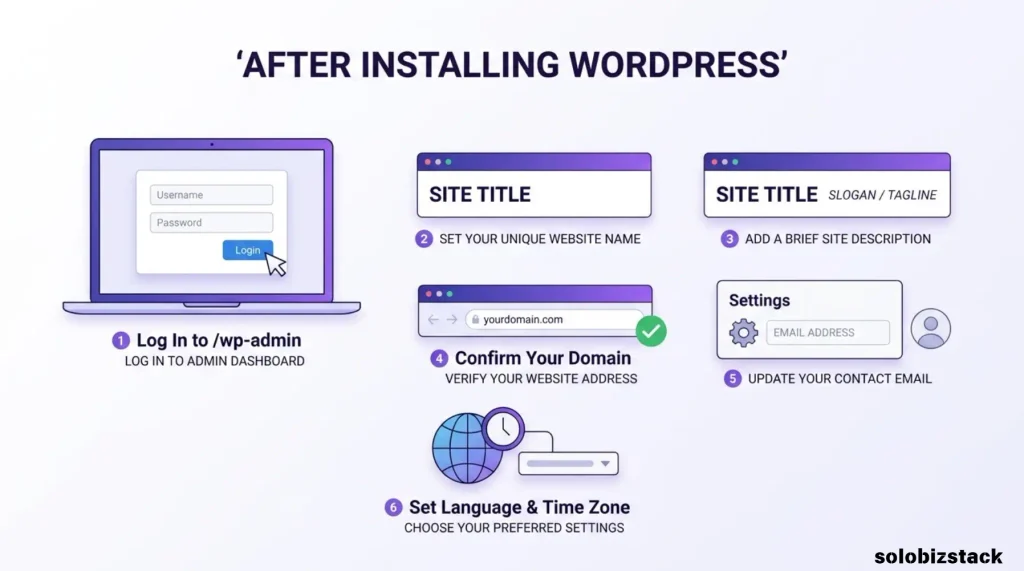
Once the installation is complete, you can usually access your WordPress dashboard by going to yourdomain.com/wp-admin.
Step 5: Set Up Your Basic WordPress Settings
After logging into WordPress, don’t immediately start installing dozens of plugins.
First, configure the basics.
Go to:
Settings → General
Check:
- Site Title
- Tagline
- WordPress Address
- Site Address
- Administration Email
- Site Language
- Time Zone
For SoloBizStack, for example:
Site Title:
SoloBizStack
Tagline:
Tools, Guides & Resources for One-Person Businesses
Set Your Permalink Structure
Go to:
Settings → Permalinks
For most content websites, a clean structure such as:
yourdomain.com/sample-post/
is easier for visitors and search engines to understand than URLs containing unnecessary parameters.
For example:
Good:
/how-to-build-a-wordpress-website/
Less useful:
/?p=123
After changing the permalink setting, save your changes.
Step 6: Choose a WordPress Theme
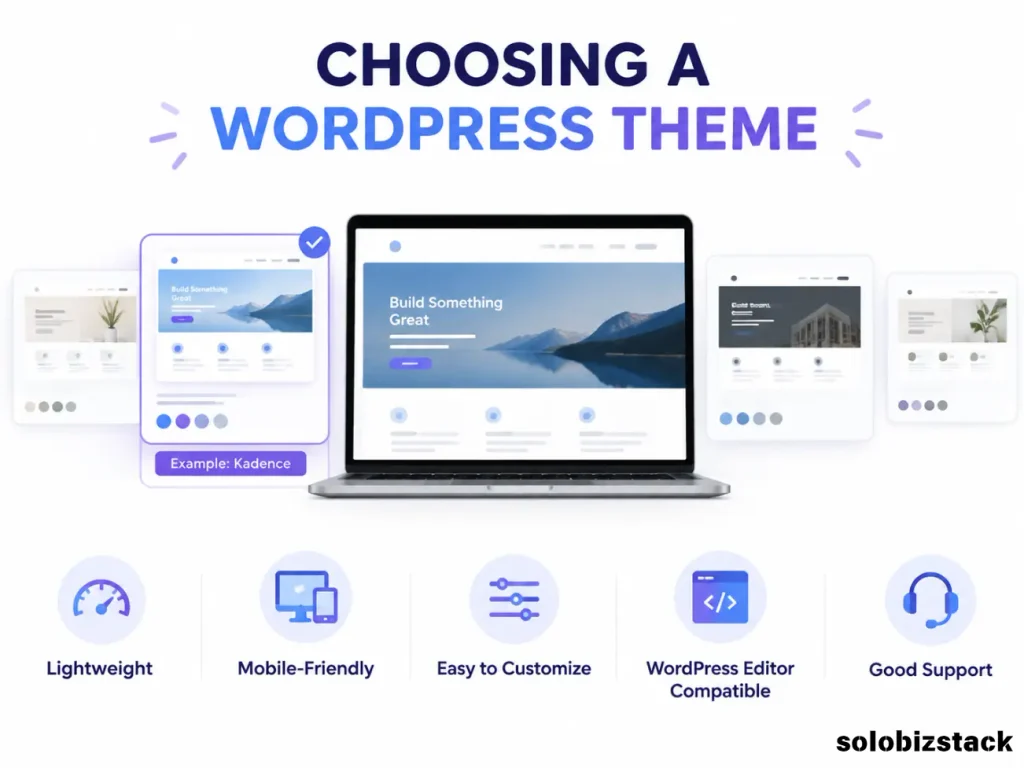
Your theme controls the overall look and layout of your website. For a new site, you don’t need dozens of customization options. Look for a theme that’s lightweight, responsive, easy to customize, and compatible with the WordPress editor.
Kadence is one option you can consider if you’re looking for a flexible theme with a free version. It works well with the WordPress block editor and Kadence Blocks, making it suitable for building content-focused websites without a lot of custom code.
Step 7: Create Your Essential Pages
Before publishing your first blog post, create the pages visitors will need to understand and navigate your website.
Core Pages
- Home
- Blog
- About
- Contact
Resource Pages
- Tools
- Comparisons
- Outsourcing
Legal Pages
- Privacy Policy
- Terms & Conditions
- Cookie Policy
- Affiliate Disclosure
Step 8: Set Up Your Website Navigation
Your navigation should make it easy for visitors to find your main topics without having to search for them.
For SoloBizStack, the main navigation can be:
Build
Create
Grow
Sell
Tools
Blog
Tools:
All Tools
Tool Comparisons
Website Tools
AI Tools
SEO Tools
Email Tools
Content Tools
Marketing Tools
Keep your main navigation focused. You don’t need to put every page on your website in the header.
Step 9: Install the Essential WordPress Plugins
Plugins add extra functionality to WordPress, but you don’t need to install a plugin for every feature you might want someday.
Start with the essentials and add premium tools only when you have a specific need. This is usually a better approach than investing in multiple premium plugins before you know what your website actually needs.
| Purpose | Example |
|---|---|
| SEO | Rank Math |
| Blocks & Layouts | Kadence Blocks |
| Affiliate Links | Pretty Links |
| Analytics | Google Analytics |
| Search Performance | Google Search Console |
| Security | A suitable security solution |
| Backups | A reliable backup solution |
Step 10: Build Your Homepage
Your homepage should quickly explain:
- What your website is about
- Who it helps
- What visitors can do next
A simple structure works extremely well.
Hero
Build. Create. Grow. Sell.
Practical tools, guides, and resources for building a one-person online business.
[Explore the Toolkit →]
[Browse Tools →]
What We Cover
Build
Websites, WordPress, hosting, and online foundations.
Create
AI tools, content creation, design, and productivity.
Grow
SEO, Pinterest, email marketing, and audience growth.
Sell
Affiliate marketing, digital products, monetization, and outsourcing.
Step 11: Set Up Basic SEO
SEO starts with making your website easy for both people and search engines to understand. You don’t need to master advanced SEO before publishing your first article. Start with the basics.
Focus on these areas:
1. Clear page titles
2. Descriptive URLs
3. Useful headings
4. Helpful content
5. Internal links
6. Image alt text
7. Mobile usability
8. Fast, accessible pages
Step 12: Structure Your Content for Search and AI
Search is no longer limited to traditional search results. People increasingly use AI-powered tools to find answers and discover websites.
You don’t need a separate “AI SEO trick.” Instead, focus on making your content clear, well structured, accurate, and genuinely useful.
A useful structure is:
Question → Direct Answer → Explanation → Steps → Examples
For example:
How do you build a WordPress website?
To build a WordPress website, choose a domain and hosting provider, install WordPress, configure your basic settings, choose a theme, create your essential pages, set up navigation, install the plugins you actually need, and test your website before launching.
Step 13: Build an Internal Linking Structure
Don’t treat each blog post as a standalone page. Link related articles together so readers can easily continue learning and search engines can discover the relationships between your content.
For this article, your internal link structure can look like this:
How to Build a WordPress Website
          │
          ├── Best Website Hosting for Beginners
          │       │
          │       ├── Hostinger Review
          │       ├── SiteGround Review
          │       └── Hostinger vs SiteGround
          │
          ├── How to Choose a WordPress Theme
          │       │
          │       └── Kadence vs Elementor
          │
          └── WordPress Website Checklist
This eventually creates a Build content cluster.
Step 14: Test Your Website Before Launch
Before telling people about your website, go through this checklist.
Website Checklist
Website
- Domain works
- Homepage loads
- Navigation works
- Contact form works
Mobile
- Text is readable
- Buttons are easy to tap
- Images display correctly
- Navigation works
SEO
- SEO plugin configured
- Sitemap available
- Search engines aren’t blocked
- Important pages have titles and descriptions
- Internal links work
Content
- About page
- Contact page
- Legal pages
- First articles
- Images optimized
How Much Does It Cost to Build a WordPress Website?
The cost depends on the type of website you’re building and the tools you choose.
For a basic website, the main expense is usually hosting, while the WordPress software itself is free. Your domain may be included with some hosting plans, while themes, plugins, professional design, and other services can add to the cost.
[Read: How Much Does It Cost to Build a Website? →]
Do You Need Coding Skills to Build a WordPress Website?
No. You can build many types of WordPress websites without knowing how to code.
WordPress’s block editor lets you create pages and posts using visual blocks for headings, text, images, buttons, columns, and other elements.
You may eventually learn some HTML or CSS if you want more control over your site’s design, but you don’t need those skills to get started.
7 Common WordPress Mistakes Beginners Should Avoid
1.Spending too long choosing a theme
2.Installing too many plugins
3.Trying to make everything perfect before publishing
4.Writing only for search engines
5.Creating too many categories
6.Ignoring mobile users
7.Adding affiliate links before providing useful information
Affiliate links should support the content, not replace it. Give readers enough information to make an informed decision before asking them to click through to a product or service.
How to Monetize a WordPress Website
Once your website has useful content and a clear audience, you can start thinking about monetization. You don’t need to add every revenue stream at once.
Affiliate Marketing
Recommend relevant products or services and earn a commission when eligible purchases are made through your links.
Examples:
- Hosting
- SEO tools
- Email platforms
- Website builders
- AI tools
- Freelance services
Digital Products
Eventually you could sell:
- Templates
- Checklists
- Guides
- Courses
- Notion templates
- WordPress resources
Services
You could offer:
- Website setup
- SEO
- Content creation
- Consulting
- Design
Outsourcing
If you don’t want to perform a task yourself, you can also outsource specialized work.
[Explore Outsourcing Options →]
A Simple WordPress Website Setup for Beginners
If I were creating a simple content-focused WordPress website from scratch, the basic stack could look like this:
| Component | Example |
|---|---|
| CMS | WordPress |
| Theme | Kadence |
| Blocks | Kadence Blocks |
| Hosting | Hostinger / SiteGround |
| SEO | Rank Math |
| Affiliate Links | Pretty Links |
| Analytics | Google Analytics |
| Search | Google Search Console |
| Content | WordPress Block Editor |
You don’t have to use exactly this stack.
The important thing is to keep the system simple enough that you can actually maintain it.
Your WordPress Website Roadmap
Once your website is online, don’t stop at the launch.
A better long-term process is:
Month 1
Build the foundation
- Website
- Hosting
- Theme
- Core pages
- Navigation
- First articles
Month 2
Create useful content
- Beginner guides
- How-to articles
- Tool reviews
- Tutorials
Month 3
Build traffic
- SEO
- Internal linking
- Search Console
- Content updates
Month 4+
Improve monetization
- Affiliate programs
- Tool comparisons
- Commercial-intent content
- Email list
- Digital products
- Outsourcing
The goal isn’t simply to “have a website.”
The goal is to build a useful resource that gradually attracts visitors and helps them solve problems.
Frequently Asked Questions
Is WordPress good for beginners?
Yes. WordPress provides a visual block-based editing experience and a large ecosystem of themes and plugins, allowing beginners to build many types of websites without having to write all of the code themselves.
How much does it cost to start a WordPress website?
The main unavoidable cost for most self-hosted WordPress websites is hosting, while the domain may be included with some hosting plans for an introductory period. Themes and plugins can be free or paid depending on your requirements.
Can I build a WordPress website without coding?
Yes. A typical blog, affiliate site, portfolio, or small business website can be built using WordPress’s visual editor and plugins without requiring you to write code.
Which hosting is best for a WordPress beginner?
There isn’t one universally best hosting provider. Compare the total introductory cost, renewal pricing, number of websites, storage, backups, support, migration tools, and features you actually need.
Do I need a premium WordPress theme?
No.
A free theme can be enough to launch a new website. You can upgrade later if you have a specific design or functionality requirement.
How many plugins should I install?
There is no magic number.
Install the plugins you actually need and avoid overlapping functionality.
How long does it take to build a WordPress website?
A basic website can potentially be set up in a day, but a useful website takes longer because content, navigation, SEO, design, testing, and other details need to be developed.
Can I make money with a WordPress website?
Yes, but WordPress itself doesn’t generate income automatically.
You need a business model such as affiliate marketing, advertising, digital products, services, memberships, ecommerce, or another monetization method.
Final WordPress Website Checklist
Before you launch, make sure you can answer yes to these questions:
- Do I have a domain?
- Do I have reliable hosting?
- Is WordPress installed?
- Is HTTPS working?
- Is my site title correct?
- Is my theme configured?
- Does my mobile layout work?
- Do I have a homepage?
- Do I have an About page?
- Do I have a Contact page?
- Does my navigation work?
- Are my categories organized?
- Are unnecessary plugins removed?
- Is my SEO plugin configured?
- Can Google crawl my website?
- Is Google Search Console connected?
- Are my important links working?
- Are affiliate disclosures present when needed?
- Have I tested the website on mobile?
If you’ve checked these boxes, you have the foundation for a real WordPress website.
What Should You Do After Building Your WordPress Website?
Getting your website online is only the beginning. The next step is building useful content that answers the questions your audience is already searching for.
Start Here
[Best Website Hosting for Beginners →]
[How to Choose a WordPress Theme →]
[WordPress Website Checklist →]
Explore Tools
Need Help With Specialized Work?
Recommended Tools
Looking for beginner-friendly WordPress hosting?
Compare current plans, features, storage, backups, and support before choosing a hosting provider.
Considering SiteGround?
Explore its current WordPress hosting plans and compare the features that matter for your website.
Pricing and plan features may change. Check the provider’s website for current details.
16 Comments